Connect an AI app
Connect Claude, Claude Code, Claude Desktop, ChatGPT, GitHub Copilot, Microsoft Copilot and Codex to Volatilis GRC.
Role needed
The server URL is the same for every app:
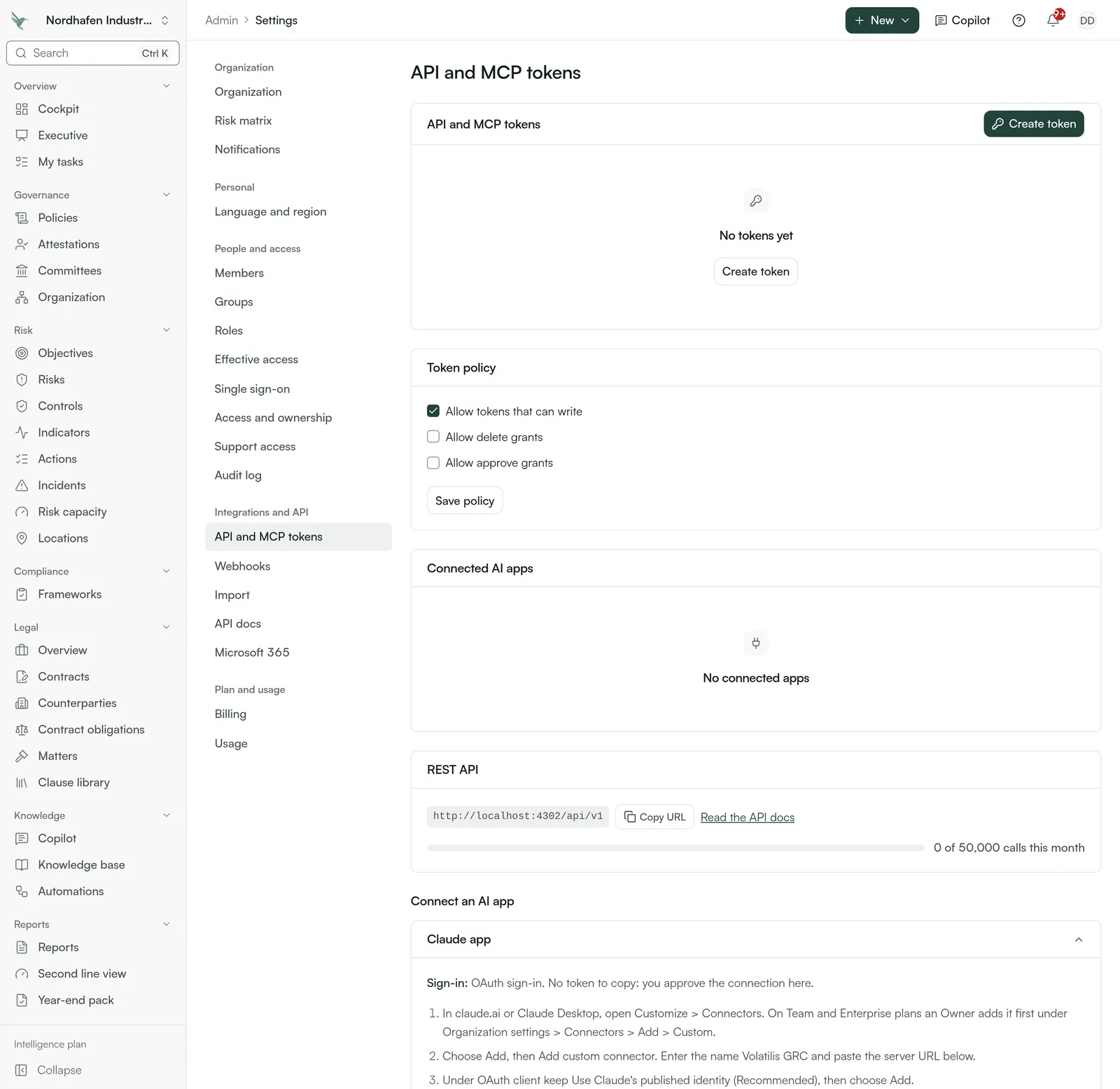
https://grc.volatilis.org/api/mcpSettings, API and MCP tokens has a section "Connect an AI app" with step-by-step instructions for each app, with your own server URL filled in. This page gives the overview.
Choose the app
| App | Sign-in | What to enter |
|---|---|---|
| Claude app (claude.ai, Claude Desktop, mobile) | OAuth | A custom connector named Volatilis GRC with the server URL, see below |
| Claude Code | OAuth or token | The add command below, then /mcp |
| ChatGPT | OAuth | A custom MCP server with the server URL, see below |
| Claude Desktop (config file) | Token | The mcp-remote bridge, see below |
| GitHub Copilot in VS Code | OAuth or token | mcp.json with the URL |
| GitHub Copilot cloud agent | Token only | A secret and an MCP configuration that lists the tools |
| Microsoft Copilot Studio | OAuth with dynamic discovery, or token | The server URL with ?tools=compact, see below |
| Microsoft 365 Copilot and Teams | OAuth | The Volatilis agent package from Settings, Microsoft 365, installed by your Microsoft 365 admin, see below |
| OpenAI Codex | OAuth or token | config.toml |
Connect with OAuth
Add the server URL in the app, using the OAuth option. Let the app register itself when it offers to.
Start the connection. Your browser opens Volatilis GRC. Sign in if you have not already.
On the consent screen choose the Organization and the Access: "Read only" or "Read and write". "Read and write" gives the app write access on the modules your role may change. It never includes delete or approve. Read what the app will be able to do, then choose "Allow access". Choose "Deny" to stop.
Above the choices the screen says "Known app" when the app returns to Claude (claude.ai, claude.com), ChatGPT (chatgpt.com), Microsoft Teams or Copilot Studio. Any other app shows "Unverified app" with the address it returns to, because an app chooses its own name. If you signed in with Microsoft, the organization linked to your Microsoft tenant is chosen for you. If you belong to one organization only, "Allow access" is the only click.
You return to the app. It now shows the tools. To remove the connection later, open Settings, API and MCP tokens and choose Disconnect on the app under "Connected AI apps".
The access you choose is never wider than what the app asked for or what your role allows. If your role is read only, only Read is offered.
Connect with an access token
Create a token under Settings, API and MCP tokens. Use the preset "Read only" for apps that only search. Tick Write on the modules an app may change. See Authentication.
Enter it in the app as a bearer token, in the header Authorization: Bearer vgrc_YOUR_TOKEN.
Claude Code, with OAuth or a token:
claude mcp add --transport http volatilis-grc https://grc.volatilis.org/api/mcp
claude mcp add --transport http volatilis-grc https://grc.volatilis.org/api/mcp --header "Authorization: Bearer vgrc_YOUR_TOKEN"
Run the first command for OAuth, then /mcp in Claude Code and choose Authenticate. Run the second one instead if you use a token.
Claude app
Open Customize, Connectors in claude.ai or Claude Desktop. On Team and Enterprise plans an Owner adds the connector first under Organization settings, Connectors.
Choose "+ Add", then "Add custom connector". Enter the name Volatilis GRC and the server URL, then choose "Continue".
Under OAuth client keep "Use Claude's published identity (Recommended)" and choose "Add". Claude then identifies itself with its own client document and does not register a client.
Choose Connect, sign in to Volatilis GRC and choose "Allow access". In a chat, turn the connector on from the "+" menu under Connectors.
ChatGPT
Open Plugins in ChatGPT (chatgpt.com/plugins), select "+" and then "Add custom MCP server".
Enter the name Volatilis GRC and a short description. Under Connection enter the server URL.
Set the authentication to OAuth, read the warning, select "I understand and want to continue" and then "Create as a plugin".
Sign in to Volatilis GRC and choose "Allow access". ChatGPT then lists the tools.
Custom MCP servers are not offered on every ChatGPT plan, and in a workspace an admin may have to allow them.
Claude Desktop with a token needs Node.js. Add this to claude_desktop_config.json and restart the app:
{
  "mcpServers": {
    "volatilis-grc": {
      "command": "npx",
      "args": [
        "-y",
        "mcp-remote",
        "https://grc.volatilis.org/api/mcp",
        "--header",
        "Authorization: Bearer vgrc_YOUR_TOKEN"
      ]
    }
  }
}
Codex:
codex mcp add volatilis-grc --url https://grc.volatilis.org/api/mcp
codex mcp login volatilis-grc
Microsoft 365 Copilot and Teams
The Volatilis agent for Microsoft 365 Copilot and Teams is installed in your own Microsoft 365 tenant. An admin downloads the agent package under Settings, Microsoft 365, uploads it in the Microsoft 365 admin center and deploys it to users or groups. Each person then signs in once and approves the connection on the consent screen. The steps are in Microsoft 365 agent. The agent connects with OAuth through a client Volatilis registered with Microsoft, so nobody registers a client by hand.
To build your own agent instead, use Microsoft Copilot Studio with the server URL in compact mode, https://grc.volatilis.org/api/mcp?tools=compact (OAuth, Dynamic discovery), and publish it to Teams and Microsoft 365 Copilot.
Use compact mode for every Copilot Studio and Microsoft 365 agent. The agent then sees three tools (find_tools, describe_tool, call_tool) instead of one per task, which keeps its tool list small, and their inputs avoid schema features Copilot Studio does not read. If your connector ends at /api/mcp, add the query parameter tools with the value compact to the connector instead. See Compact mode.
Keep it safe
- Start with Read. Add write only for the modules the app needs. Delete and Approve stay off unless you tick them, and an admin can switch them off for the whole organization.
- The GitHub Copilot cloud agent uses the tools you list without asking. Keep its token on read and list only the read tools.
- Revoke a token or disconnect an app in Settings, API and MCP tokens if a laptop is lost. It takes effect at once.
MCP overview
Let an AI assistant search and change records in Volatilis GRC through the Model Context Protocol, with the access of the person who connects it, narrowed by the grants of the token.
Tools, prompts and resources
What an AI app can call, ask for and read once it is connected to Volatilis GRC.