Contact support
How to contact Volatilis Support from the app: the new request form, the technical details we send, request statuses, replies, ratings, and what the Foundation plan offers instead.
Use Help and support when the documentation and the Copilot did not answer your question. A support request goes to a person at Volatilis, and you follow the answer in the app. Support requests are part of Intelligence and Tailored.
Plan needed
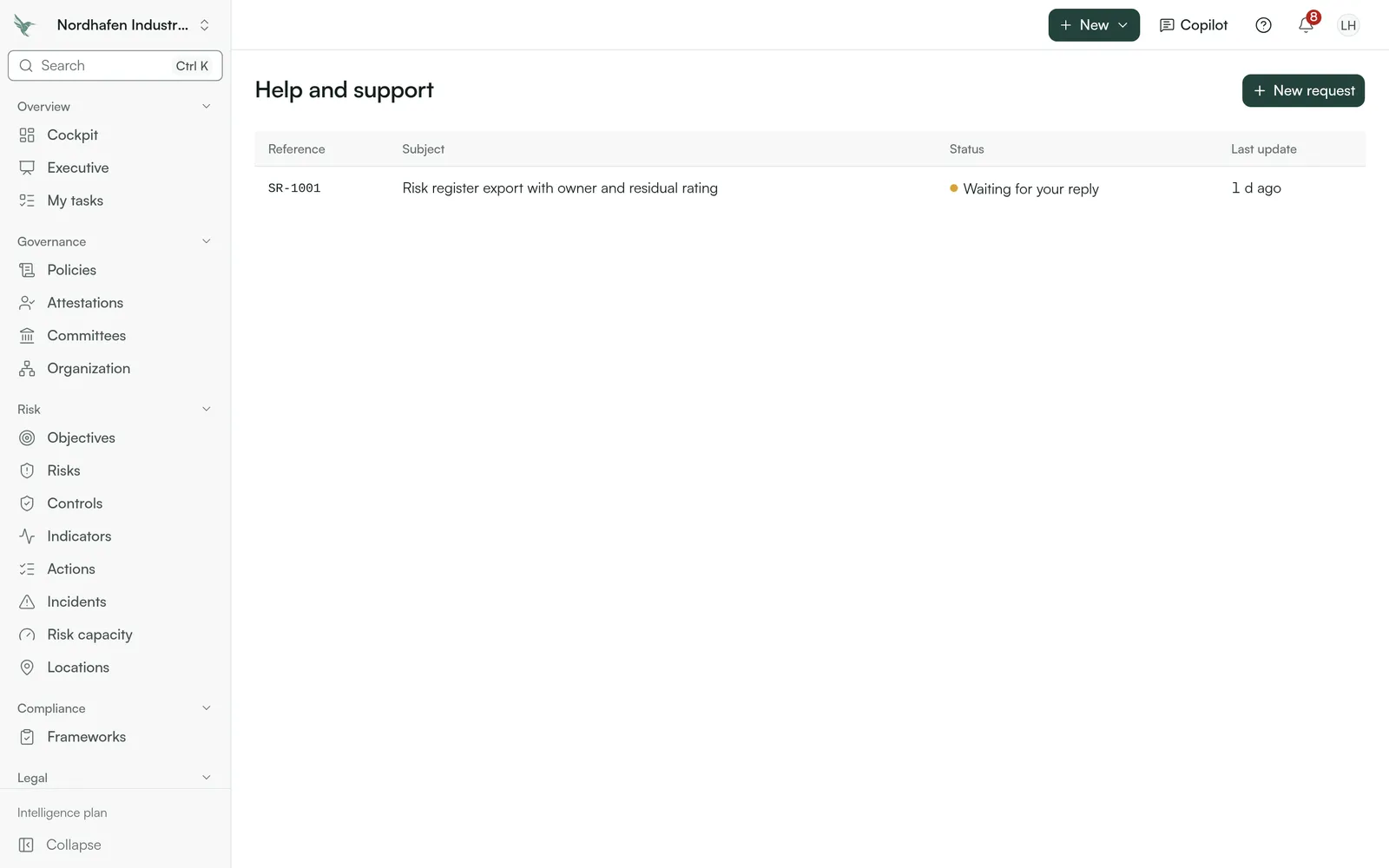
How do I contact support?
/support and choose New request.Where Volatilis has enabled it, you can also answer a support email directly: your reply is added to the request like a reply in the app, and quoted earlier text is cut off. Only the address the email was sent to can reply this way, and your mail provider must authenticate the message for the domain of your From address (DKIM signature of that domain, or SPF on that domain); other replies are ignored, so reply from your normal mailbox, and the same plan rules apply as in the app.
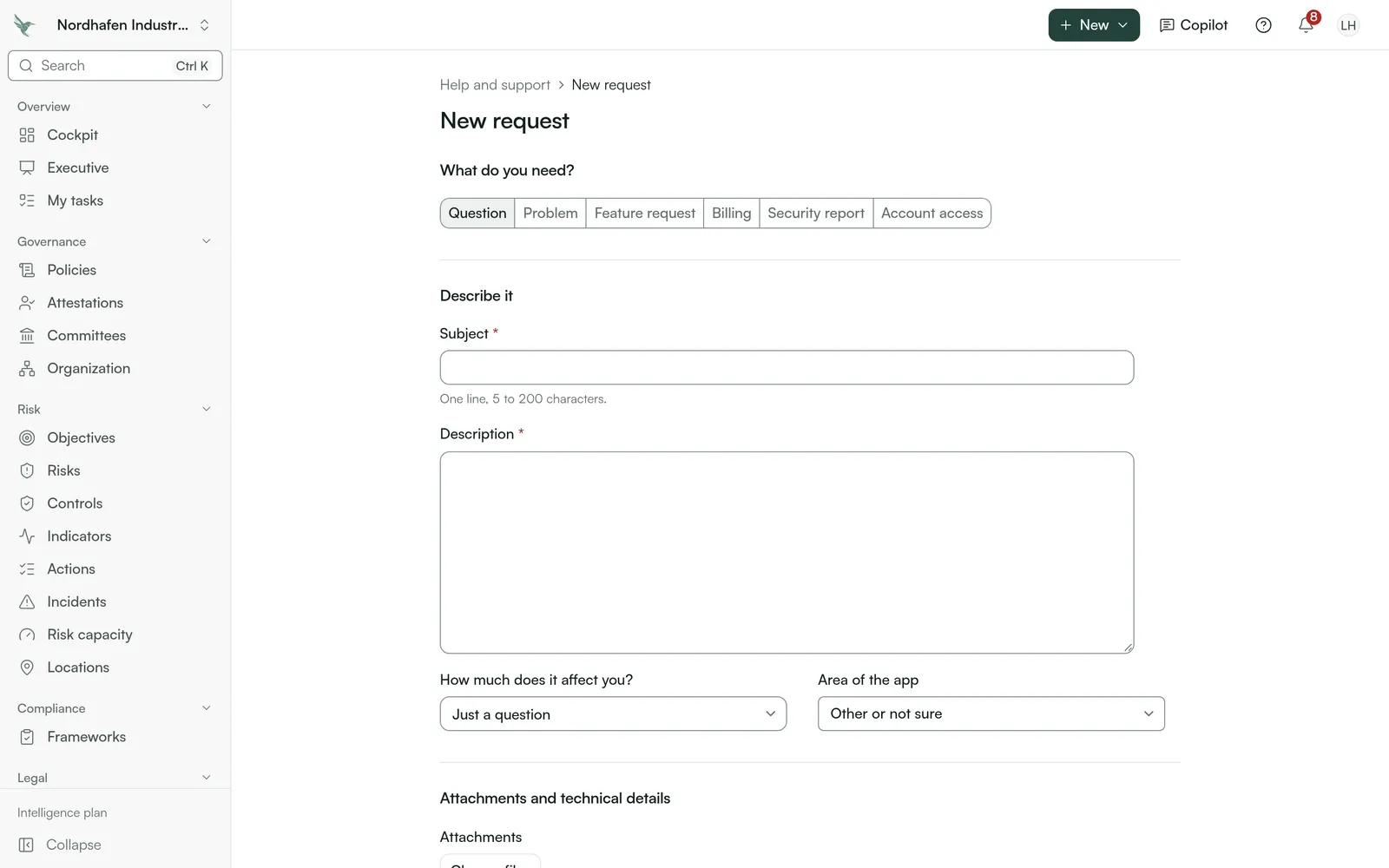
You can start a request from several places:
- The ? in the top bar opens the Help and support menu with Help for this page, Documentation, Ask the Copilot, Contact support, My support requests and What's new. On the Foundation plan the menu shows the support address and the plan comparison instead of Contact support.
- An error page shows Report this problem. It opens the form as a Problem, with the error reference and the page filled in.
- The sign-in page has Trouble signing in?, which explains how to reach
support@volatilis.orgwithout an account.
Every role can open a request. When the form is opened from another page, it fills in the area of the app and, after an error, the error reference. You can change everything before you send.
| Field | What it is |
|---|---|
| Type | Question, Problem, Feature request, Billing, Security report, Account access. |
| Impact | Just a question, Something is wrong and I can keep working, Blocks my work, Blocks my team or the whole organization. |
| Area of the app | The module the problem is in, or Other or not sure. |
| Subject and description | Plain text. Links are shown as text, never as formatted content. |
| Colleagues | People from your organization who then see the request and can reply. |
What are technical details, and what do you send?
Under Technical details we will send the form lists every value, each with a tick. All are on at first. Untick what you do not want to send. Only the ticked values are sent, exactly as shown. Nothing is sent silently.
| Item | Example |
|---|---|
| Page | /risks (the route, without the query string) |
| App version | The version you are running |
| Browser and system | Chrome 156 on Windows |
| Language | The language of the app |
| Time zone | Your time zone setting |
| Organization | Your organization's name |
| Plan | Your plan |
| Error references | The last error references of this session, at most five |
We capture nothing else: no screenshots, no page content, no record data, no console logs. After sending, the request page shows the technical details we received.
How do I attach a screenshot or a file?
Choose Choose files, or paste a screenshot from the clipboard into the description. You can attach up to 10 files per message. A file can be up to 20 MB and must fit your plan's file limit. Allowed types are images (PNG, JPG, GIF, WebP), PDF, text, log, Markdown, CSV, JSON, DOCX and XLSX. Attached files count towards your storage. Volatilis Support can attach files to its replies too; they appear in the thread and as links in the reply email (you need to be signed in to open them).
Do not attach more than you need. Volatilis Support sees only what you write, attach and tick in the request.
What do the statuses mean?
| Status | Meaning |
|---|---|
| Received | Your request arrived. |
| In progress | Volatilis Support is working on it. |
| Waiting for your reply | Support asked you something. |
| Resolved | Support marked it as answered. You can still reply or reopen it. |
| Closed | The request is finished. |
How do I reply, close, reopen and rate?
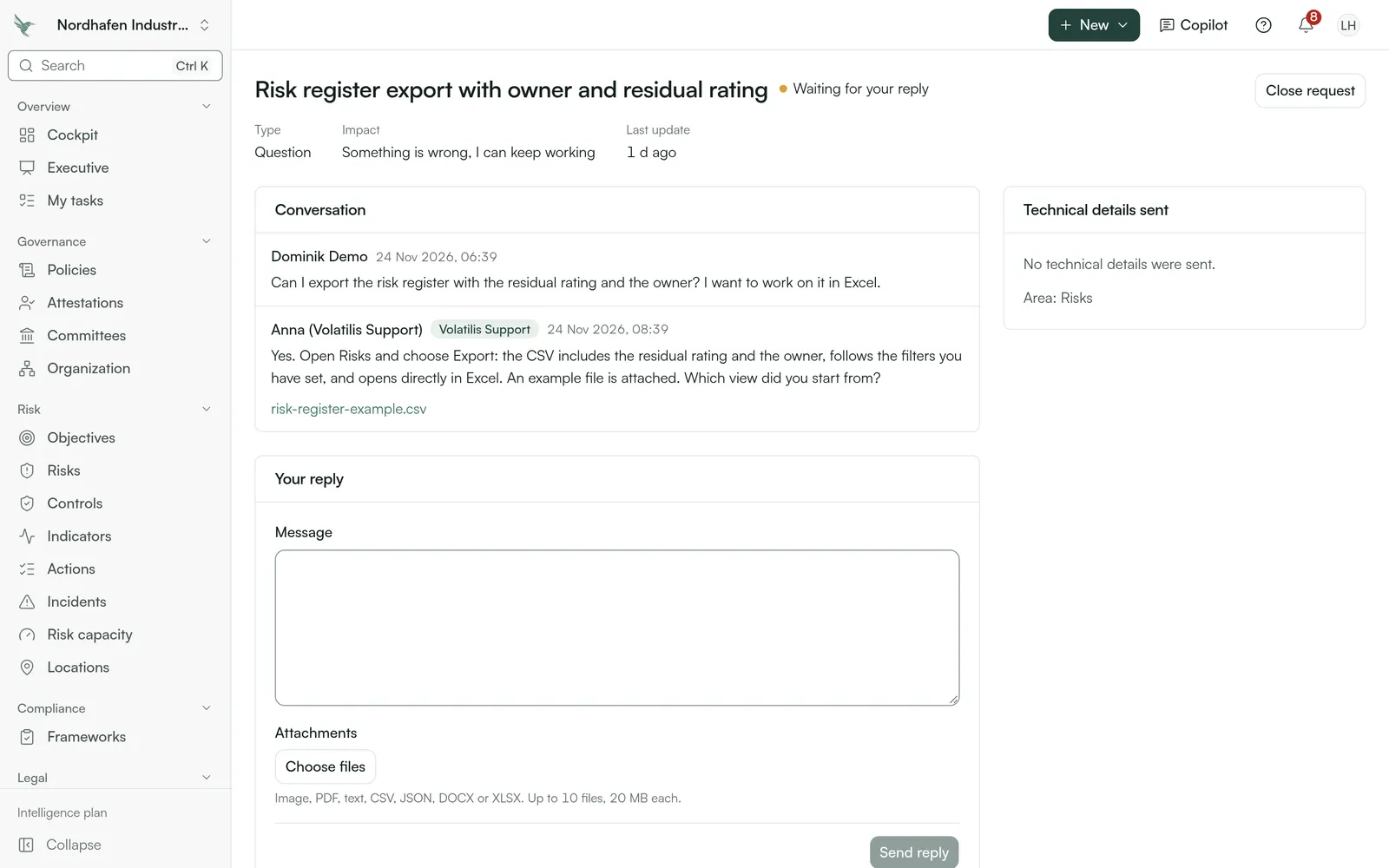
Open a request from the list to read the conversation. The reply box at the end sends your message and files. A reply to a request that is Waiting for your reply moves it back to In progress.
- Close request ends a request you no longer need. You can close a request in any status.
- Reopen request (or a reply) reopens a Resolved request, or a Closed one within 30 days of closing. After that the page offers Start a follow-up request, which links the new request to the old one.
- Was the help useful? appears when a request is resolved or closed. Choose Yes, it helped or No, not really, add a comment if you like, and send the rating. You can change it later.
Who sees which requests?
You see the requests you opened and the ones where a colleague added you. Administrators see every request of the organization and can switch the list between All requests and Mine. Only the people who see a request can open its files.
What does the Foundation plan include?
The Foundation plan has no support requests in the app. Help and support shows the address support@volatilis.org and a link to compare plans instead of the form. Nothing is promised for email on the Foundation plan. If your organization used Intelligence before, its earlier requests stay readable and you can close them. New requests, replies and reopening need Intelligence or Tailored. Security reports from anyone go to security@volatilis.org.
How fast will I get an answer?
| Plan | First response |
|---|---|
| Foundation | No in-app support. |
| Intelligence | Within one business day. |
| Tailored | As agreed in your contract. |
Business days are Monday to Friday, 09:00 to 17:00 Europe/Berlin, without German public holidays. Volatilis Support answers in English and German.
What are incident notices?
When Volatilis knows about a disruption, a banner appears above every page for everyone who is signed in, and on the sign-in page. It has a severity (Notice, Service disruption or Outage), a short text in your language and sometimes a Details link. Dismiss hides a notice in the browser you are using; an outage cannot be dismissed. The banner disappears when the notice ends. While a notice is active, Current incident in the help menu (the ? in the top bar) shows dismissed notices again.