Sign in and organizations
How to sign in, create or join an organization, accept an invitation and switch between organizations.
Sign in
Open the app and choose a sign-in method on the sign-in page. The page shows only the methods your operator has set up:
- Continue with Microsoft
- Continue with Google
Google confirms only Gmail addresses and Google Workspace domains. If you sign in with Google using a work address on any other domain, the sign-in is refused with a message to use your organization's own provider (for example Microsoft).
If none is shown, the page says "No sign-in method is configured. Contact your administrator."
Use your work account. If you are new, signing in creates your account. You are then asked to set up your organization or join one.
Single sign-on
An admin can require Microsoft sign-in for the whole organization (Intelligence plan). Then other methods are blocked and the page says "This organization requires Microsoft sign-in". Sign in with your work account from the organization's Microsoft tenant. See Roles, groups and scope and SSO and SCIM.
Trouble signing in?
Choose Trouble signing in? on the sign-in page, or email support@volatilis.org with your work email address and what you see. This works on every plan, because without a session the app cannot tell which organization you belong to. Check first that you use the same account the invitation was sent to, and that your organization does not require Microsoft sign-in.
Create an organization
If you belong to no organization yet, the page Create your organization opens.
An empty workspace then offers two starts:
- Load sample company fills the workspace with Nordhafen Industries AG, with risks, controls, indicators, sites and contracts, so you can try every module. It does not start a trial and it does not use up any limit of your plan.
- Start empty begins with a blank register. You add your first risk and set capacity and appetite in Settings.
The sample company can be removed again: an admin selects Remove sample data under Settings, Access. That deletes the sample records and leaves everything you created, and any sample record you changed or linked to your own. The organization then starts empty, so one organization serves both the trial run and real work. Apps that sync over the REST API see the removed records as deletions.
Only an admin can set up an empty workspace. Everyone else sees "Ask an admin to set it up".
Plan limits
You can create one Foundation organization. A deleted one still counts until its 7 day restore window is over: restore it, or wait, then create a new one. To use more than one, upgrade the first to Intelligence, or ask an admin to invite you to an existing organization; joining organizations you are invited to or that your email domain or Microsoft tenant offers is not limited. Members and records are not limited on any plan. See Plans and limits.
Join your colleagues
After signing in, the page can show Join your colleagues. It lists organizations whose verified email domain or verified Microsoft tenant matches yours. An email domain that an organization only typed in, without verifying it, offers nothing. Select Join to become a member. If you already belong to organizations, they are listed under Your organizations and you can select Open.
Accept an invitation
An admin invites people by email. The link opens an Invitation page that names the organization and the role you were invited as.
The page tells you when something is wrong:
- The invitation was already used.
- The invitation has expired. Ask an admin to send a new one.
- You are signed in with a different address. Select Sign out and switch account.
Sign out
Open the user menu (your name) and choose Sign out to end the session on this device. Sign out on all devices ends every session of yours, on every computer and browser, for example after using a shared or lost computer. API tokens and connected AI apps keep working; revoke them under API tokens.
A session ends by itself after 8 hours without activity and 24 hours after you signed in at the latest. Then sign in again.
Switch organizations
If you belong to more than one organization, the organization name at the top of the sidebar is a switcher. Open it to see Your organizations, the current one marked Current, and Create organization.
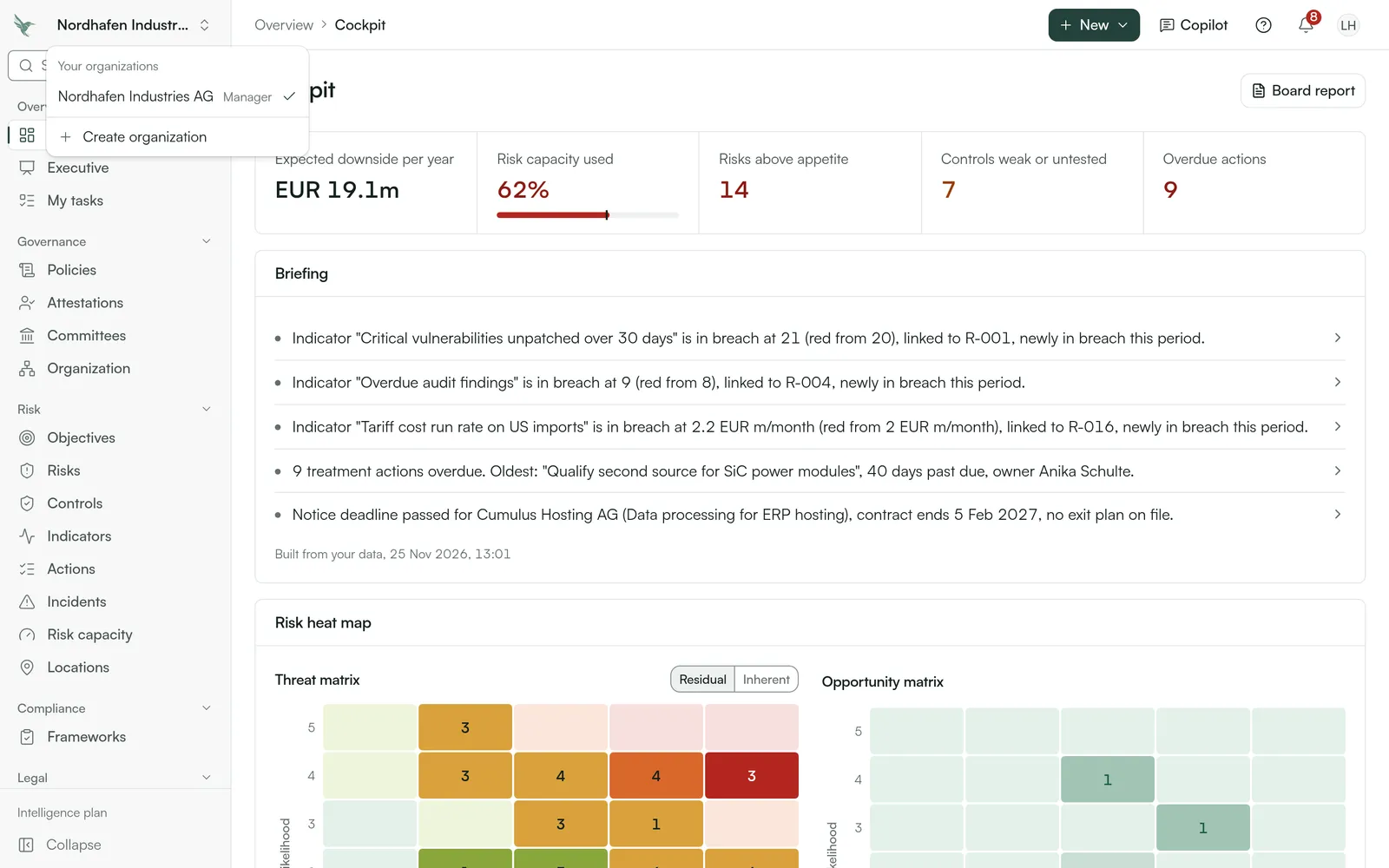
Your role is per organization. You can be an admin in one and a viewer in another.
When access is blocked
An Access blocked page explains why you cannot continue:
| Message | What it means |
|---|---|
| This organization is suspended | The platform operator paused access. Contact support. |
| Your access is deactivated | An admin deactivated your account. Contact them. Your records stay as they were. |
| This organization is scheduled for deletion | An admin deleted it. Everything is removed for good after the 7 day restore window, and an admin can restore it until then. |
| This organization requires Microsoft sign-in | Single sign-on is on. Sign in with your work account. |
No module access
Some members hold the role No module access. They see only what custom roles and groups give them, plus My tasks and their personal settings. An admin assigns the roles. See Roles, groups and scope.