SSO and SCIM
Verify your Microsoft tenant and domains, enforce single sign-on, map Entra groups to roles and provision people with SCIM.
Sign-in with Microsoft and Google is free for everyone. Which providers appear on the sign-in page depends on how your installation is set up. Intelligence adds control over who must sign in how, and automatic provisioning.
| Feature | Plan |
|---|---|
| Sign-in with Microsoft or Google, join by verified Microsoft tenant | Every plan |
| Enforced single sign-on, verified domains, join by verified email domain, Entra group mapping, SCIM provisioning | Intelligence |
Role needed
Set up in this order
Verify your Microsoft tenant. Every plan.
Verify your email domains. Intelligence. Optional, but it limits who enforcement applies to.
Turn on enforced sign-in. Intelligence.
Map Entra groups and provision with SCIM. Intelligence. Do this before you roll out to everyone.
Verify your Microsoft tenant
Open Settings, Access and ownership, Join and sign-in.
Select Sign in with Microsoft with your work account. The tenant is read from that sign-in. You cannot type it in.
Select Verify this tenant. The page shows "You are signed in from Microsoft tenant ..." and the badge Verified afterwards.
The app must be sure that you administer the tenant. It accepts you when either of these is true.
- Your Microsoft token says you are a Global Administrator or Privileged Role Administrator.
- Your work address belongs to an email domain your organization verified by DNS (see below), and Microsoft vouches for that address.
One tenant belongs to one organization. If another organization holds it already, only a tenant administrator can take it over. The previous organization is told, and its enforced sign-in and its Microsoft 365 connection are switched off. A DNS-only proof cannot take a tenant from another organization.
Colleagues who sign in from a verified tenant are offered to join as contributors. Remove tenant undoes the verification.
Verify your email domains
Plan needed
Domains decide which people enforced sign-in applies to, and who is offered to join. Joining by email domain needs proof: a domain you only typed under Allowed email domains offers nothing until you have verified it here.
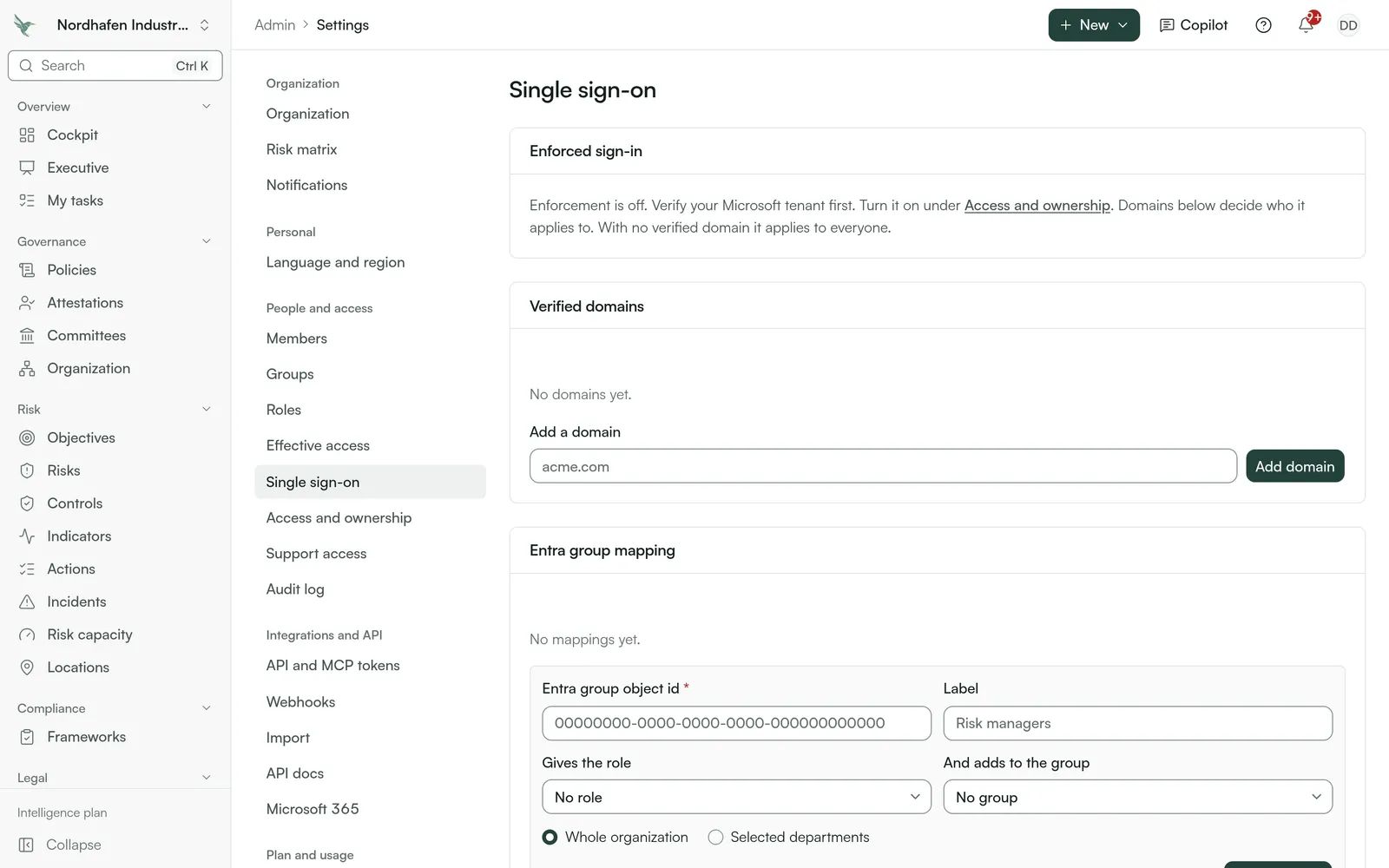
Open Settings and Single sign-on. Under Verified domains enter the domain in Add a domain, for example acme.com, and select Add domain.
Add the TXT record shown to the root of the domain in your DNS. It has the form volatilis-grc-verify=<token>. A record on _volatilis-grc.<domain> also works.
Select Check now. DNS changes can take a while. The badge changes from Not verified to Verified and the time of the last check is shown.
Public mail providers are not accepted. A domain that another organization already verified is refused.
Turn on enforced sign-in
Plan needed
Make sure your tenant is verified. Verify your email domains as well if enforcement should apply only to them.
Open Settings, Access and ownership and set Enforce single sign-on to On.
From then on, people with an email on a verified domain must sign in through your Microsoft tenant. If you have no verified domain, it applies to everyone. Anyone else who signs in sees "This organization requires Microsoft sign-in" and can sign in again with the right account or switch organization.
Access tokens follow the same rule. A REST or MCP token stops working when its owner has no Microsoft sign-in from your tenant. Tokens of deactivated members stop too.
Keep a break-glass plan: before you turn enforcement on, sign in yourself from the tenant and confirm another admin can too.
Map Entra groups to roles
Plan needed
Under Entra group mapping, give roles or groups to people based on their Microsoft Entra security groups. The mapping is applied at every sign-in.
In Microsoft Entra, open the security group and copy its Object ID.
In Settings, Single sign-on, enter the id in Entra group object id and a Label.
Choose Gives the role (a built-in or custom role), optionally And adds to the group, and a department scope, then select Add mapping.
Roles and group memberships that come from a mapping are replaced at each sign-in. When someone leaves the Entra group, they lose the access at their next sign-in. Volatilis receives group ids in the sign-in token. If a person is in more than 200 groups, Entra leaves the list out and sends a link instead. Resolving that link is not supported, so use SCIM groups or fewer, targeted groups for those people.
Provision with SCIM
Plan needed
SCIM lets Microsoft Entra ID create, update and deactivate people and groups automatically.
In Settings, Single sign-on, under SCIM provisioning, enter a name and select Create SCIM token. Copy the token now. It is shown once.
Copy the SCIM tenant URL.
In Entra, add an enterprise application, choose Provisioning, set the mode to Automatic, and paste the URL and the token as the secret token.
Start provisioning. People appear in Members, groups in Groups marked Provisioned.
Give roles to the provisioned groups on the Groups tab.
New people from SCIM start as Viewer. Deactivating a user in Entra deactivates the member. The last active admin cannot be deactivated this way. A SCIM token works only while the admin who created it is still an active admin. Revoke a token with Revoke. The list shows when each was created and last used.
The protocol details (endpoints, supported attributes and error handling) are in the developer documentation.
After a downgrade
When the organization returns to Foundation, or its trial ends, nothing you set up is deleted, but the Intelligence parts stop:
- Enforced sign-in is no longer enforced, in the app and for API tokens. The setting stays stored and applies again after an upgrade.
- Verified domains stay on the list but no longer let people join by email domain. Joining by verified Microsoft tenant keeps working.
- Offboarding keeps working: an existing SCIM token can still deactivate and delete users, so people who leave lose access. Creating users, reactivating them, changing their details or groups and creating new SCIM tokens need Intelligence again. Entra group mappings give no new access at sign-in, but someone who left a mapped Entra group still loses the access it gave at their next sign-in, and so does everyone whose mapping you remove.
- You can still remove domains and mappings and revoke SCIM tokens.
Keep Entra deprovisioning running
After the drop to Foundation, Entra still sends its create and update calls, and they are refused. After repeated refusals Entra can put the provisioning job in quarantine, and a job in quarantine stops sending deactivations as well. So when the organization drops to Foundation while enforced sign-in is configured or it has an active SCIM token, the admins get one notification, "Sign-in and provisioning changed on Foundation", in the app and by email. It says what stopped: enforced sign-in (the setting is kept and applies again after an upgrade), SCIM provisioning, or both. For SCIM, do one of these in Entra:
- Open the enterprise application, then Provisioning, Mappings and the user mapping. Under Target Object Actions keep Delete and clear Create and Update. Entra then only deactivates and deletes.
- Remove the user and group assignments you added since the drop, so Entra has nobody new to create.
After an upgrade, turn Create and Update back on. If the job is already in quarantine, fix the mapping first, then restart provisioning in Entra.
Roles, groups and scope
How access is built from roles, groups and department scope, how to create custom roles on Intelligence, and how to check what a person can really do.
Notifications
Choose what Volatilis GRC tells you, through which channel and how often, and connect a Teams channel for your organization.