Import
Bring risks, controls, incidents, contracts, contract obligations and compliance requirements in from a CSV file, check the file with a dry run first and fix failed rows.
Use the import to move an existing register from a spreadsheet into Volatilis GRC. Every row goes through the same rules as the forms, so what you import is as clean as what you type.
Role needed
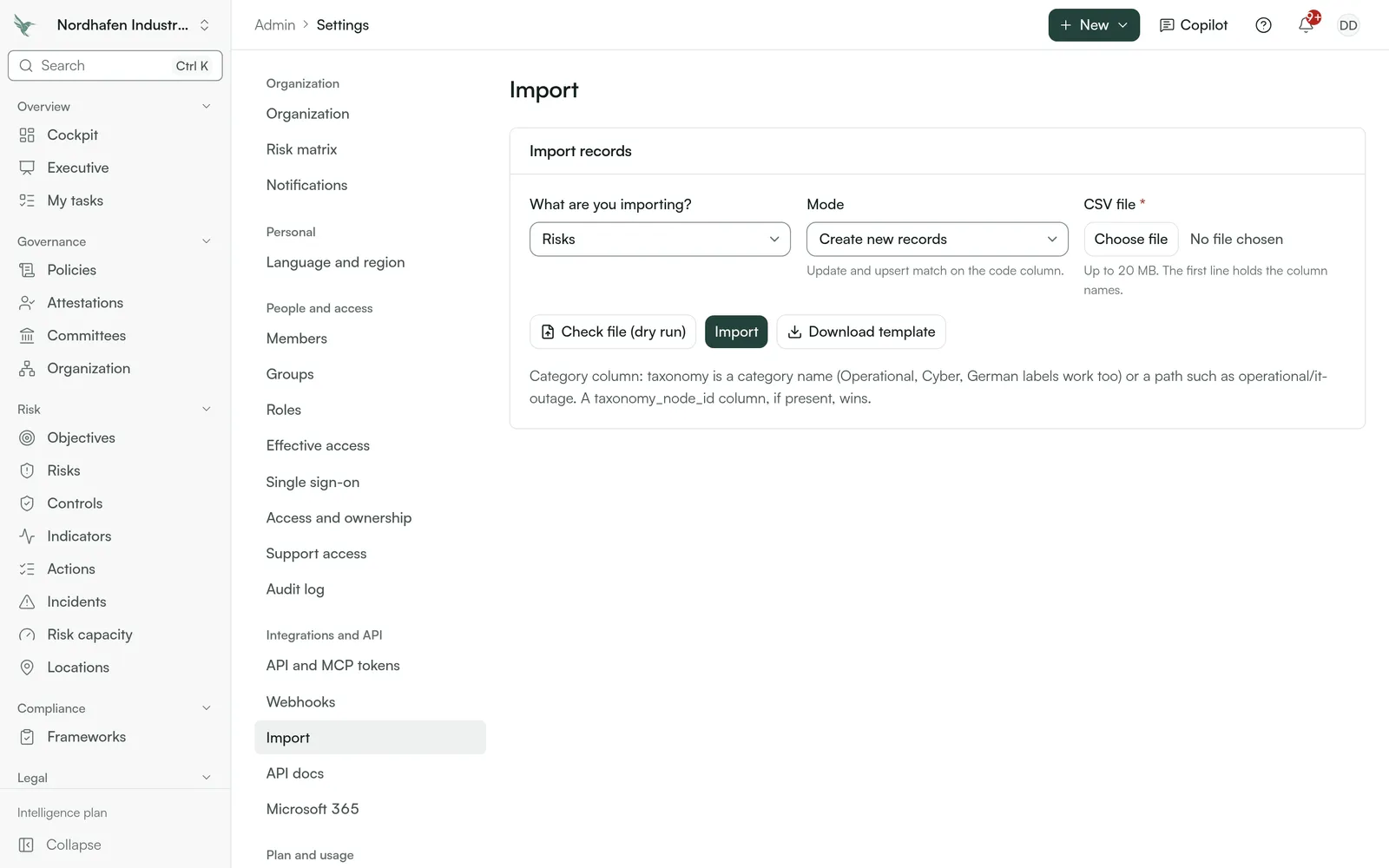
Import a file
Open Settings and Import.
Under What are you importing? choose Risks, Controls, Incidents, Contracts, Contract obligations or Compliance requirements.
Select Download template and fill it in your spreadsheet. The first line holds the column names. Save it as CSV.
Choose the Mode. Create new records only adds. Create or update and Update existing only match your rows to existing records.
Choose the CSV file, up to 20 MB, and select Check file (dry run). Nothing is written. You get Dry run result with how many rows would be created or updated and how many would fail.
Fix the rows listed under the failures. Select Download errors as CSV if you want to work through them in the spreadsheet. Run the dry run again until it says "The file is ready to import."
Select Import.
What the file looks like
The columns of the template are the field names. Keep the headers as they are.
| Import | Columns in the template |
|---|---|
| Risks | code, title, taxonomy, status, owner_email, residual_likelihood, residual_impact |
| Controls | code, title, description, type, nature, frequency, owner_email |
| Incidents | title, occurred_at, gross_loss, severity, status, root_cause |
| Contracts | vendor (the counterparty), service, type, criticality, status, annual_value, start_date, end_date |
| Contract obligations | contract_id, description, party, due_date |
| Compliance requirements | framework_id, ref, title, description, due_date |
- For risks, the
taxonomycolumn is a category name (for example Operational or Cyber, German names work too) or a path such asoperational/it-outage. Ataxonomy_node_idcolumn wins when it is present. - Leave
codeempty to let the app assign the next code. - Dates use
yyyy-mm-dd. Amounts are plain numbers in your organization currency.
Update existing records
In Create or update and Update existing only, rows are matched on the code column for risks and controls and on the id column for the other types. Only the columns you include are changed.
What is checked
- Your own access applies. A row for a record type you may not create, or for a department outside your scope, fails.
- Plan limits apply across rows. Over your plan's limit, the first rows are created and the rest are reported as failed.
- The audit log records the import.
Large files and failed rows
By default a failed row does not stop the others. The result lists Row n with the reason, and the first failed rows are shown on the page. Files above a few hundred rows run in the background. The page then says Queued. Open it again after a minute and check the audit log.
How many rows one file may have depends on your plan.
Developers can run the same import by API. See Bulk import.