Members and invitations
Invite people, set their first role, resend or revoke invitations, and deactivate or remove members.
A member is a person's membership in one organization. A person can belong to several organizations and has a separate role in each.
Role needed
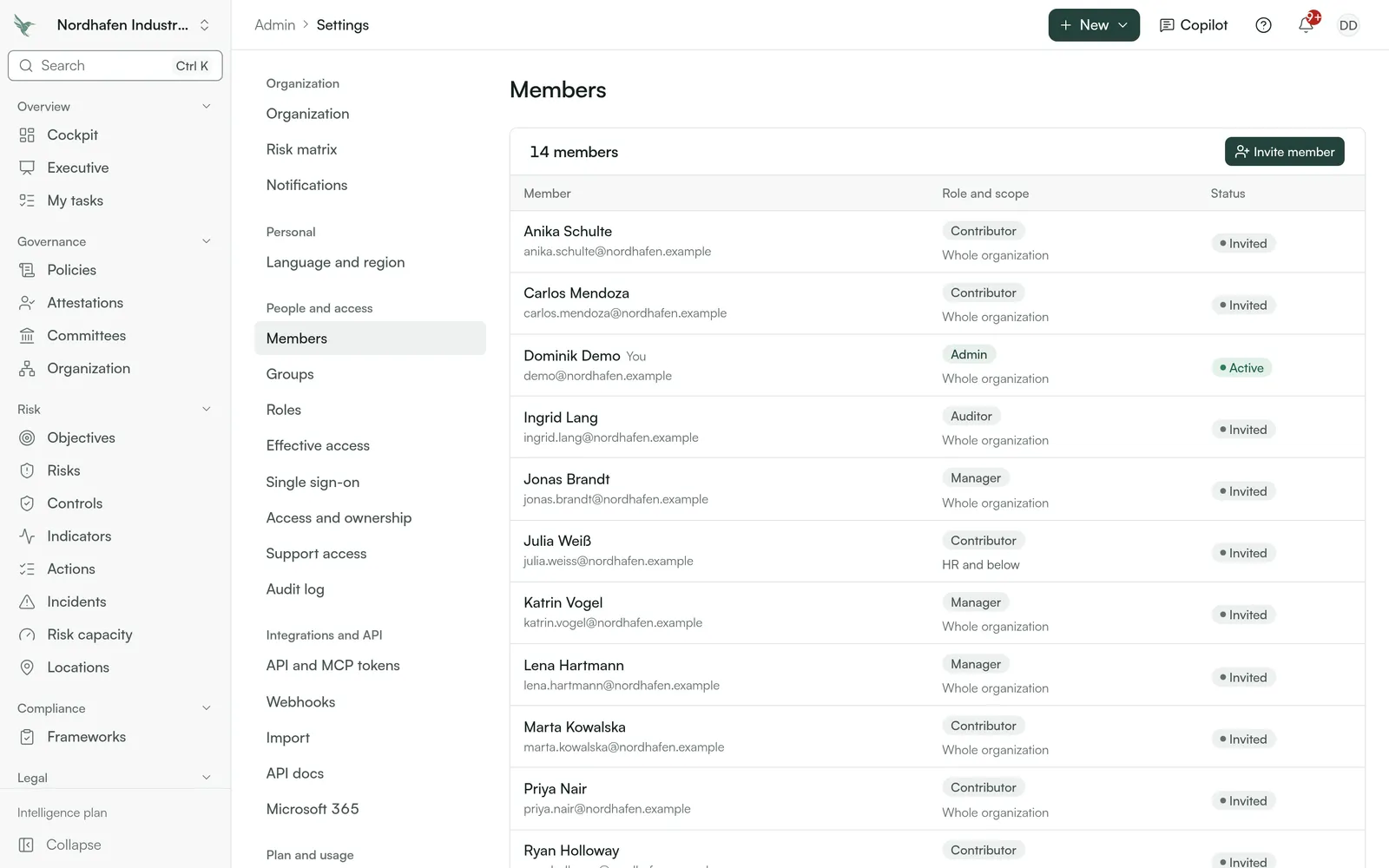
Invite people
Open Settings and Members, then select Invite member.
Paste one or more addresses in Email addresses, separated by commas, spaces or new lines. You can add up to 50 at a time.
Choose the Role. The list shows each role with a one-line description. The default is Viewer. You can add more roles later, see Roles, groups and scope.
Select Send invitations. The result lists every address with an outcome.
| Outcome | Meaning |
|---|---|
| Emailed | The invitation email went out. |
| Created, email not sent | The invitation exists, but the email did not go out (email not set up or the monthly email limit is used up). Copy the Invitation link and send it yourself. |
| Already a member | This address is in the organization already. |
| Already invited | An invitation is pending. Use Resend in the pending list. |
| Invalid address | The text is not an email address. |
| Over the members limit | Your plan's member limit is reached. Addresses before the limit still get an invitation. |
The invited person opens the link, signs in with any provider that uses the invited address (Microsoft or Google, as set up for your installation) and joins with the role you chose. The address must match. A person who signs in with another address is told to switch. Each link works once and expires after 14 days. The system stores only a hash of the link, so a link cannot be shown again later: use Resend for a new one.
Pending invitations
Under Pending invitations you can:
- Resend the email. This issues a new link (the old one stops working) and extends the expiry by 14 days. If the email cannot be sent, the new link is shown so you can copy it.
- Revoke an invitation. The link stops working.
Let people join without an invitation
Under Settings, Access and ownership, Join and sign-in, you can allow people to join on their own.
- Allowed email domains (one per line): people who sign in with a verified email on these domains are offered to join as contributors. Public mail providers are not accepted.
- Microsoft tenant: after you verify your tenant, anyone who signs in from it is offered to join as a contributor.
See SSO and SCIM for tenant verification.
Read the member list
| Column | What it shows |
|---|---|
| Member | Name and email. You are marked You. |
| Role | The primary role, and "+n more" when roles are added. |
| Scope | Whole organization or the departments the access is limited to. |
| Department | Where the person works. |
| Groups | The groups the person belongs to. |
| Status | Active, Invited or Deactivated. |
| Last sign-in | The last time the person signed in, or Never. |
A person with the role No module access and no other role sees only their tasks and personal settings. The list warns "This person cannot see anything yet" until you assign a role.
Change someone's access
Select Manage in the member's row. The dialog sets the primary role, department and scope, additional roles and groups. Details are in Roles, groups and scope. Each change is saved with Save and written to the audit log.
Deactivate or remove
| Action | What happens |
|---|---|
| Deactivate | Blocks sign-in and the person's API tokens. Records and history stay. Reactivate reverses it. |
| Remove | The person loses access at once. Their items stay in the register. To come back they need a new invitation. |
An organization always keeps at least one active admin. The app refuses to remove, deactivate or demote the last one. You cannot deactivate yourself. Members that come from SCIM are deactivated from your identity provider.
Limits
The number of members depends on your plan.
| Limit | Foundation | Intelligence | Tailored |
|---|---|---|---|
| Members | Unlimited | Unlimited | Unlimited |
| Risks | Unlimited | Unlimited | Unlimited |
| Contracts | Unlimited | Unlimited | Unlimited |
| Knowledge base documents | Unlimited | Unlimited | Unlimited |
| Active automations and agents | 10 | Unlimited | Unlimited |
| Simulation runs this month | 10 | Unlimited | Unlimited |
| Copilot chat requests this month | 10 | 30 per member, pooled | Unlimited |
| AI contract checks this month | 1 | 3 per member, pooled | Unlimited |
| AI table cells this month | 0 | 100 per member, pooled | Unlimited |
| MCP access tokens | 3 | Unlimited | Unlimited |
| Emails sent this month | 1,000 | Unlimited | Unlimited |
| AI drafts this month | 3 | 15 per member, pooled | Unlimited |
| Active AI agents | 0 | Unlimited | Unlimited |
| Document Intelligence pages this month | 20 | 50 per member, pooled | Unlimited |
| File storage | 2 GB | 100 GB | Unlimited |
| Automation runs this month | 1,000 | Unlimited | Unlimited |
| REST API calls this month | 1,000 | 50,000 | 1,000,000 |
| MCP tool calls this month | 1,000 | Unlimited | Unlimited |
Organization
Set the name, currency, time zone, risk appetite and risk matrix of your organization, and transfer, leave or delete it.
Roles, groups and scope
How access is built from roles, groups and department scope, how to create custom roles on Intelligence, and how to check what a person can really do.