Notifications
Choose what Volatilis GRC tells you, through which channel and how often, and connect a Teams channel for your organization.
Every module sends its alerts through one notification center. Each person decides for themselves what reaches them in the app, by email and in Teams. Admins connect the Teams channel.
Read your notifications
The bell in the top bar shows how many are unread. Select it for the latest items, or View all for the full list.
On the Notifications page:
- Filter by kind with the tabs All, Mentions, Assignments, Approvals, Reminders, System, Plan limits and Support, and by Unread.
- Mark all read marks the current filter as read. Clear all read removes the read ones and Delete all removes every notification, each after a confirmation. The bin icon on a row deletes that one; the bell panel has the same Delete all.
- Deleting is final and personal: other people keep theirs, and an event that already notified you does not notify you again (the audit log keeps the history).
- Select a notification to go to the record.
- Preferences opens your settings.
What the kinds mean
| Kind | You get it when |
|---|---|
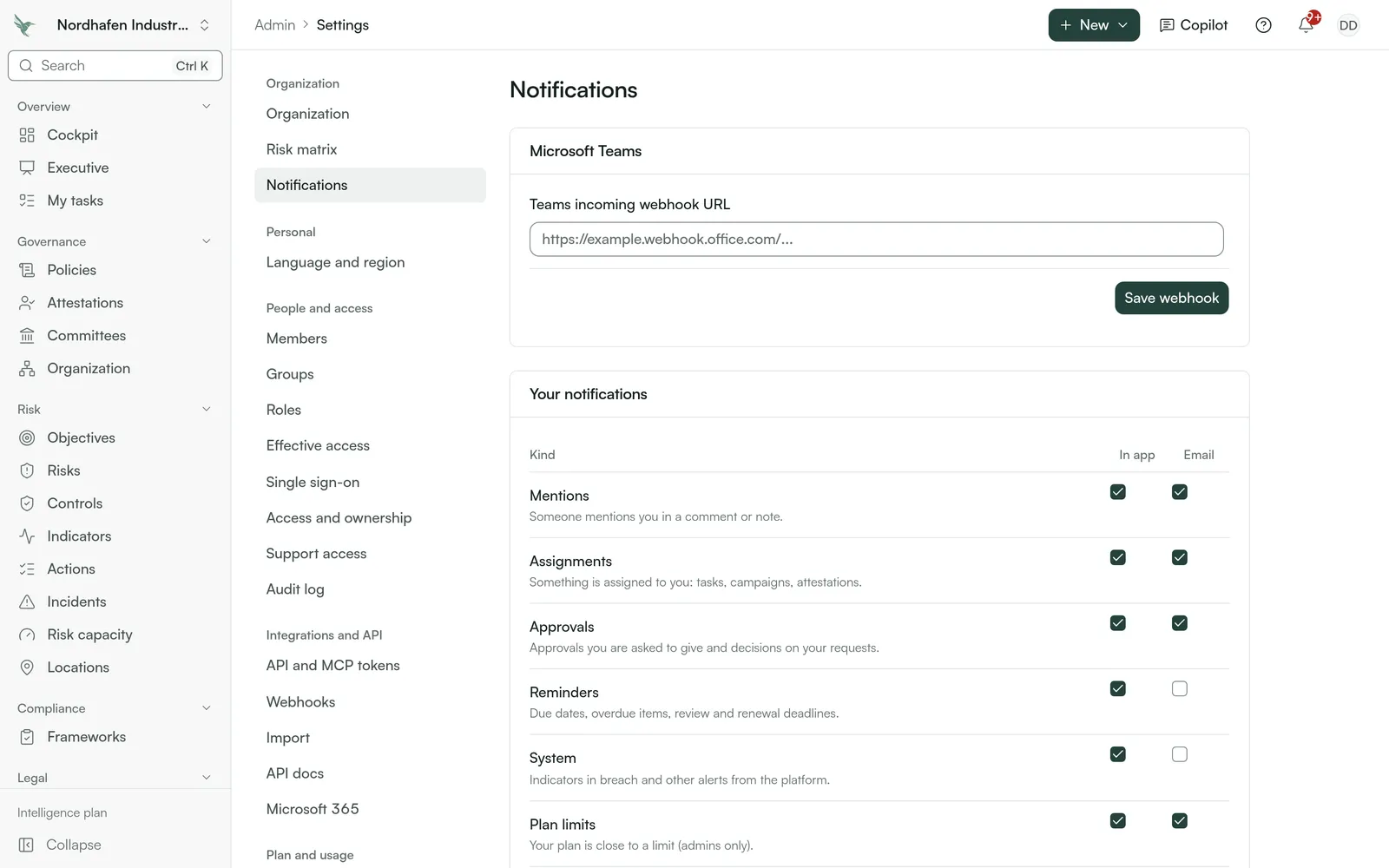
| Mentions | Someone mentions you in a comment or note. |
| Assignments | Something is assigned to you: tasks, campaigns, attestations. |
| Approvals | You are asked to approve something, or a request of yours is decided. |
| Reminders | Due dates, overdue items, review and renewal deadlines. |
| System | Indicators in breach and other alerts from the platform. |
| Plan limits | Your plan is close to a limit. Admins only. |
| Support | Volatilis Support replies to one of your support requests, resolves or closes it, or asks for your reply. |
Reminders follow the time zone of each recipient (Settings, Language and region). Day thresholds, such as due in 7, 3 or 1 days and overdue, are evaluated on the recipient's own calendar day, so a colleague in New York and one in Berlin get the same reminder at different moments, once each.
Automations that use the Notify people step send reminders. They follow the same preferences of each recipient.
Set your preferences
Open Settings and Notifications. Admins find it under Organization. Everyone else finds My notifications under Personal.
In the table Notification channels per kind, tick the channels for each kind: In app, Email and, once Teams is connected, Teams.
Choose your Email digest: Off, send each email at once, Daily or Weekly. With a digest on, your email notifications are bundled into one message. In-app notifications stay immediate.
Each change is saved at once and confirmed with a short message.
Without your own choice, these defaults apply. Mentions, assignments, approvals, plan limits and support go in the app and by email. Reminders and system alerts go in the app only. Teams is always opt-in per kind. Every digest email has a link to unsubscribe. The link opens a page with an Unsubscribe button; nothing changes until you select it, so mail scanners that open links cannot unsubscribe you. Mail apps with a built-in unsubscribe button work as before.
Support emails come from "Volatilis Support", start with the request reference in brackets, for example [SR-1042], and use your language and time zone. Replies you send to such an email reach support@volatilis.org, not the request; answer in the app to keep everything in one place. The email that says a request is resolved has two links, Yes, it is solved and No, not yet. A link opens a page; your answer is saved only when you select Send answer. Each link works once and expires after 30 days.
Connect Teams
Role needed
In your Teams channel, create a Workflow or an incoming webhook and copy its URL.
Open Settings and Notifications. In the panel Microsoft Teams, paste the URL into Teams incoming webhook URL and select Save webhook.
Ask members to tick Teams for the kinds they want in the channel.
Only URLs of Microsoft services are accepted. Leave the field empty to switch Teams off. The same URL is used by automation steps that post to Teams, unless the step has its own URL. Teams needs no Microsoft 365 connection.
Where alerts come from
Typical alerts: an indicator in breach, an overdue action, a contract notice period that starts, a control test that is due, a risk review that is overdue, an attestation that opens or needs a reminder, a plan limit at 80 percent, a webhook that was switched off, an automation that failed or was paused, and drafts from an AI agent that wait for review.
Alerts are produced by a background check that runs every 5 minutes, so they arrive even when nobody opens the app. Deactivated members receive nothing: no in-app notification, email or digest. Suspended or deleted organizations get no alerts or digests.