Organization
Set the name, currency, time zone, risk appetite and risk matrix of your organization, and transfer, leave or delete it.
The organization settings hold the numbers the rest of the app measures against. Change them once, carefully, and tell the board when they move.
Role needed
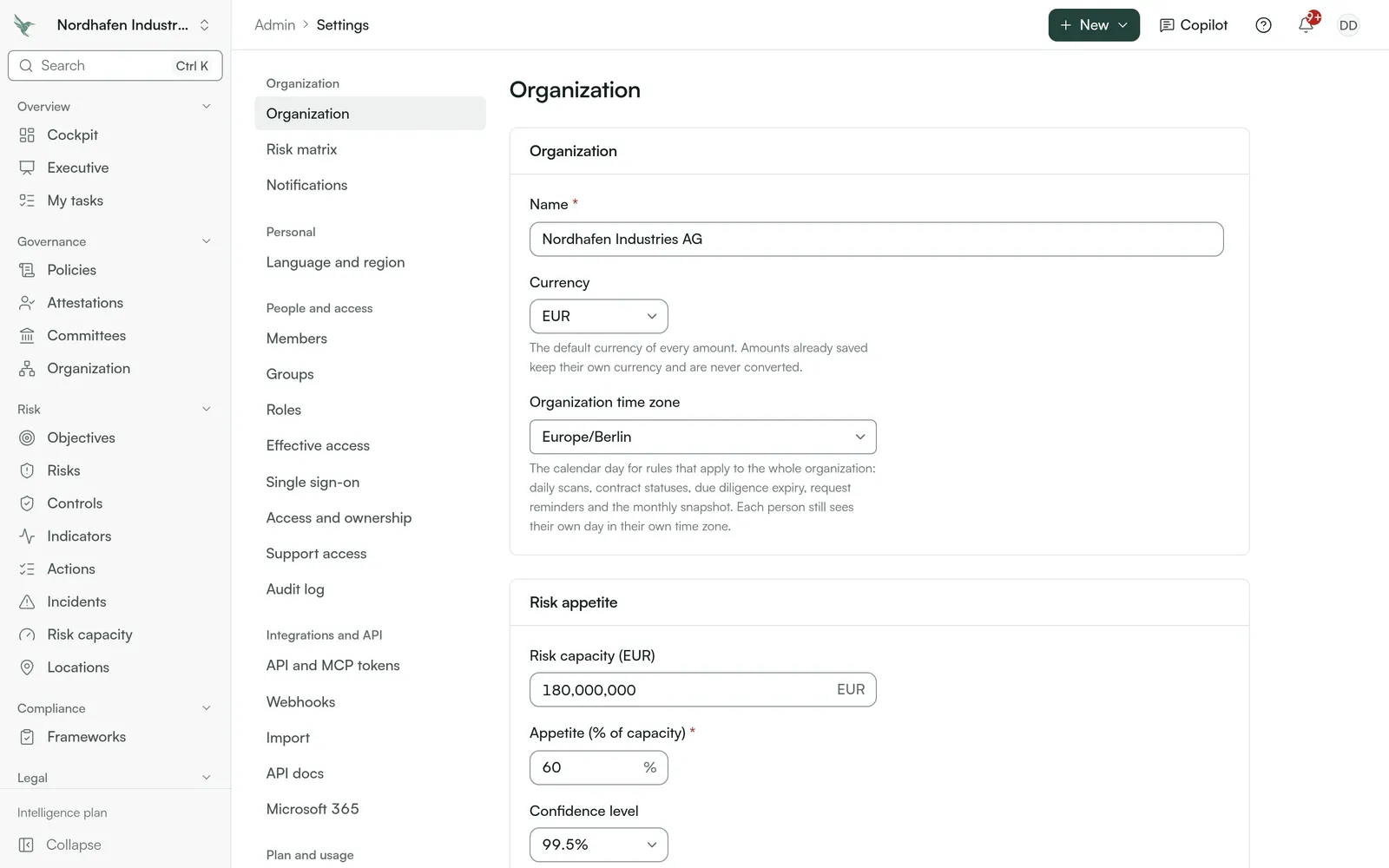
Name and currency
Open Settings and Organization.
- Name is shown in the organization switcher.
- Currency is the default currency of every amount. You can choose EUR, CHF, GBP or USD. Amounts already saved keep their own currency and are never converted. Sums add one currency only and say when amounts in other currencies were left out.
- Organization time zone decides the calendar day for rules that apply to the whole organization: the daily scans, contract statuses, due diligence expiry, reminders for contract requests and the monthly capacity snapshot. A new organization starts with the time zone of the person who created it. Each person still sees their own day, in the time zone from their own language and region settings.
Risk appetite
These values drive the capacity page and the utilization. The flag per risk above appetite does not use them. It uses the appetite value of the risk category in the taxonomy.
| Field | Meaning |
|---|---|
| Risk capacity | The loss in one year the company can absorb without threatening its survival or covenants. Enter it in your currency. |
| Appetite (% of capacity) | The share of capacity the board accepts to use. Above it, the portfolio is above appetite. A whole number from 1 to 100. |
| Default correlation | How strongly risks are assumed to move together in a bad year. At 0 they are treated as independent. It is the starting value of the capacity page. |
| Confidence level | The percentile of the simulated yearly loss that counts as a bad year: 90, 95, 99, 99.5 or 99.9 percent. |
Select Save changes. The change is recorded in the audit log. See Capacity and appetite for how the figures are used.
Risk matrix
Open Settings and Risk matrix. The matrix has five levels each for likelihood and impact.
- Likelihood levels are annual probabilities. Enter the Upper bound (% per year) of each level.
- Impact levels are the total loss per event. Enter the Upper bound in your currency.
- Give each level a Label. The field Resulting range shows what you set, such as "More than 40% per year" or "Up to EUR 50,000". The top level has No upper limit.
Select Save changes. Reset to defaults restores the standard bands. The labels and ranges appear wherever risks are rated.
Analysis methods
Below the matrix, the panel Analysis methods sets how risks may be analysed. It has its own Save methods button.
- Allowed methods. Tick Scoring (matrix), Estimate (worst, most likely, best case) and Risk model as you allow them. At least one of scoring and estimate has to stay on. The risk form offers only the allowed methods. A risk that already uses a method you turn off keeps working and can still be edited.
- Default for new risks. The method a new risk starts with, scoring or estimate. A risk model is built after a risk is saved, so it cannot be the default.
- New risks need an objective. Off by default. A risk needs an objective to leave draft; drafts may stay without one. Risks that exist are not affected.
Only admins can change these settings. Everyone else sees them read-only. The change is recorded in the audit log. The setting is also available as PATCH /settings/risk-methods.
Raised risks and contract requests
Admins set who gets a raised risk or a contract request first and how soon the team should pick it up, in the panel Raised risks and contract requests on Settings > Organization.
| Setting | What it does |
|---|---|
| Risk team group | Optional. Members of this group with Approve on Risks for the requester's department get raised risks first. With No group, route by department, or when nobody in the group qualifies, the app routes to the people with Approve for the requester's department, then to the organization-wide approvers, then to the admins. The requester is never on the team for their own item. |
| Working days to pick up a raised risk | 1 to 60 working days (Monday to Friday) until a raised risk is due in My tasks. Default 5. The team is reminded the day before; once the date has passed, the organization-wide approvers and the admins are told. |
| Legal team group | The same for contract requests, with Approve on Contracts. |
| Working days to pick up a contract request | 1 to 60 working days until a contract request without a Needed by date is due. Default 10. With a Needed by date, that date is the due date. |
| Tidy up with AI for people who raise a risk | Shows Tidy up with AI on Raise a risk. Each use spends one AI draft of your plan's monthly allowance. Plan default keeps following your plan: off on Foundation, so its AI drafts stay with the risk team, on with Intelligence and Tailored. On or Off fixes the choice. |
An empty field or a number outside 1 to 60 is not saved; the form shows the error next to the field. The due date pauses while the team waits for the requester's answer. See Workflow: raise a risk and Request a contract. REST: PATCH /settings/intake.
Switch or add organizations
If you belong to several organizations, use the organization switcher in the top bar. Each organization has its own data, members, plan and settings. To start another, choose Create another organization. On Foundation you can create one organization. See Plans and limits. The first sign-in flow is described in Sign in and organizations.
A new organization can start empty or with a complete sample company. Remove sample data under Settings, Access deletes the sample company again. See Sign in and organizations.
Transfer, leave or delete
Open Settings and Access and ownership, section Ownership.
Transfer ownership
Make sure the new owner has been invited and has signed in once. The list only offers people who have.
Choose New owner and select Transfer.
The person becomes owner and admin. You become a manager and can no longer manage billing or members.
Leave an organization
Select Leave. You lose access. Your records stay. You can only come back through a new invitation. The last admin cannot leave. Transfer ownership or promote another admin first.
Delete an organization
Role needed
Select Delete and type the organization name to confirm.
If your last sign-in is older than 10 minutes, the app emails you a 6-digit code. Select Send code and enter it in Email code. The code works for 15 minutes.
Confirm. Members are locked out at once and any paid subscription is cancelled.
For 7 days an admin can open the organization and select Restore organization. After that, everything is deleted for good: records, members, the audit log and uploaded files. Protective copies kept by the storage service can remain for up to 30 days, see Security and data residency. People who belong to no other organization lose their personal data with it.