Workflow: contract request
How the business asks legal for a contract, and how legal picks the request up, step by step.
Use this workflow when a department needs a new contract and legal has to prepare or review it. The request becomes a contract in the stage Request, and legal moves it through the lifecycle.
Role needed
Plan needed
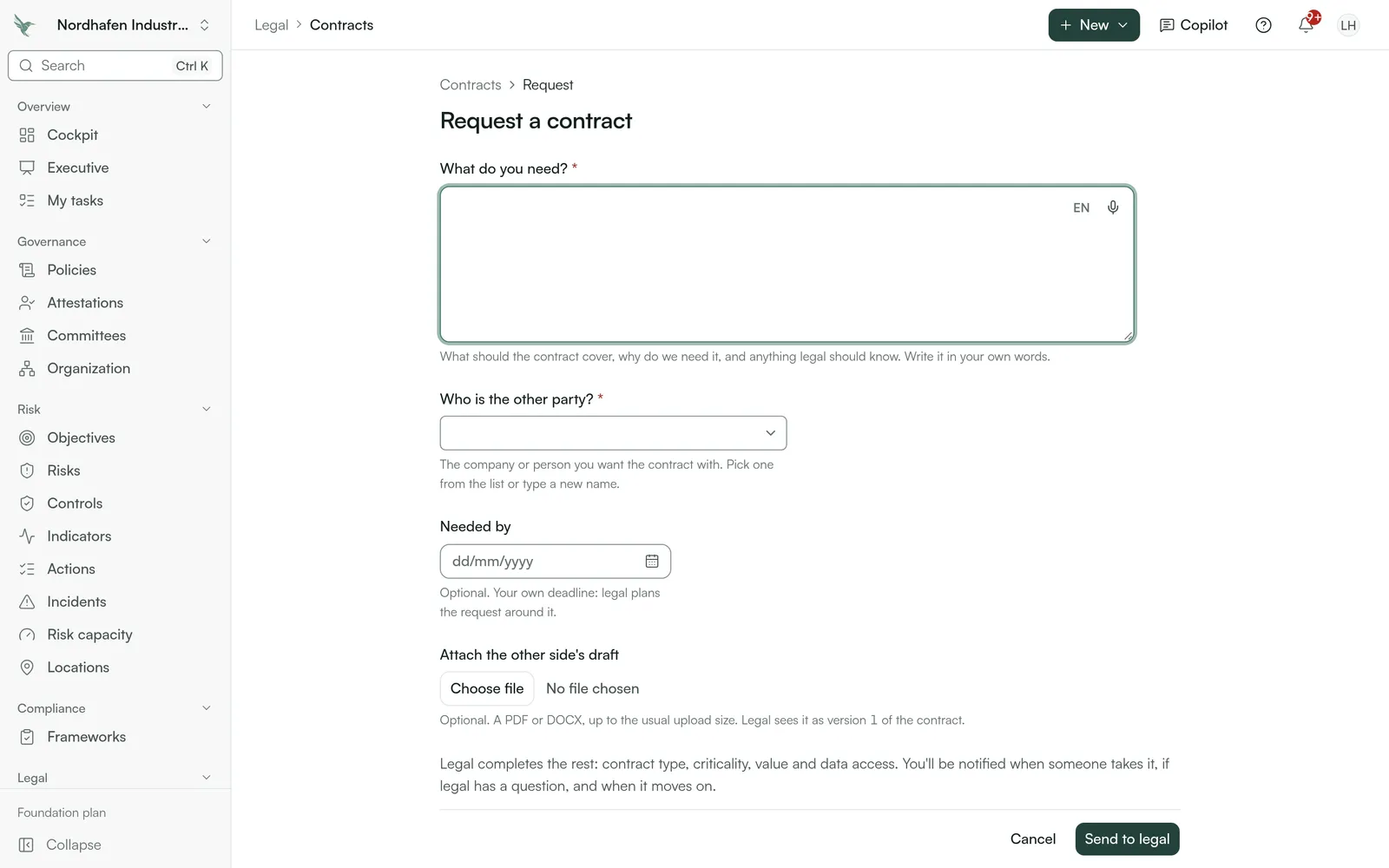
Request a contract (business)
You describe what you need. Legal completes the rest: contract type, criticality, value and data access.
Open Contracts and select Request a contract, or choose Request a contract in the New menu in the top bar. Both open the same form.
Under What do you need?, write in your own words what the contract should cover, why you need it and anything legal should know (at least 20 characters). The first line becomes the title of the request, so start with a short summary, for example "SaaS tool for demand planning". You can dictate it.
Under Who is the other party?, pick the company or person you want the contract with, or type a new name. A new name is fine, the counterparty is created.
Optional: enter the date it is Needed by. It is your own deadline, and legal plans the request around it.
Optional: under Attach the other side's draft choose a PDF or DOCX file. It is uploaded after the request is created and shows as version 1 on the documents tab. If the upload fails, the request stays and the contract page tells you to upload the file there.
Select Send to legal. You land on the contract record with the message "Sent to legal. You'll be notified when someone takes it, if legal has a question, and when it moves on."
What happens next:
- A contract is created in the stage Request, owned by you until legal takes it. Your text, the needed-by date and your email are stored on the contract, and it carries your department.
- The request goes to the legal team responsible for your department: people who may approve contracts for your department, else those who may approve contracts for the whole organization, else the admins. A Legal team group set under Settings > Organization gets it first. They get the notification "New contract request: title of the request", with your name, the title and the counterparty. You are never notified about your own request, and people who can only view contracts are not notified.
- Under Raised by me in My tasks you see the request with its state: New, waiting for the team, Taken with the name of the person in legal, Question for you, Accepted with the stage once it left Request, Declined with legal's reason, or Closed. Whenever someone else moves the contract to another stage you get the notification "Your request is now in stage ...".
- If legal asks you a question, the request shows Question for you under Raised by me and as a task in My tasks. Write Your answer, optionally add an Attachment, and select Send answer. The file is stored on the request, also when someone in legal owns it by then.
- When legal comments on your request for you (the box Message to the requester on the Activity tab), you get "Legal commented on your request: ..." with the comment text.
- If legal declines the request, you get "Legal declined your request: ..." with the reason, or "Your contract request duplicates ..." with the code of the existing contract. The request stays, read-only, with its documents and the status Declined; Raised by me shows it as Declined with the reason.
- REST
POST /intake/contract-reviewsstays available for API clients and creates the same record with the same routing.
Pick it up (legal)
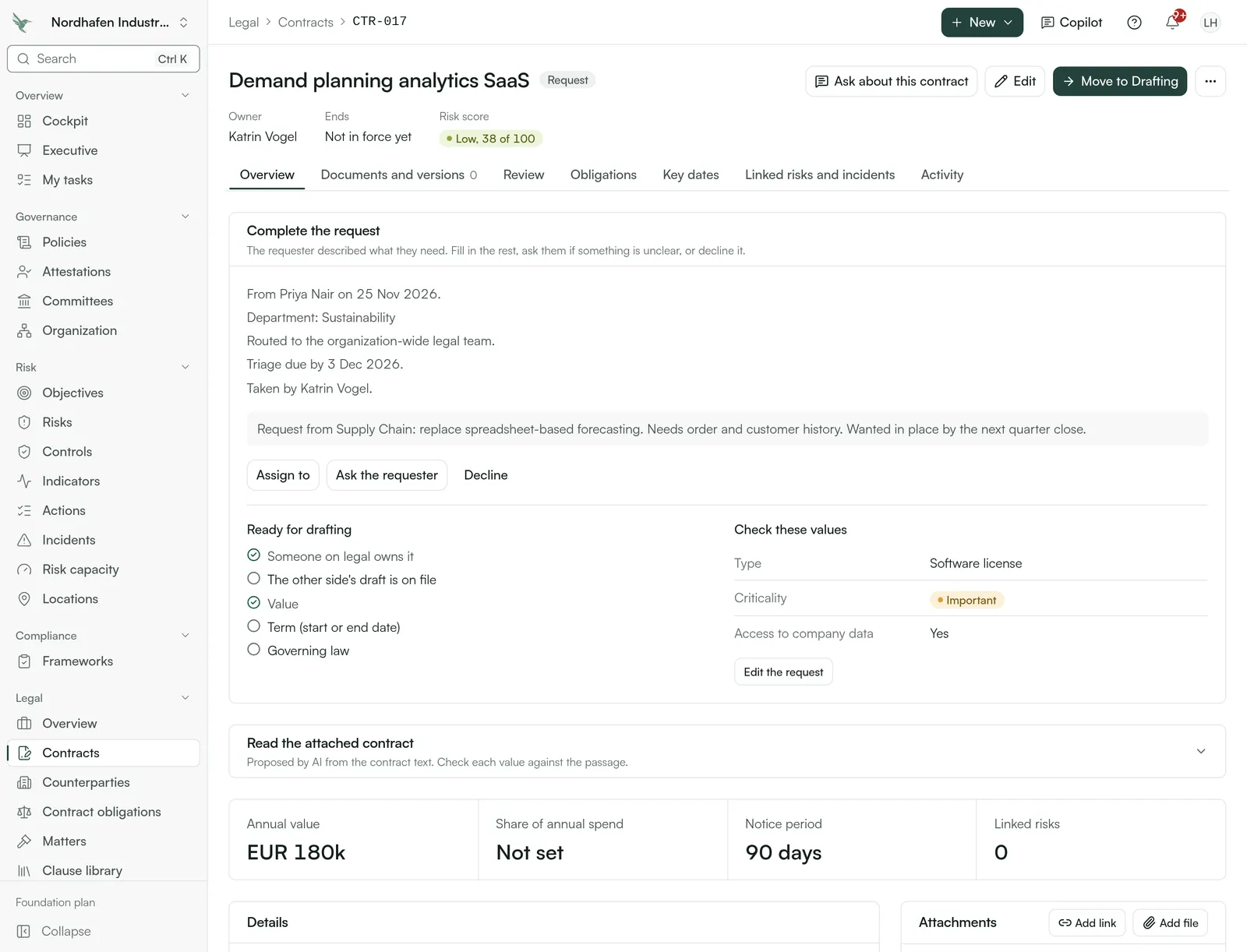
Open the notification, or open the Lifecycle board and look at the Request column. Select Take this request on the card or on the contract: you become the owner of the contract and the requester gets "Legal took your request". The requester stays recorded as the person who asked. A request someone else has taken cannot be taken again: its card shows "Taken by" and their name instead of the button. REST: POST /contracts/{id}/take. It needs the right to approve contracts.
To hand it to a colleague, select Assign to on the contract (on the card: the menu next to Take this request), pick a Team member from the legal team for this request and select Assign. They become the owner and are notified, and the requester hears who handles it.
On the contract, the panel Complete the request shows who asked and when, their department, how it was routed, when it is due and the requester's text. If something is unclear, select Ask the requester, write the Question and select Send question. The card and the panel show Waiting for the requester until they answer, the due date moves on by the days it waited, and their answer appears in the panel.
If a draft is attached, Read the attached contract below the panel proposes the key data with the passage behind each value: counterparty, term, renewal, governing law, value and data access. Nothing is saved until you tick values and apply them. Each run uses one contract check of your plan, see AI contract check.
Work through Ready for drafting: someone on legal owns it, the other side's draft is on file, value, term and governing law. Under Check these values the panel shows the contract type, criticality and data access, which hold defaults until you set them; Edit the request opens the form. Check the counterparty too: if it is new, open it in Counterparties and record due diligence and sanctions screening.
Move the card to Drafting. Use the stage selector on the contract, or drag the card. The request leaves legal's queue and the requester sees the new stage.
To decline a request, select Decline, write a Reason the requester reads, or choose the contract it duplicates under Duplicate of (then the reason is optional), and select Decline. The request stays with its documents as Declined: read-only, off the board and out of the register unless you filter Status by Declined, and it no longer counts against your plan's contract limit. The contract shows who declined it, when and why, and the requester is told. Legal can still delete it. Nobody declines a request they made themselves, and the requester cannot move their own request to Drafting either. REST: POST /contracts/{id}/decline (reason, duplicate_of).
The day before a request is due (its needed-by date, else the working days set under Days to pick up a contract request, 10 by default), the person who took it gets a reminder, or, while nobody has taken it, the legal team. Once the due date has passed, the people who approve contracts for the whole organization and the admins are told. Each reminder goes out once per due date, never to the requester, and not while legal waits for the requester's answer. The request shows in My tasks with that date and the note "overdue" once it has passed.
Good to know
- The requester owns the contract and can move it only while it is in Request or Drafting. After that, only legal moves it.
- A critical request with data access should get a linked risk before signature. The Contracts page flags the gap under Data access without linked risk.
- If you do not use the form, legal can create the contract directly with New contract.
Matters
Track litigation, disputes, regulatory cases and advisory work with exposure, probability, deadlines and external counsel, and send the exposure to the risk register.
Workflow: contract review
From first draft to signature and into force, with the AI check, negotiation, signing approval and the data you record after signing.