Question tables
Ask the same questions across many contracts. The AI answers each cell from that contract's own document with the quoted passage, and people verify, correct or flag the answers.
A question table asks the same questions across many contracts. Each contract is a row, each question is a column. The AI answers every cell from that contract's own document and shows the passage behind the answer. People then verify, correct or flag the answers.
Typical questions are change of control, liability cap, governing law, notice period and automatic renewal. A table answers them for 200 contracts in one run instead of 200 read-throughs.
Treat each answer as a proposal. Someone on the legal team checks it against the contract and then verifies, corrects or flags it.
What you need
Role needed
- AI is set up. An administrator connects Azure OpenAI. Without it the table shows "AI is not configured for this organisation, so the table cannot run."
- Documents with readable text. The AI reads the latest document version of each contract that has extracted text. See Contracts.
- A paid plan. A run uses the monthly meter AI table cells this month. Foundation has none, so Run opens the upgrade dialog. Intelligence includes 100 cells per member a month, pooled.
| Limit | Foundation | Intelligence | Tailored |
|---|---|---|---|
| Members | Unlimited | Unlimited | Unlimited |
| Risks | Unlimited | Unlimited | Unlimited |
| Contracts | Unlimited | Unlimited | Unlimited |
| Knowledge base documents | Unlimited | Unlimited | Unlimited |
| Active automations and agents | 10 | Unlimited | Unlimited |
| Simulation runs this month | 10 | Unlimited | Unlimited |
| Copilot chat requests this month | 10 | 30 per member, pooled | Unlimited |
| AI contract checks this month | 1 | 3 per member, pooled | Unlimited |
| AI table cells this month | 0 | 100 per member, pooled | Unlimited |
| MCP access tokens | 3 | Unlimited | Unlimited |
| Emails sent this month | 1,000 | Unlimited | Unlimited |
| AI drafts this month | 3 | 15 per member, pooled | Unlimited |
| Active AI agents | 0 | Unlimited | Unlimited |
| Document Intelligence pages this month | 20 | 50 per member, pooled | Unlimited |
| File storage | 2 GB | 100 GB | Unlimited |
| Automation runs this month | 1,000 | Unlimited | Unlimited |
| REST API calls this month | 1,000 | 50,000 | 1,000,000 |
| MCP tool calls this month | 1,000 | Unlimited | Unlimited |
Create a table
On Contracts, set the filters you want, open More actions and select Ask questions across these contracts. The entry shows how many contracts match. You can also open More actions and Question tables, then select New question table.
Enter a Name. Tick Share with the organisation if everyone with contract access should see the table. A shared table shows each person only the contracts of their own departments.
Under Preset questions tick up to 20 questions, or add an Own question with a Short label, a Question and an Answer type.
Select Create table. The table opens without answers. A table holds at most 2,000 contracts and 20 questions.
The answer types are Yes or no, Amount, Date, Duration and Text. The AI fills a typed value when the answer fits the type, for example 90 days or EUR 500,000. A cap stated as a formula stays an answer text without a value.
Preset questions
The text of a preset is copied into the column when you add it. Changing a preset later never changes an existing column.
| Preset | Answer type |
|---|---|
| Change of control clause | Yes or no |
| Liability cap | Amount |
| Exclusions from the cap | Text |
| Governing law | Text |
| Place of jurisdiction | Text |
| Automatic renewal | Yes or no |
| Notice period | Duration |
| End of the current term | Date |
| Termination for convenience | Yes or no |
| Assignment needs consent | Yes or no |
| Exclusivity | Yes or no |
| Sub-processor approval | Text |
| Audit rights | Yes or no |
| Data breach notification deadline | Duration |
| Price adjustment or indexation | Text |
| Indemnity for IP infringement | Yes or no |
Run the table
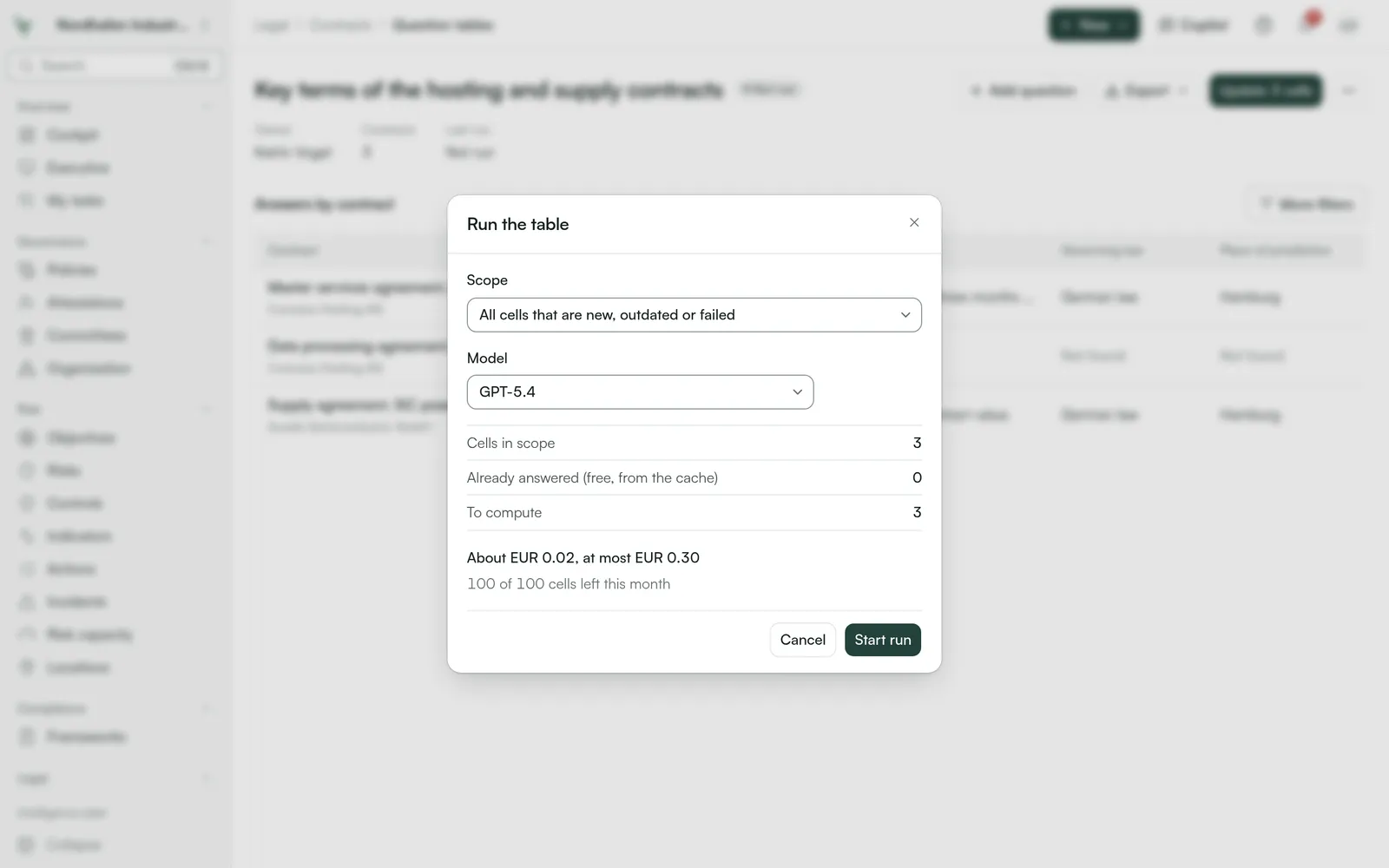
Open the table and select Run. After the first run the button reads Update N cells, where N is what a new run would compute.
The dialog shows Cells in scope, Already answered (free, from the cache) and To compute, then "About EUR X, at most EUR Y" and how many cells are left this month.
Choose the Scope: All cells that are new, outdated or failed (default) or One question. Where your plan offers a model choice, a Model field appears.
Select Start run. A progress bar shows "412 of 1,240 cells, about 9 min left". Cells fill in as they finish. You can leave the page. You get a notification when the run is done.
What to know about a run:
- The cache is free. If the same question, answer type, language, model and document text were answered before, in any table of your organisation, the answer is copied. It costs nothing and does not use the meter.
- Only computed cells count. The meter counts a cell once the AI has answered it, as Answered, Not found or No source found. A failed cell and a cache hit do not count.
- One run at a time per table. Select Cancel run under More actions to stop it. Answers already written stay.
- Your access applies. A run answers only the contracts you can see. If you lose access during a run, it stops.
- The AI uses a model from the EU Data Zone by default. A Global model shows a notice that it may process the contract text outside the EU. Nothing is used for training. An EU-only configuration hides Global models.
Read the table
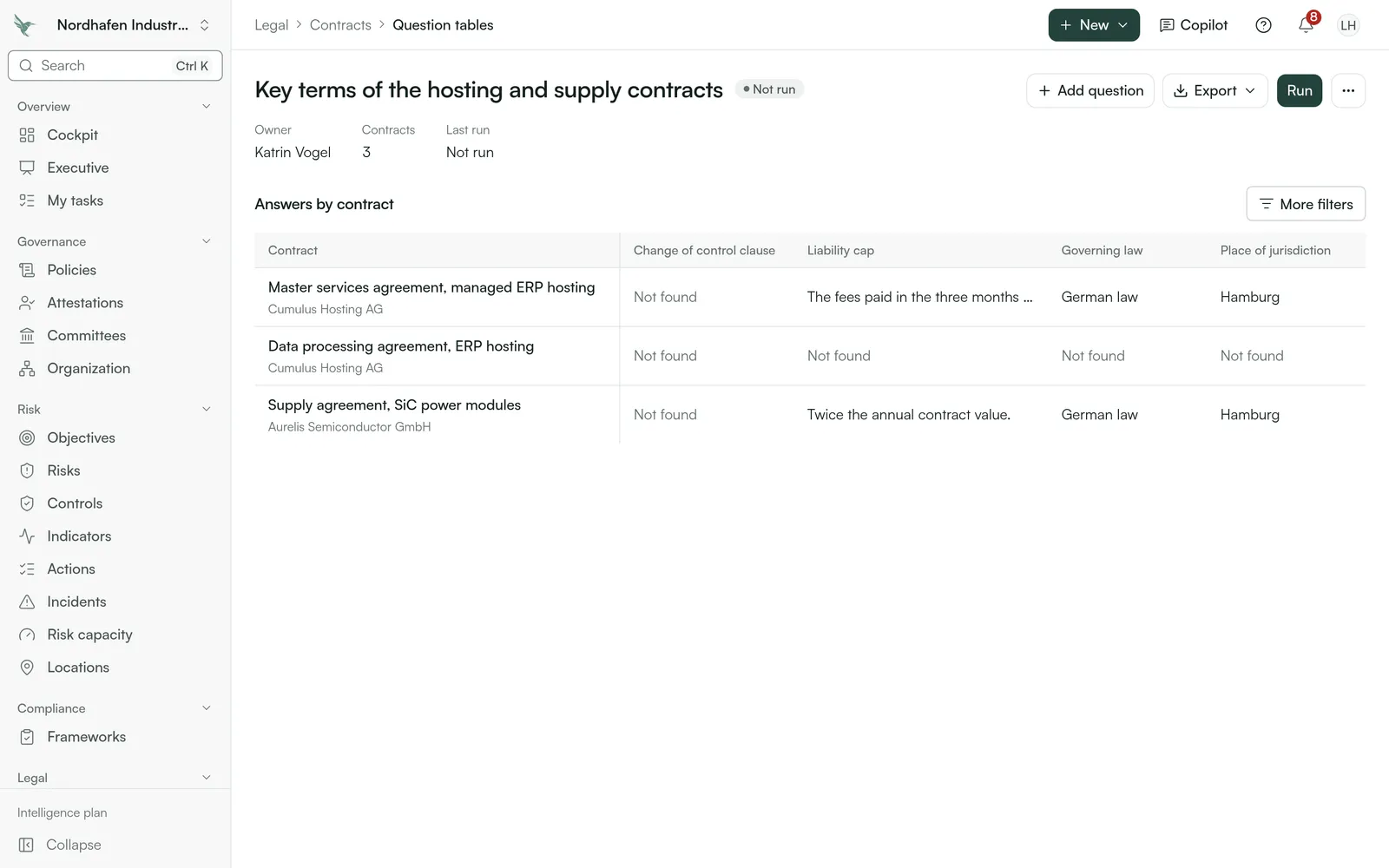
The first column is pinned and shows the contract with its counterparty. Each cell shows the short answer on one line. Hover for the full text. Select a cell to open its drawer.
| Cell shows | Meaning |
|---|---|
| Not run | Never asked |
| A skeleton | In a run |
| The answer | At least one quoted passage was found word for word in the document |
| Not found | The document does not state it. The hint says whether the whole document or only the most relevant passages were read. Never shown as "No" |
| An answer with a warning | No source found in the document: the AI answered but no quote could be verified. The value is kept but never counts as verified |
| Failed, retry | The AI call failed after retries. The next run asks again |
| No document text | The contract has no extracted text, so there is nothing to ask |
| Outdated | The contract has a newer document, or the question was edited after the answer |
Marks next to an answer: a check for Verified, a pencil for Corrected, a flag for Flagged.
Use Show above the grid to filter: All cells, Not found, Not verified, Flagged, Outdated, No document text and Failed. The grid shows 100 contracts per page.
Contracts without document text
A contract with no readable text cannot be answered. Its cells read No document text. They are left out of Update N cells, the estimate and the run, they are never charged, and the filter No document text lists those contracts. Upload a PDF or DOCX with text on the contract's Documents and versions tab (see Contracts). The next run then asks the questions.
Check an answer
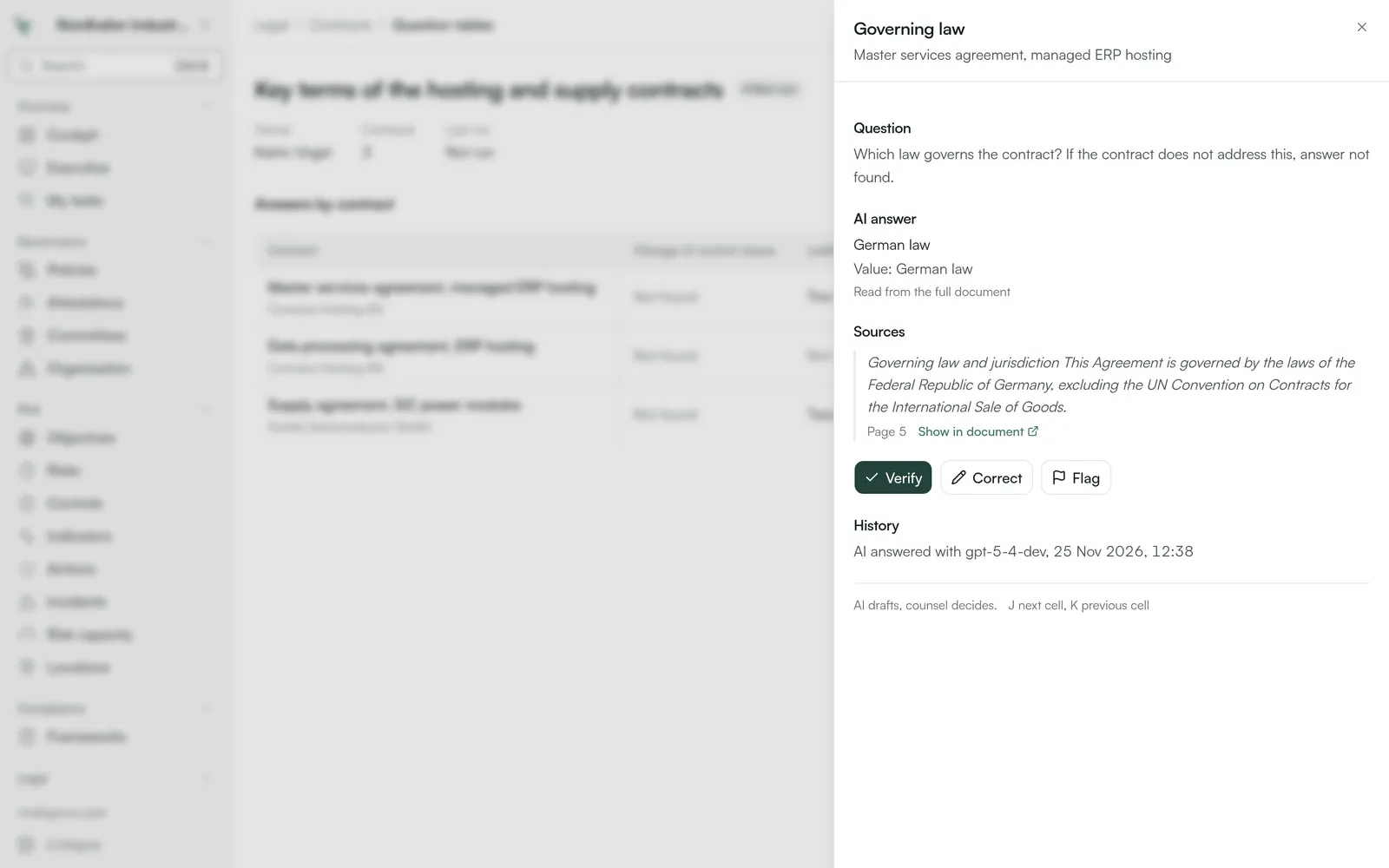
Select a cell to open the drawer. It shows the Question, the AI answer, the Value and the Sources.
- Each source gives the quoted passage and the page. Show in document opens the contract in the viewer at that page with the passage marked. A DOCX file opens its text with the paragraphs marked. Always read the clause in the contract.
- Verify confirms the answer.
- Correct lets you enter a Corrected answer and a Corrected value. The corrected values win in the grid, the export and the API. The AI answer stays visible in the drawer.
- Flag marks the cell with a Note for someone to look at. Remove flag clears it.
- Reset review returns the cell to the AI answer.
- History lists the AI answer with its model and time, then who verified, corrected or flagged and when.
- J moves to the next cell of the question and K to the previous one.
Your review is kept apart from the AI answer. If a later run changes the AI answer under a verified or corrected cell, your value stays and the cell shows AI answer changed since review. If someone else changed the cell while you worked, your save is refused with the usual "Changed by ..." message and nothing is overwritten.
Change the table
- Add question adds a column. Run the new column on its own with the scope One question.
- Under More actions: Update contracts from the saved filter re-reads the contracts of the filter you started from, Share with the organisation or Make private, and Delete table. Deleting removes the table and all its answers for everyone. The contracts stay untouched. Only the owner or an admin can delete.
- Editing a question marks its answers Outdated. The next run asks them again.
Export
Select Export and choose CSV, XLSX or PDF. You get one row per contract with, per question, the answer, the value and the status, plus the sources with page and quote and who reviewed it. Corrected values win. The export follows your access: it lists only the contracts you may see.
Also in the Copilot, MCP and the API
The Copilot and MCP clients can list and read tables with their sources, add questions, review and flag cells and export. Starting a run spends your AI budget, so it is not a Copilot tool. Over MCP it needs an explicit confirmation after the estimate. REST: see the API reference.
Limits to keep in mind
- The AI reads text. Scans are read with OCR on the hosted service; a file with no readable text at all cannot be answered.
- The AI can miss a clause or misjudge one. Verify answers before you rely on them.
- Only the latest document of a contract is read. Documents of other contracts, such as amendments kept as their own record, are not read.
- A table holds at most 2,000 contracts and 20 questions.
- The tool gives no legal advice. Your counsel decides.
AI contract check
How the AI contract check compares a contract with your playbook and the DORA Art. 30 and GDPR Art. 28 checklists, how the score works and how you decide on findings.
Clause library
Keep your standard clauses and the playbook that the AI contract check measures every contract against.