Contracts
The contract register with its lifecycle board, table, concentration view, contract record, documents, risk score and register of information.
Contracts is the register of every agreement, from the business request to termination. It shows what is in force, what needs a decision soon and how dependent you are on single counterparties.
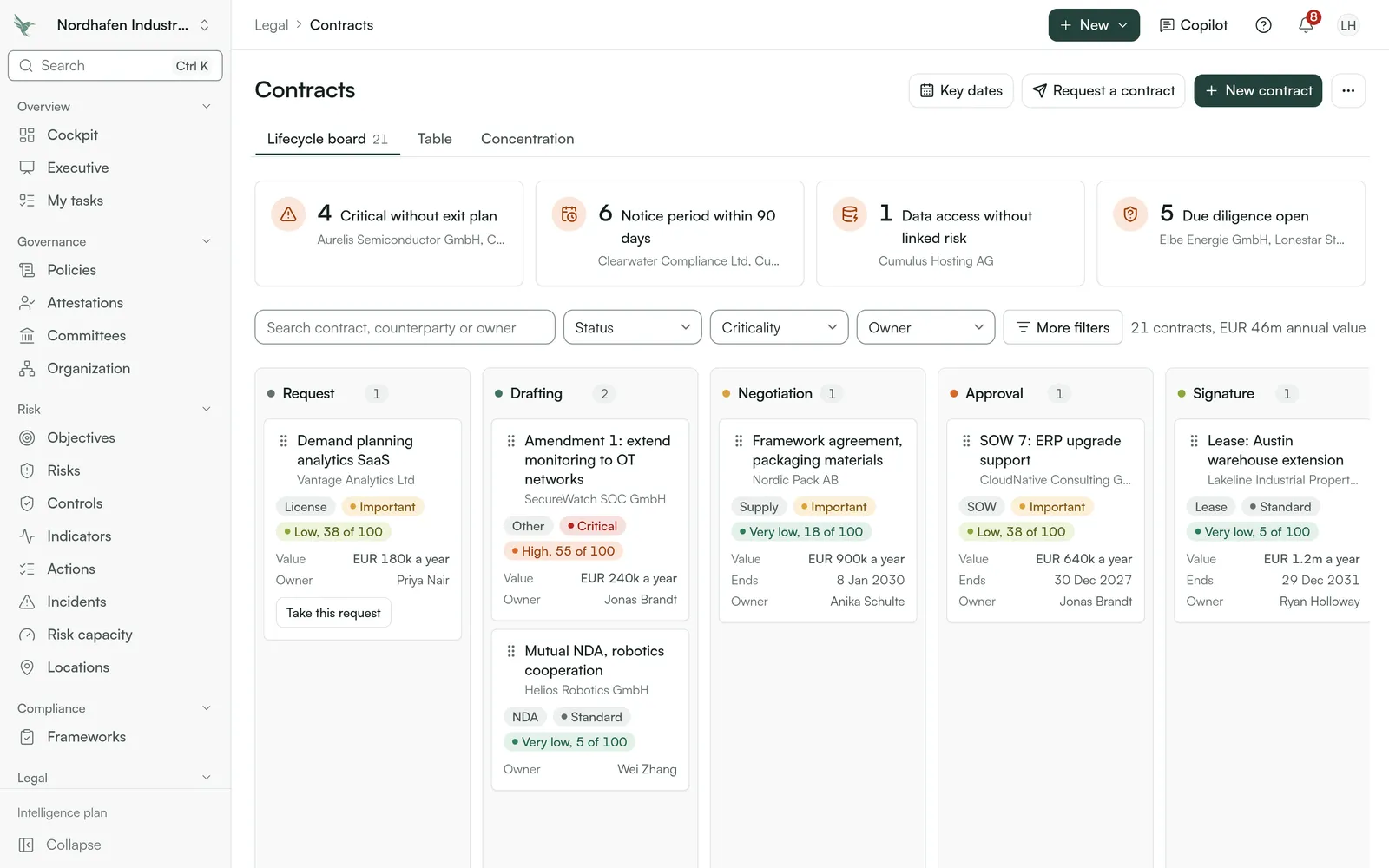
The lifecycle
Every contract has one stage. The stage names are the same in all views.
| Stage | Meaning |
|---|---|
| Request | Asked for by the business, not yet picked up |
| Drafting | Legal prepares or reviews the first draft |
| Negotiation | Open points with the counterparty |
| Approval | Internal sign-off before signature |
| Signature | Out for signature |
| Active | In force |
| Expiring | In force, notice period running or end near |
| Expired | Ran out without renewal |
| Terminated | Ended early or by notice |
| Declined | A request legal declined, kept read-only |
You move a contract one step at a time. Allowed changes:
| From | You can move it to |
|---|---|
| Request | Drafting (not by the person who requested it), or Declined with Decline (see Contract request) |
| Drafting | Request, Negotiation |
| Negotiation | Drafting, Approval |
| Approval | Negotiation, Signature (needs the approved signing approval) |
| Signature | Negotiation, Approval, Active |
| Active (also while it shows as Expiring) | Expired, Terminated |
| Expired, Terminated, Declined | Final, no further move. A declined request is read-only and shows only when you filter Status by Declined |
Moving to Signature, Active, Expired or Terminated needs the right to approve contracts. Other moves need the right to edit contracts. The stage selector and the board offer only the allowed targets.
The app moves some stages for you. See What the app does automatically.
Three views
Switch views at the top of the page. All three respect the same filters.
- Lifecycle board: one column per stage. Drag a card to another column. With the keyboard, focus a card, press Space to pick it up, choose a column with the left and right arrow keys and press Space again to drop it; a screen reader announces each step. Without dragging, open the contract and choose a stage under Lifecycle stage, or another column of its stage under Board column, in the More options menu.
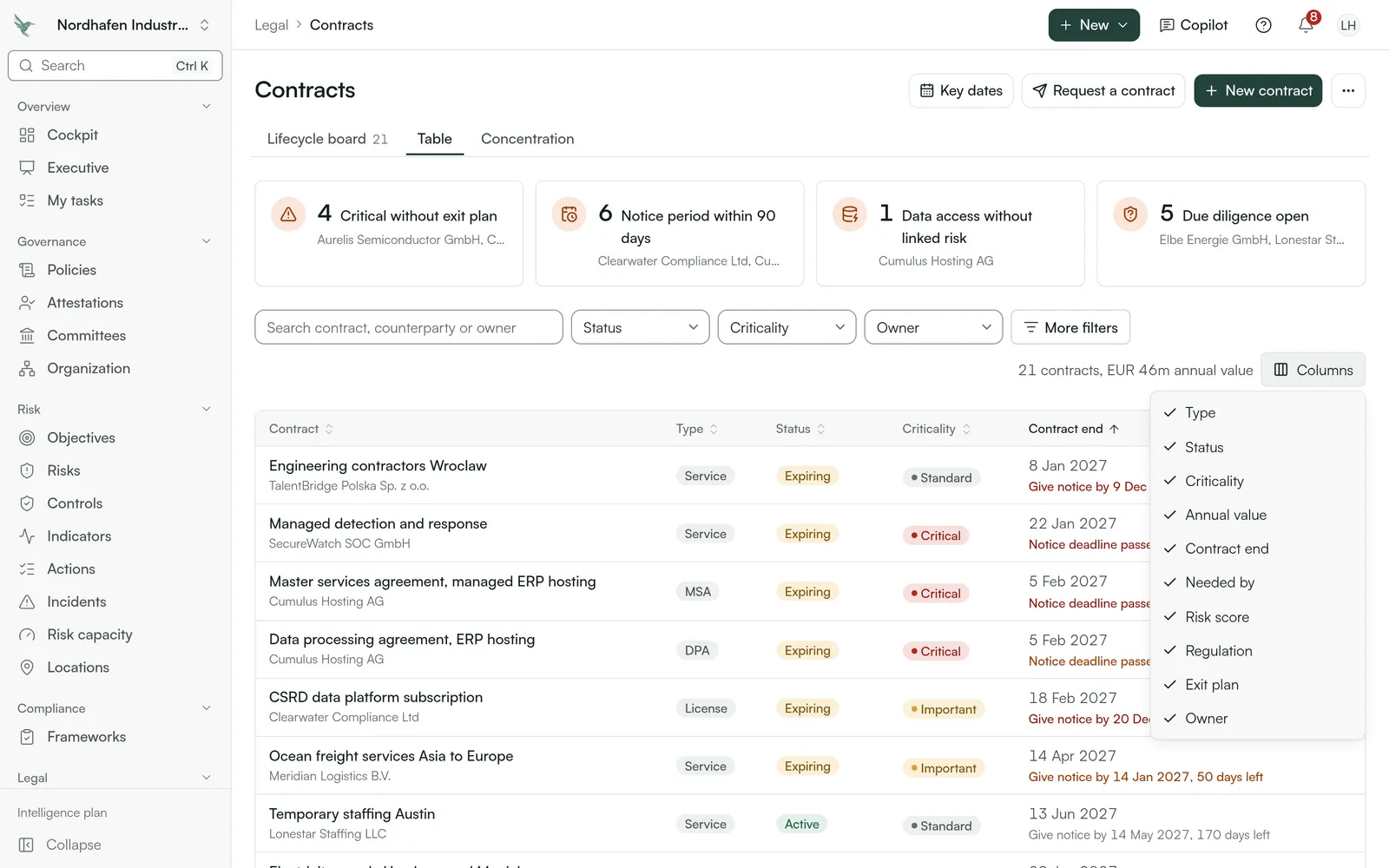
- Table: sortable by contract, type, status, criticality, annual value, Needed by, contract end, risk score, exit plan and owner. Requests show the Needed by date on the board card and in the table; a date in the past is marked "overdue" while the contract is still before signature. The end column shows the notice line, for example "Give notice by 30 Nov 2026, 12 days left" or "Notice deadline passed, renews on 15 Jan 2027".
- Columns: in the table view, Columns next to the filters switches columns on and off (everything except the contract column). The choice is part of the page address, so a copied link keeps it.
- Export PDF: Export PDF in the page header downloads the list as a PDF with the filters you have set: contract, counterparty, type, status, criticality, end, notice, annual value and owner. It needs the export right on contracts, lists only the contracts you may see, is written to the audit log, and is also available as
GET /contracts/exportover REST and as an MCP tool (the PDF comes back base64 encoded). The file is dated in your time zone. A PDF holds at most 2,000 contracts: if the list is longer, the PDF says how many are shown, and the REST and MCP answer carriestruncatedandtotal. Narrow the filters to export the rest. - Concentration: annual spend by counterparty. It shows the annual spend, the share of the top 3 counterparties, the share of critical services and the annual value of critical contracts without an exit plan. Only contracts in force count. Contracts in another currency than your organization's are not added, because there is no conversion. They are listed under the figure.
Filters: search (contract, counterparty or owner), status, criticality, owner, type, regulation, data access and exit plan. The list shows the first 100 contracts; Load more adds 100 at a time, up to 1,000. To see beyond that, narrow the filters or export the list.
Needs attention
Above the views, four tiles point at contracts that need action. Click a tile to filter the list.
| Tile | A contract is flagged when |
|---|---|
| Critical without exit plan | It is in force, rated critical and has no documented exit plan |
| Notice period within 90 days | It is in force and the notice deadline (the last day to give notice) is within 90 days or has passed |
| Data access without linked risk | It is in force, the counterparty has access to your data and no risk is linked |
| Due diligence open | It is in force and the counterparty's due diligence is not approved, or its sanctions screening is older than 365 days or missing |
Board columns
Admins, and people whose role has the admin right on Contracts (for example a legal lead role), can tailor the columns of the lifecycle board on the board itself. Everyone else sees the board without these controls.
- Each column is a step inside one stage, for example Legal review and Business review inside Negotiation. The stages and their order stay fixed, so a column cannot move to another stage.
- Rename: click the column title, type the new name and press Enter (Escape cancels). A column without a name shows the stage name in your language.
- Add: the + after the last column of a stage opens a name field for a new column in that stage.
- Reorder: drag a column header left or right within its stage. With the keyboard, focus the column title and press the left or right arrow key. Move left and Move right in the column menu do the same.
- Remove: choose Remove column in the column menu. If the column holds contracts, the column asks Move its contracts to (with the number of contracts when the whole list is loaded) and lists the other columns of the same stage. Removing a column never changes a contract's stage. Each stage keeps at least one column.
- Expiring follows the Active columns. It comes from the contract dates, so it cannot be renamed or removed.
- Every change saves at once and writes one entry to the audit log. If someone else changed the columns in the meantime, the board shows "Board changed, reload." Choose Reload and make your change again.
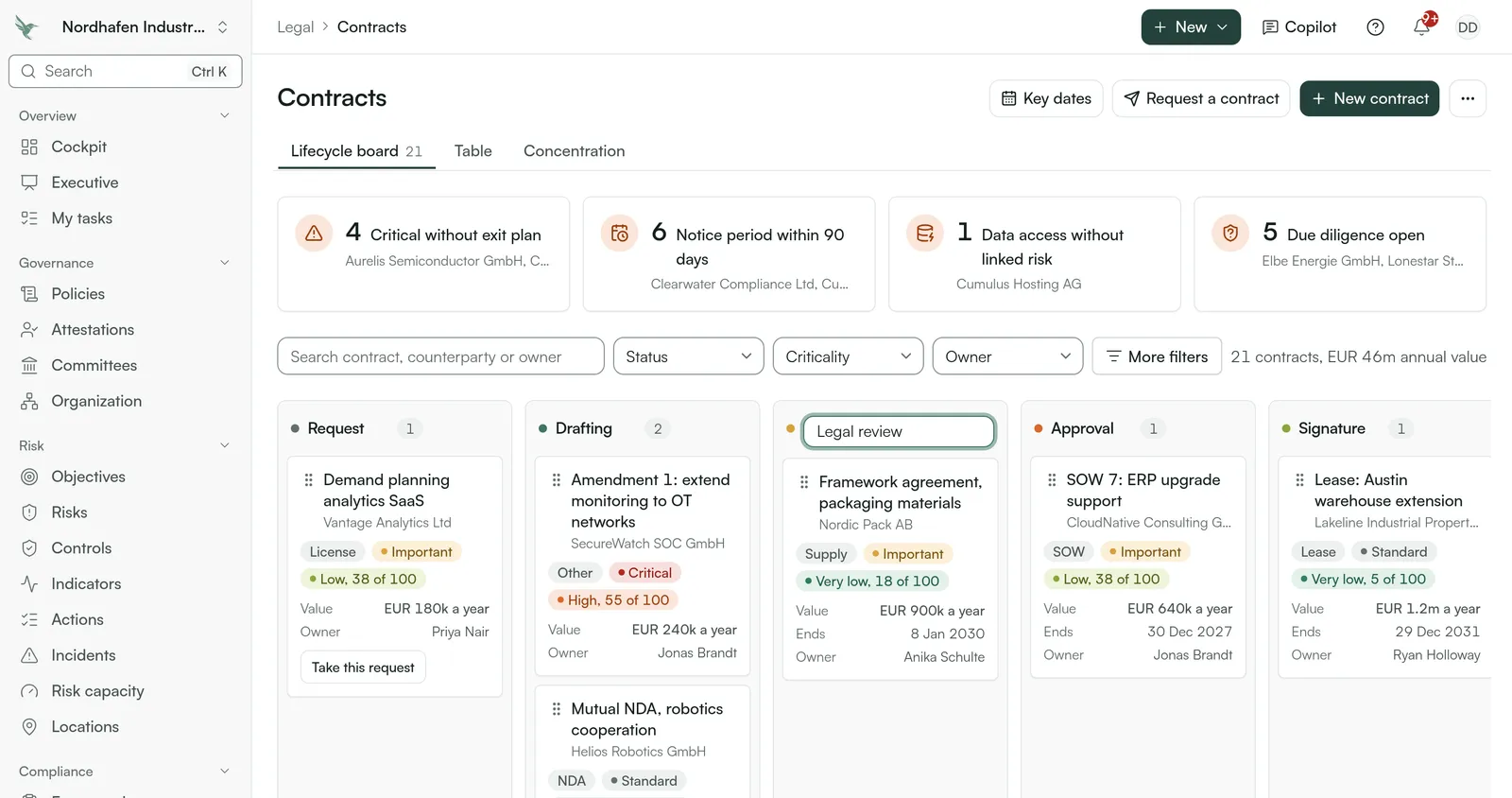
On the board, moving a card into a column of another stage is a stage change with all its rules: the table above, the right to approve contracts where it is needed, and the signing approval before Signature. Moving a card between columns of the same stage only changes its column; that needs the right to edit the contract. If the app changes the stage itself (an approved signing request, the end date), the contract shows in the first column of its new stage.
Over the API, GET /contract-board returns the columns and their version, PUT /contract-board saves them, and POST /contracts/{id}/move takes an optional stage (a column id). Contract outputs add stage_id.
Add a contract
Role needed
drafting.Open Contracts and select New contract. To ask legal for help instead, select Request a contract (see Contract request).
Fill in the contract: title, counterparty, service, type, status, criticality and owner. In the counterparty field, search for an existing counterparty, or type a new name and choose Use "name". A new name creates the counterparty. Every contract needs a counterparty.
Under Term and value, enter annual value, total contract value, currency, start and end date, the notice period in days and whether the contract renews automatically unless notice is given. Leave the end date empty for open-ended contracts.
Choose Our role (Customer, Supplier or Other; the default is Customer). It says which side we are on in this contract. The AI check and the obligation extraction use it to judge from our side. Then enter governing law and jurisdiction.
Under Regulation and resilience, select the regulations that apply, whether the counterparty has access to your data and whether you have a documented and tested exit plan. These fields feed the register of information and the AI checklists.
Select Create contract. Then upload the document and link the risks on the contract record.
Notes:
- The regulations you can tag are DORA, NIS2, GDPR, EU AI Act and CSRD.
- A contract created by a Contributor starts in Drafting, and they own it.
- Approval and Signature are never set on a new contract. You reach them through the approval flow.
- For an amendment or a schedule that belongs to another contract, set Parent contract, or use Create amendment in the menu of the parent contract. The amendment copies counterparty, criticality, data access, exit plan, regulations, owner, governing law and notice period and starts in Drafting.
The contract record
Open a contract to see its record. The header shows the stage, owner, the notice status ("20 days left", "Notice deadline passed, renews on …" or "Notice given on …"; the end date when the contract has no notice deadline) and the risk score. Every contract has a code such as CTR-001, numbered per organization; search and the REST q filter match it. Managers also find Edit, a button for the next lifecycle step ("Move to Negotiation"; when you may not take the step, the disabled button says who can) and the More options menu with Lifecycle stage and Board column (each opens a list to the side), Create amendment, delegates and delete.
Select Ask about this contract in the header to open the Copilot on this contract. It answers from the documents of this contract and cites the passage.
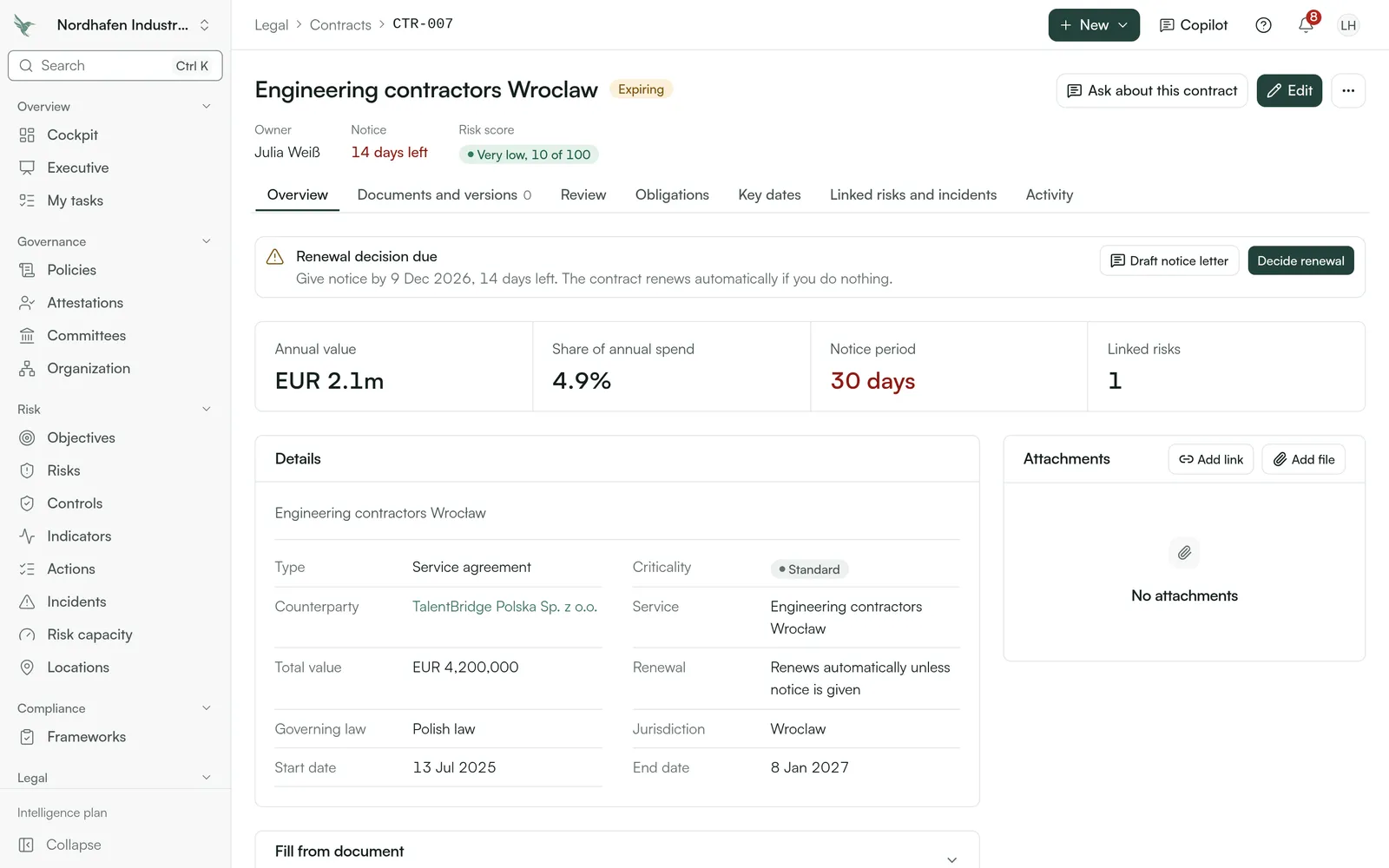
| Tab | What it holds |
|---|---|
| Overview | The renewal decision when it is due, annual value, share of spend, notice period, linked risks, Details (description, key terms, start and end date, whether notice was given), the register of information, Fill from document (collapsed) and related contracts |
| Documents and versions | Every uploaded version, newest first, and the upload form |
| Review | The AI contract check and its findings |
| Obligations | Obligations of both sides, see Contract obligations |
| Key dates | Dates computed from the contract, see Contract calendar |
| Linked risks and incidents | Risks, incidents on those risks and legal matters that involve the contract |
| Activity | The change history and the signing approvals |
Documents and versions
Upload a PDF or DOCX file of up to 20 MB. Every upload becomes the next version and every version is kept. The app reads the text so that the AI check and search can use it. Scans are read with OCR on the hosted service. If a file still has no readable text, for example when the OCR page allowance is used up, the text is not read and the AI check cannot use it. The Read the text again button on a version tries again. When the plan has room, the text is also added to the knowledge base so Copilot can find it. For a PDF, View opens the file page by page in the viewer. DOCX files have no viewer.
Fill from document
On the Overview tab, Fill from document proposes the key data of the contract from the text of a document version: counterparty, our role, type, start and end date, automatic renewal, notice period, governing law, jurisdiction, total and annual value, currency and data processing. Choose the version, then Propose key data.
Every proposed value comes with the passage of the contract that states it and a Show in document link that opens the PDF at that passage. A value whose passage is not found in the text is left out. Each row shows the Current and the Proposed value. Tick the values you accept and select Apply selected; nothing is saved before that. The save is a normal contract edit, so it appears in the history and, if someone else changed the contract in the meantime, you see who and can reload or overwrite.
One proposal counts as one AI contract check of your plan. The model is an EU Data Zone model by default. Where your plan offers a Claude model, you can pick it, and the page then warns that this model may process the contract text outside the EU. See AI contract check.
Linked risks and incidents
Link the risks that this relationship creates. In the list, counterparty and cyber risks come first. The tab also lists incidents recorded on the linked risks and the legal matters that involve the contract.
Register of information
The Overview tab shows a DORA Art. 28 style record that is read from the contract: reference, ICT third-party service provider, ICT service provided, whether it supports a critical or important function, start and end date, notice period, annual cost, access to company data, applicable regulation, exit strategy documented and responsible owner. Missing values on a contract in force are marked. Edit the contract to change them.
Risk score
Each contract has a risk score from 0 to 100. It rises with:
- the criticality (critical, important, standard),
- access to your data,
- a critical contract without an exit plan,
- each regulation tag,
- an open notice period,
- the shortfall of the latest AI check score.
The score is recalculated when you save the contract, move it or decide on a finding. Use it to sort the table. It is a prioritization aid, not a legal assessment.
What the app does automatically
- Auto-renewal. Once the end date of a contract that renews automatically has passed, the app moves it forward by whole years. If you gave notice (see Renewal and notice), it sets the contract to Terminated on the end date.
- Expiring and expired. A contract in force shows as Expiring while its notice deadline is within 90 days or has passed. This follows from the dates whenever the contract is shown, so nobody moves it there and nothing is recorded: when you extend the end date, it shows as Active again at once. It becomes Expired when its end date has passed and it does not renew automatically. That check runs every day and when you open the contract pages, at most every 5 minutes; every status change it makes is written to the Activity tab and sent as a contract update to webhooks and automations.
- Signature gate. A contract cannot move to Signature unless the signing approval requested in its current negotiation round was approved. An approval from an earlier round does not count, and a later rejection blocks the move. If you move a contract out of Approval, the open request is withdrawn.
- Reminders. Notice deadlines, contract ends and obligation due dates send reminders. See Contract calendar.
- Counterparty name. If you rename a counterparty, the name changes on all its contracts.
- History. Every change is written to the Activity tab.
Permissions in short
- Managers and Admins edit and move every contract.
- A Contributor edits the contracts they own and moves them only between Request and Drafting. All other stage changes are for Managers and Admins.
- Deleting a contract needs the Delete right on Contracts, which Managers and Admins have.
- The delete dialog says how many documents, AI reviews and obligations go with the contract. Moving a contract to Active without a document, dates or a value asks for confirmation first.
- Linking a risk needs the right to view that risk.
Plan limits
The number of contracts you can hold depends on your plan.
| Limit | Foundation | Intelligence | Tailored |
|---|---|---|---|
| Members | Unlimited | Unlimited | Unlimited |
| Risks | Unlimited | Unlimited | Unlimited |
| Contracts | Unlimited | Unlimited | Unlimited |
| Knowledge base documents | Unlimited | Unlimited | Unlimited |
| Active automations and agents | 10 | Unlimited | Unlimited |
| Simulation runs this month | 10 | Unlimited | Unlimited |
| Copilot chat requests this month | 10 | 30 per member, pooled | Unlimited |
| AI contract checks this month | 1 | 3 per member, pooled | Unlimited |
| AI table cells this month | 0 | 100 per member, pooled | Unlimited |
| MCP access tokens | 3 | Unlimited | Unlimited |
| Emails sent this month | 1,000 | Unlimited | Unlimited |
| AI drafts this month | 3 | 15 per member, pooled | Unlimited |
| Active AI agents | 0 | Unlimited | Unlimited |
| Document Intelligence pages this month | 20 | 50 per member, pooled | Unlimited |
| File storage | 2 GB | 100 GB | Unlimited |
| Automation runs this month | 1,000 | Unlimited | Unlimited |
| REST API calls this month | 1,000 | 50,000 | 1,000,000 |
| MCP tool calls this month | 1,000 | Unlimited | Unlimited |