Copilot
Ask questions about your risks, controls, contracts and documents, get cited answers, and let the Copilot prepare any change you could make yourself. Nothing is saved until you accept or confirm it.
The Copilot answers questions from your own data and can do what you can do in the app: create, update, link, close, delete, decide. It never changes anything by itself. New records come as drafts you accept, every other change as a confirmation card you confirm. You can use every module without it.
Role needed
Open the Copilot
- Select Copilot in the top bar. The panel opens beside the page you are on.
- Select Open full page in the panel, or Copilot in the sidebar under Knowledge, for the full-page view with your conversation list. Select Collapse to side panel there to return to the page you came from with the same conversation open in the panel (the dashboard if you opened the full page directly).
The Copilot knows the page you are on. On a risk, a control, a contract, a policy or a document it adds that record as context ("About ...") and offers starting questions for it. Select Remove context to ask a general question instead.
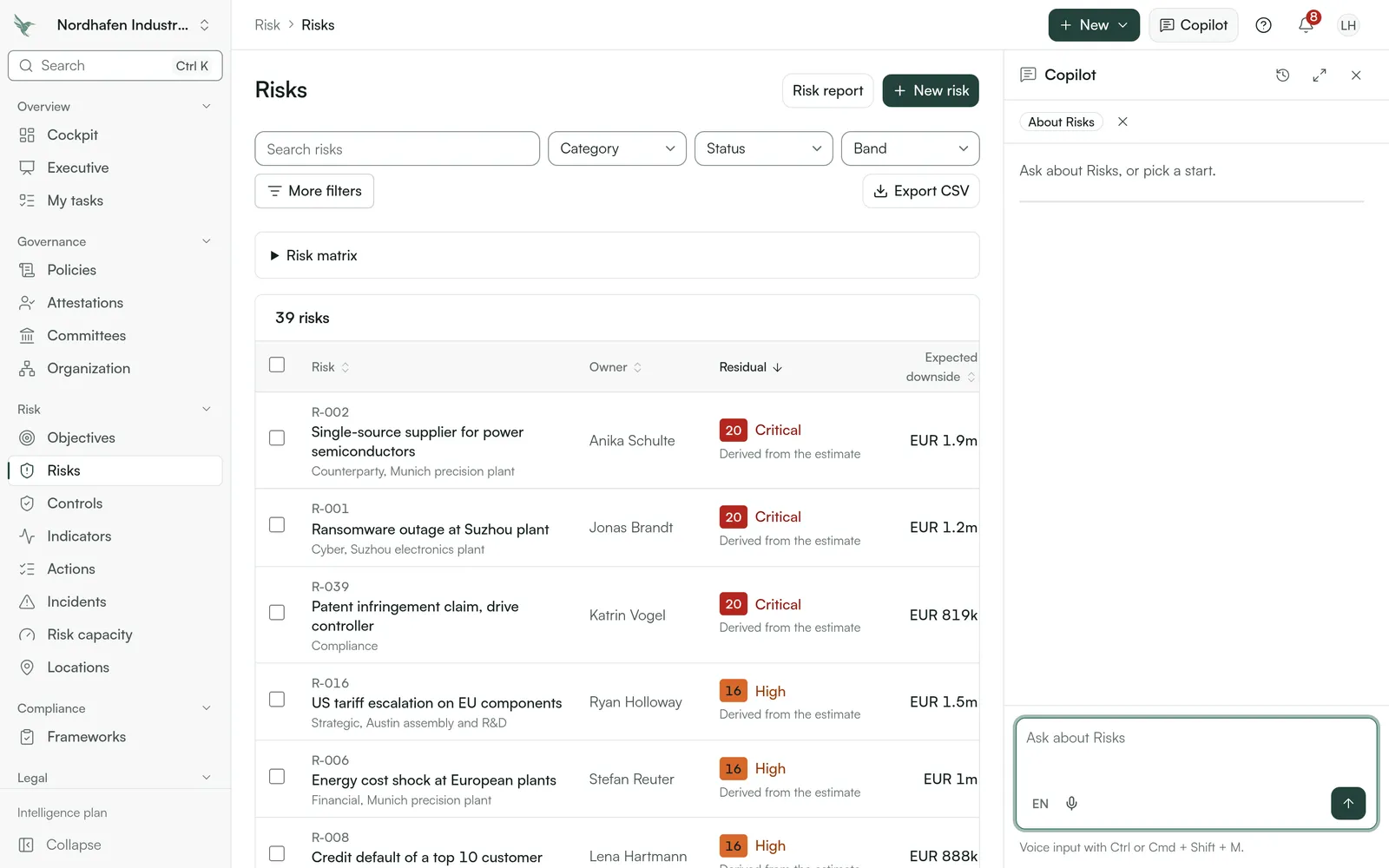
Ask a question
Open the Copilot. On the cockpit it greets you and tells you how many unread alerts need you. Select Ask the Copilot what to do first to start from there.
Pick a suggestion or type your question in Message the Copilot. Press Enter to send. Examples: "Are we within risk appetite?", "Which controls are missing for this risk?", "Which documents mention supplier exit plans?"
Watch the steps. Each step is a lookup the Copilot runs in your data, such as "Searching the risk register" or "Reading R-014", shown with its state while it runs. It answers from those results and does not guess. Text, steps and cards appear in the order they happened. When the answer is finished the steps fold into one line; select it to see them again.
Read the answer and open Used 2 sources (the number varies). Records link to their page. Document passages open the document in the knowledge base at that passage, with the passage marked. Point at a linked record in the answer, or move the keyboard focus to it, to see which source it is.
When you send a question, it moves near the top of the conversation and the answer is written below it. Once the answer reaches the bottom of the view, the view follows it. Scroll up to reread something and the view stays where you put it; Jump to latest follows the answer again.
- Under a finished answer, Copy copies its text and Try again asks the same question once more (a new request); the first question and answer leave the conversation, and stay in the audit trail. If an answer fails, Try again sits next to the error.
- Next questions offers two or three follow-ups that fit the lookups the answer used and the page you are on. They wrap to as many lines as they need and cost nothing until you pick one.
- You can type the next question while an answer is written. Press Enter and it waits above the input (Sends after this answer) until the answer is complete; remove it with the cross.
- Stop ends the answer. What was written stays in the conversation, marked Stopped; select Continue to let the Copilot pick up where it stopped.
The Copilot replies in the language you write in. If your message gives no clue, it uses the language the app is showing. Its error messages and refusals follow the app language too, not the language saved in your profile (that one stays the default for emails and notifications).
What it can look up
The Copilot uses the same operations as the rest of the app and only the ones your role allows. If your role cannot read something, it tells you and offers advice instead.
- Records: search across all record types, read one record, list your tasks, overdue actions, indicators in breach, incidents, policies, contract obligations and contracts with approaching deadlines.
- Legal: search contracts by counterparty, type, status, end date or exit plan, list legal matters and counterparties (by due diligence status) and look up the house clauses. Each answer lists at most 20 records with links and only what your role and department scope allow. On a contract, Ask about this contract opens the Copilot with that contract and answers from its documents; in the renewal decision, Draft notice letter prepares a letter draft that names the notice clause and leaves date and signature empty. The Copilot only writes text you copy; it saves nothing.
- Analysis: capacity simulation, compliance coverage gaps, control gaps and the findings of a contract review.
- Documents: full-text and semantic search over the knowledge base. Answers about what a policy or report says come only from the passages it finds. If nothing matches, it says that no document covers the question.
- Everything else your role allows: the Copilot knows every operation of the app that you may use, the same ones the API and MCP offer. For each question it loads the tools of the page you are on and of the modules you name, and looks up further ones when it needs them.
- Product help: ask "How do I ...", "What does ... mean" or "Where do I find ..." and the Copilot searches this documentation by meaning, not only by exact words, answers briefly and ends with a link to the exact article in your language. It only links pages it found, and it needs no access to your data.
Review a draft
Ask the Copilot to create something, for example "Draft a risk about a new supplier dependency". It prepares a draft card marked AI draft, not saved.
| Draft | Saved as |
|---|---|
| Risk | A draft risk owned by you |
| Control | A control in the library, not tested |
| Action | A planned action |
| Incident | An open incident |
| Obligation | An open obligation on the contract |
| Policy | A draft policy that still needs review and approval |
| Board paper | A draft paper, split into sections at each heading |
| Automation | An automation that is switched off |
Read the card. Select Edit to change fields, then Done.
Select Accept to save it, or Discard to drop it. Until you accept, nothing is stored.
After you accept, the entry in the audit log is flagged AI-assisted. You can filter the log with AI-assisted only.
The save follows the same rules as the normal forms. If your role may not create that record type, the Copilot does not offer the draft.
Confirm a change
Ask for a change in your own words, for example "Mark action A-003 as done, the fix is verified", "Record 7.5 for the phishing click rate this month", "Give notice on the Treasury SaaS agreement", "Link control C-001 to risk R-002" or, as an admin, "Invite max@example.com as a viewer". The Copilot reads the record first and then shows a confirmation card. Nothing has changed at that point.
| Card | Used for | Button |
|---|---|---|
| Confirm change | Updates, status changes, links, values, reminders, invitations and other changes | Confirm |
| Confirm deletion | Deleting a record, removing a member, revoking a token or an invitation. These cannot be undone. | Delete |
| Confirm decision | Approving or rejecting a request | Record decision |
Read the card. Its first line says what will happen, in your language, for example "Set the owner of R-002 to Katrin Vogel". Below it are the record (with a link) and each field under the label its form uses. People appear by name, linked records by code with a link, dates and amounts in your format. For an update, the current value is struck through and the new value is below it.
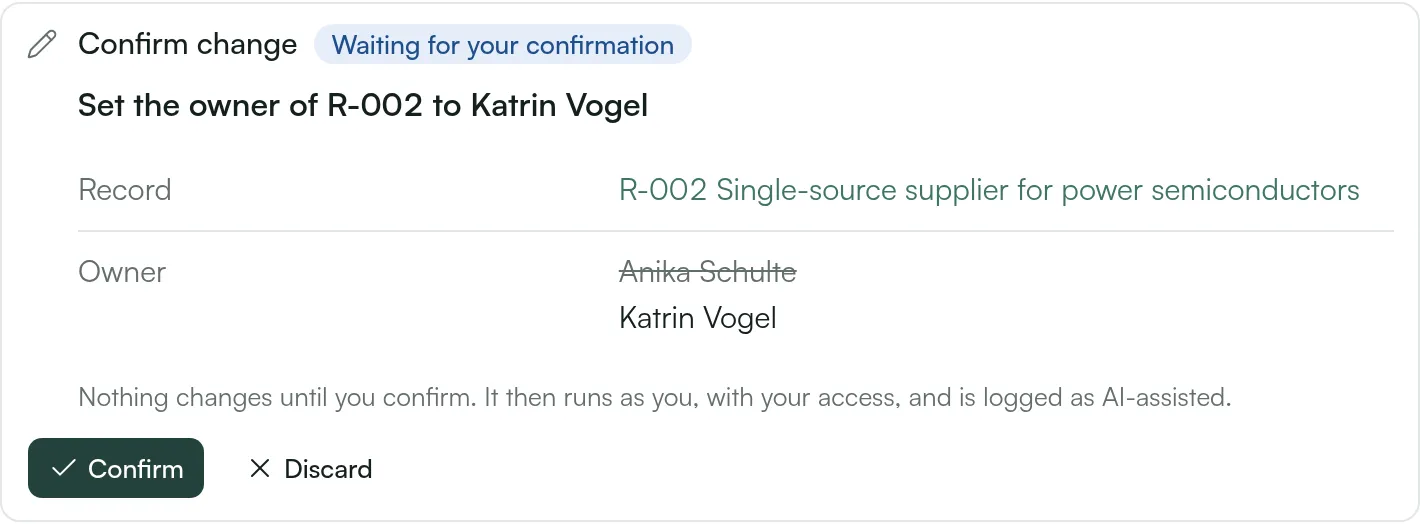
Select the button to run the change, or Discard to drop it. Until then the card shows Waiting for your confirmation.
After you confirm, the change runs as you, with your access. The card shrinks to one line titled by the outcome ("Changed", "Deleted" or "Decision recorded") and marked Confirmed, with the result, and Open links the changed record. A discarded card shrinks to Discarded (title and mark) and "Nothing was changed." The entry in the audit log is flagged AI-assisted.
When one answer holds several waiting cards, Confirm all lists the changes and runs them one after another, each exactly as its own button would. Deletions are not part of it: they always need their own Delete click, and the list says how many wait. If one is refused, the others still run and the list says which one did not and why.
- The Copilot checks the change before it shows the card, with the same rules as the forms. If your role may not do it, or the input is not valid, you see no card and the Copilot tells you why.
- Approvals stay four-eyes: the Copilot never shows a card to approve or reject a request you raised yourself. The step says so: "You asked for this approval, so someone else has to decide it."
- If someone changes the record after the card appeared, confirming is refused and the card stays open. Ask the Copilot again to get a card with the current values.
- A card runs once. Confirming it a second time, or in a second tab, does nothing.
- Some steps stay with you in the app, also through the Copilot: answering an attestation, confirming that you read a policy, signing off the year-end pack, accepting AI review findings, sign-in settings (SSO, domains), API tokens, deleting the organization and billing. Automations are created as drafts only.
Build a department structure
Type, or dictate with the microphone, for example "Create Finance with Accounting and Controlling below it, and IT with Infrastructure and Security". The Copilot reads your existing departments and shows the planned tree on a confirmation card. Only after you select Confirm does it create the departments, each below its parent. A department that already exists under the same parent is kept, not duplicated. You need the right to edit departments (managers and admins).
To put a person into a department, ask the Copilot ("Put anna@example.com into Accounting") and confirm the card, or do it under Organization in the department list.
Contact Volatilis Support from the Copilot
The Copilot answers product questions from this documentation first and links the articles. If that does not solve it, or you ask for a person ("I need to talk to support"), it prepares a Draft support request card. The Copilot never contacts support itself: nothing is sent until you select Send to Volatilis Support.
- The card shows the Type, Impact, Area, Subject and a Summary written from your conversation. Edit any of them.
- Technical details we will send lists the page, browser, language, time zone and plan. Untick any item you do not want to share.
- Attach this Copilot conversation is off by default. Select Show to read exactly the text that would be attached, then tick it if you want to send it.
- After you send, the card shows the reference (for example SR-1042) and links to the request.
Support requests are part of Intelligence and Tailored. On the Foundation plan the card shows the address support@volatilis.org and See plans instead of the send button.
Other AI buttons
Draft from a sentence and Suggest controls use the AI draft allowance of your plan. Challenge assessment counts as a Copilot chat request. If the AI does not answer in time, the button shows "The AI did not answer in time. Try again."
- Draft from a sentence on a new risk. Describe the risk in your own words and select Draft risk. The form fills in. Check every field before you save.
- AI actions on a risk: Suggest controls (existing library controls first, new drafts second) and Challenge assessment (a critical review of likelihood, impact and quantification, advice only).
- Regenerate on the executive summary. The text is labelled AI draft, review before you share it until you edit it.
- The AI briefing on the cockpit is part of Intelligence. Foundation organizations see the standard summary.
Voice input instead of typing
Select the microphone (Voice input) in the Copilot input, or press Ctrl or Cmd + Shift + M. Press Esc to stop. Voice input also works in the long text fields of the app.
- The language picker switches between English and German.
- Say punctuation as words. English: "comma", "full stop", "question mark", "exclamation mark", "colon", "semicolon", "new line", "new paragraph". German: "Komma", "Punkt", "Fragezeichen", "Ausrufezeichen", "Doppelpunkt", "Semikolon", "neue Zeile", "neuer Absatz".
- You review the text and send it yourself. Nothing is spoken back.
Voice input uses the speech recognition of your browser. It needs microphone permission and an internet connection. Depending on the browser, the audio may be sent to the browser vendor for recognition (for example Google for Chrome, Apple for Safari); Volatilis itself receives only the text.
Conversations
The full page lists your conversations. You can rename and delete them. A conversation that gets very long asks you to start a new one so answers stay sharp.
Models and limits
- Foundation uses one economical model. On Intelligence and Tailored a Model picker appears in the input. Each model in the list says EU (your messages are processed in the EU) or Global (they may be processed outside the EU), and the picker shows the choice next to the model name. Tailored adds the strongest model.
- Every message you send counts as one Copilot chat request this month. The number left is shown next to AI buttons and on the billing page. When it is used up, the Copilot says so and an admin can upgrade the plan.
- An admin can cap how many chat requests and drafts each person uses. See Usage and quotas.
- If AI is not set up for your organization, the Copilot says so. The rest of the app works without it.
| Limit | Foundation | Intelligence | Tailored |
|---|---|---|---|
| Members | Unlimited | Unlimited | Unlimited |
| Risks | Unlimited | Unlimited | Unlimited |
| Contracts | Unlimited | Unlimited | Unlimited |
| Knowledge base documents | Unlimited | Unlimited | Unlimited |
| Active automations and agents | 10 | Unlimited | Unlimited |
| Simulation runs this month | 10 | Unlimited | Unlimited |
| Copilot chat requests this month | 10 | 30 per member, pooled | Unlimited |
| AI contract checks this month | 1 | 3 per member, pooled | Unlimited |
| AI table cells this month | 0 | 100 per member, pooled | Unlimited |
| MCP access tokens | 3 | Unlimited | Unlimited |
| Emails sent this month | 1,000 | Unlimited | Unlimited |
| AI drafts this month | 3 | 15 per member, pooled | Unlimited |
| Active AI agents | 0 | Unlimited | Unlimited |
| Document Intelligence pages this month | 20 | 50 per member, pooled | Unlimited |
| File storage | 2 GB | 100 GB | Unlimited |
| Automation runs this month | 1,000 | Unlimited | Unlimited |
| REST API calls this month | 1,000 | 50,000 | 1,000,000 |
| MCP tool calls this month | 1,000 | Unlimited | Unlimited |
How it stays safe
- Record text and document passages are treated as data, never as instructions. Text inside a document cannot change what the Copilot does.
- It sees only your organization and only what your role allows. It can change only what you could change in the app, and only after you accept a draft or confirm a card. A text in a record that asks the Copilot to change something can at most produce a card you see and discard.
- Your data is processed by the AI providers described in Security and data residency.