Automations and agents
Build rules, reminders, webhooks and scheduled AI agents that chase work for you, with a full run log and a review queue for anything an agent proposes.
An automation reacts to an event ("a control test failed") or to a schedule ("every Monday at 07:00 Europe/Zurich"). It checks your conditions and then runs its steps in order. An agent is an automation with an AI step: it reads your data, then proposes records that wait for your review.
What you need
Role needed
Plan needed
Your plan limits the number of active automations (agents count as automations), the runs per month and the number of active agents. See the table at the end of this page.
Start from a template
Open Automations in the sidebar under Knowledge and select New automation.
Pick a template and select Use template, or select Start blank to choose a trigger yourself. Templates tagged Microsoft 365 need a connection to Microsoft 365. The agent template is tagged Intelligence.
The new automation is created switched off and opens in the editor. Nothing runs until you switch it on.
Adjust the trigger, conditions and steps (see below), then select Test run.
Select Save automation, then turn on Active. If something is missing, the app tells you what to fix before it lets you switch on, for example "Add a title".
Templates
| Template | Trigger | What it does |
|---|---|---|
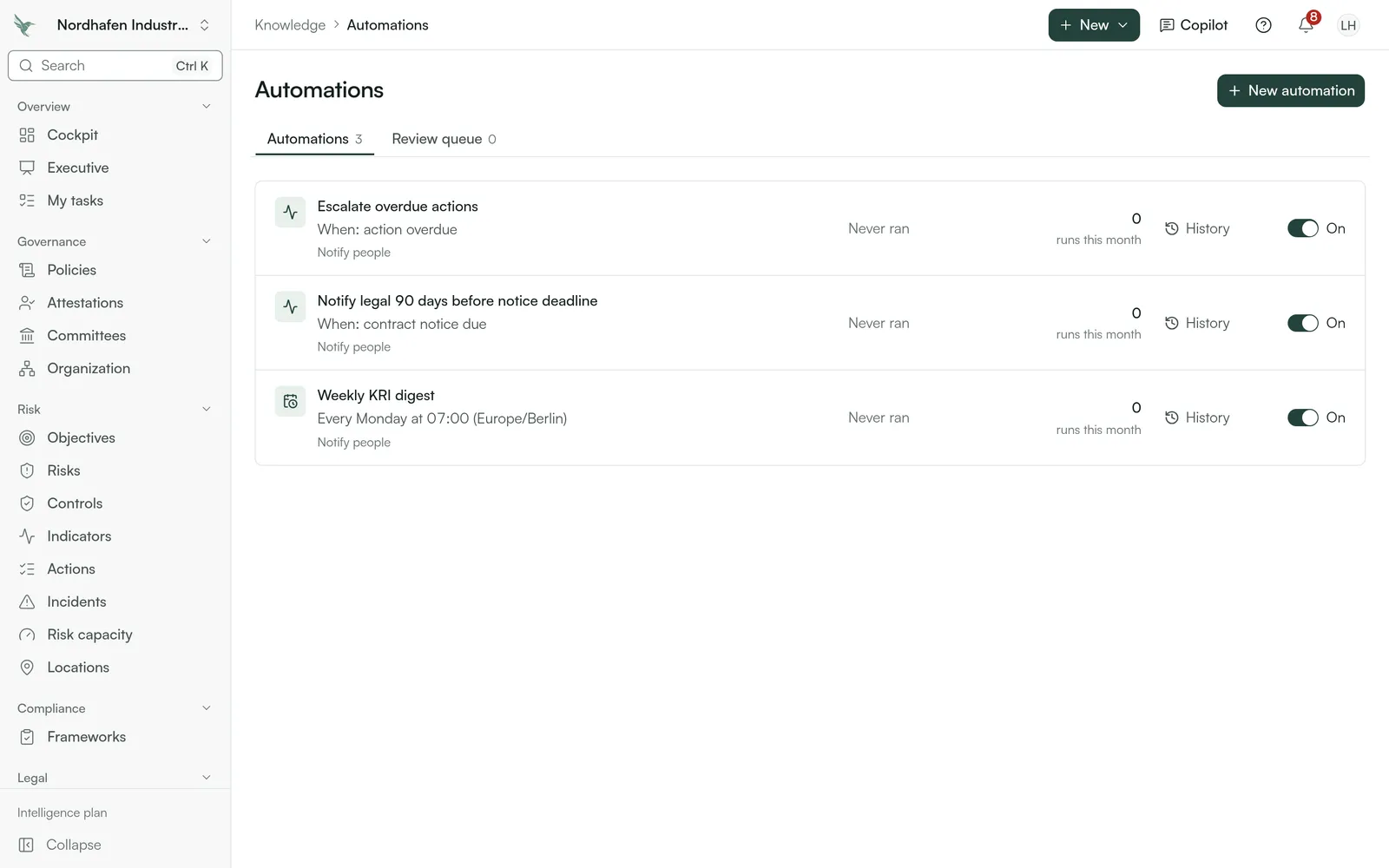
| Escalate overdue actions | Action overdue, 7 days or more | Notifies the head of the owner's department. |
| Weekly KRI digest | Every Monday | Sends admins and managers the indicators in warning or breach. |
| Notify legal 90 days before notice deadline | Contract notice due, 90 day reminder | Notifies all admins and managers (there is no separate legal recipient). |
| Weekly KRI digest to Teams | Every Monday | Posts the same digest to a Teams channel. |
| Alert the risk owner on a KRI breach | Indicator breached, status red | Notifies the owner of the linked risk; without a linked risk or owner, admins and managers. |
| Post serious incidents to Teams | Incident reported, severity 3 or higher | Posts to Teams. |
| Remind the owner of a policy review | Policy review due | Notifies the owner. |
| Send new risks to a webhook | Risk created | Posts JSON to an HTTPS URL. |
| Sync incidents from SharePoint list | Every day at 05:15 | Imports list items as incidents. Needs Microsoft 365. |
| AI agent: monthly emerging risk scan from new documents | First of the month | An agent proposes up to three new risks from recent documents. |
The first three are Default templates. Every organization gets them once, switched on while your plan has room for active automations. If you delete one, it does not come back.
Triggers
Choose how the automation starts under 1. Trigger.
When something happens starts the automation for an event.
| Event | Fires when |
|---|---|
| Risk created | A risk was added to the register. |
| Risk updated | A risk was saved with changes. |
| Indicator breached | An indicator value was recorded in warning or breach. |
| Action overdue | An action is past its due date. Checked once a day, once per action. |
| Control test failed | A control test was recorded as failed. |
| Contract notice due | A notice deadline or contract date approaches. Reminders at 90, 60, 30 and 7 days. |
| Incident reported | An incident was recorded. |
| Policy review due | A policy review date is within 30 days or past. Checked once a day, once per review date. |
| Document ready | A document finished processing in the knowledge base. |
The full list with the channels each event supports is in the events reference.
On a schedule starts it by the clock. Under Schedule, choose how often it Repeats (Daily, Weekly, Monthly, Quarterly or Yearly), then set the day, the time (At, in 15-minute steps) and the Time zone. Weekly lets you pick several weekdays. Monthly takes a day of the month (1 to 28 or the last day) or a weekday of the month, such as the second Monday or the last Friday. Quarterly runs on that day of the first month of each quarter. The time is read in the time zone you choose, so "07:00 Europe/Berlin" stays 07:00 on the wall clock when the clocks change. A time that does not exist on the day the clocks go forward runs just after the gap. The editor shows the schedule in words ("Every Monday at 07:00 (Europe/Zurich)") and the next three runs in your own time zone; if the schedule uses another zone, it shows that time as well. New schedules start in your time zone. Schedules saved before time zones existed keep UTC until you change the zone and save.
Select Use a cron expression for schedules the picker cannot express, such as every 15 minutes. Enter five fields (minute, hour, day, month, weekday); L as the day means the last day of the month, and a weekday such as 1#2 or 5L means the second Monday or the last Friday. The same Time zone applies. Use the simple picker switches back when the expression has a simple form.
Schedule runs can use these variables in their text: date, kri_digest, kri_red_count, kri_amber_count, overdue_digest and overdue_count.
Conditions
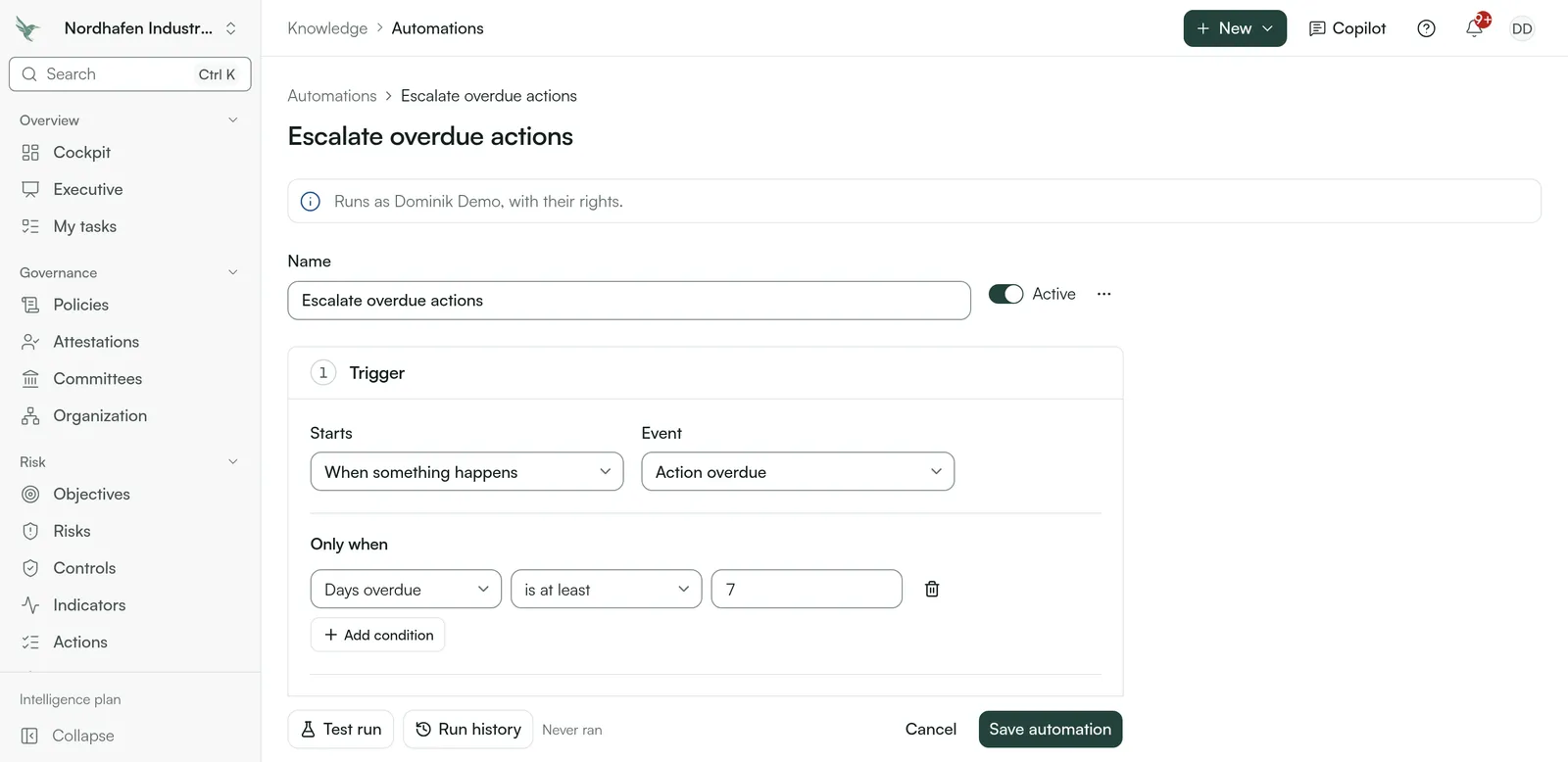
Conditions apply to event automations. Under Only when, add a condition with a field, an operator and a value. All conditions must hold, otherwise the run ends and no step runs. With no condition, every event runs the steps.
Operators: is, is not, is greater than, is at least, is less than, is at most, contains, does not contain, is one of, is empty, is not empty.
Example: for Action overdue, set Days overdue is at least 7.
Steps
Steps run in order and stop at the first failure. Later steps are marked skipped. In any text field (title, message, link), choose Insert value to add a value from the trigger, for example "Indicators in breach". The value appears as a chip inside the text; press Backspace to remove it. A Preview line under the field shows the text with sample values. Behind the scenes the value is stored as {{field}}, which is also what you use through the API and MCP. Dates, amounts and numbers in a sent message are written for the reader, for example "1 Oct 2026" in English and "1. Okt. 2026" in German, in the recipient's language and time zone (English and Europe/Berlin when that is not known), never as 2026-10-01.
| Step | What it does |
|---|---|
| Notify people | In-app and email notification. Choose the head of the record's department, the owner of the record, everyone with a role, or specific email addresses. Emails come from the standard sender with your organization's name; replies go to the Reply-To address set under Microsoft 365 settings. |
| Create an action | Adds a treatment action to the register, owned by the record owner or a named person, with a due date. |
| Update a field | Changes a field on the record that triggered the run. Records: risk, action, incident. The same rules apply as for a person: a risk cannot be closed above appetite without an approved acceptance, a score change re-checks the acceptance and an action keeps status and progress consistent. |
| Post to Teams | Sends a message card to a Teams channel through an incoming webhook. |
| Write a SharePoint list item | Creates or updates an item in a SharePoint list. Needs Microsoft 365. |
| Sync a SharePoint list | Imports list items as risks (as drafts), incidents or contracts with a column mapping. Needs Microsoft 365. |
| Run an AI agent | See the next section. |
| Call a webhook | Posts JSON to an HTTPS URL, optionally signed with a secret. Private network addresses are refused. |
Teams posts use the Teams webhook of the organization from the notification settings, unless the step names its own URL.
The webhook step signs the body with HMAC SHA-256 and sends the signature in the X-Volatilis-Signature header when you set a secret. This is separate from the signed event deliveries of webhook settings.
Test, run and read the log
- Test run is a dry run. It shows what each step would do. It writes nothing to your register and does not count against your run limit. For event triggers, edit the sample Test data (JSON) to try a condition.
- Run now starts a scheduled automation immediately. Event automations cannot run on demand. Use the test run.
- Run history lists every run with its source (Schedule, Event, Run now, Test run), status (Succeeded, Failed, Running, Dry run, Skipped) and a log for each step. Log texts are always in English.
If a run fails and was not started by you, admins get an "Automation failed" notice with the reason, at most once a day per automation. If the monthly run limit of your plan is used up, runs are Skipped and admins get the usual 80 percent warning before that.
Whose permissions does it use
Every automation runs as one person, the run-as person: notices and digests only show what this person may see, and steps that write records (create an action, update a field) and agents act with their rights. That is the person who created the automation, or who last saved or switched it on. The default automations and the sample company's automations run as the admin who set up the organization or loaded the sample company. Saving never raises permissions: if someone with a more senior role saves an automation that another person owns, it keeps running as the earlier person. If the person saving has the same or a lower role, or the earlier person is no longer an active manager or admin, the person saving becomes the run-as person.
On the automation page a line says "Runs as" and the person's name. An Admin who is not that person sees Run as me. The confirmation names the current run-as person and says that from then on the automation uses your rights instead. Taking over is the only way to replace a more senior run-as person, and it is written to the audit log.
Before each run, the app checks that this person is still an active member with a manager or admin role. If not, the automation does not run: it switches itself off, and admins get a "Take over automation" notice and a task in My tasks. The automation list marks it Paused: Jonas Brandt lost access (or Paused: nobody to run it as when there is no such person), and the automation page says who can no longer run it. Managers see "An admin needs to take it over." there; only admins get the button. An admin opens it, chooses Run as me and switches it on again.
An automation saved or switched on through an API token or a connected AI app is bound to that token. Once the token is revoked or expires, the next run pauses the automation in the same way: admins get the task to take it over, or someone saves it again in the app. A token with module grants cannot save, switch on, take over or run automations at all, because an automation runs with the full rights of its run-as person.
Every change to an automation, and every accepted agent draft, is in the audit log.
AI agents
Plan needed
Add the step Run an AI agent.
Write the Instruction: what to look for and what to propose. Be specific. At least 10 characters.
Optionally set the Data scope to tell the agent where to focus, for example "documents added in the last 30 days".
Tick the tools. Read tools look things up and are always allowed to run. Draft tools propose records. They never save anything.
Choose what happens with proposals: Add to the review queue and notify managers, or Add to the review queue only.
Set the Maximum tool steps, from 1 to 10, then run a Test run. The dry run does not call the model. It lists the tools and says whether proposals would reach the queue.
The agent works only from data it fetches with your allowed tools. It treats record text and the trigger data as untrusted. It cannot create automations.
Review what an agent proposes
Role needed
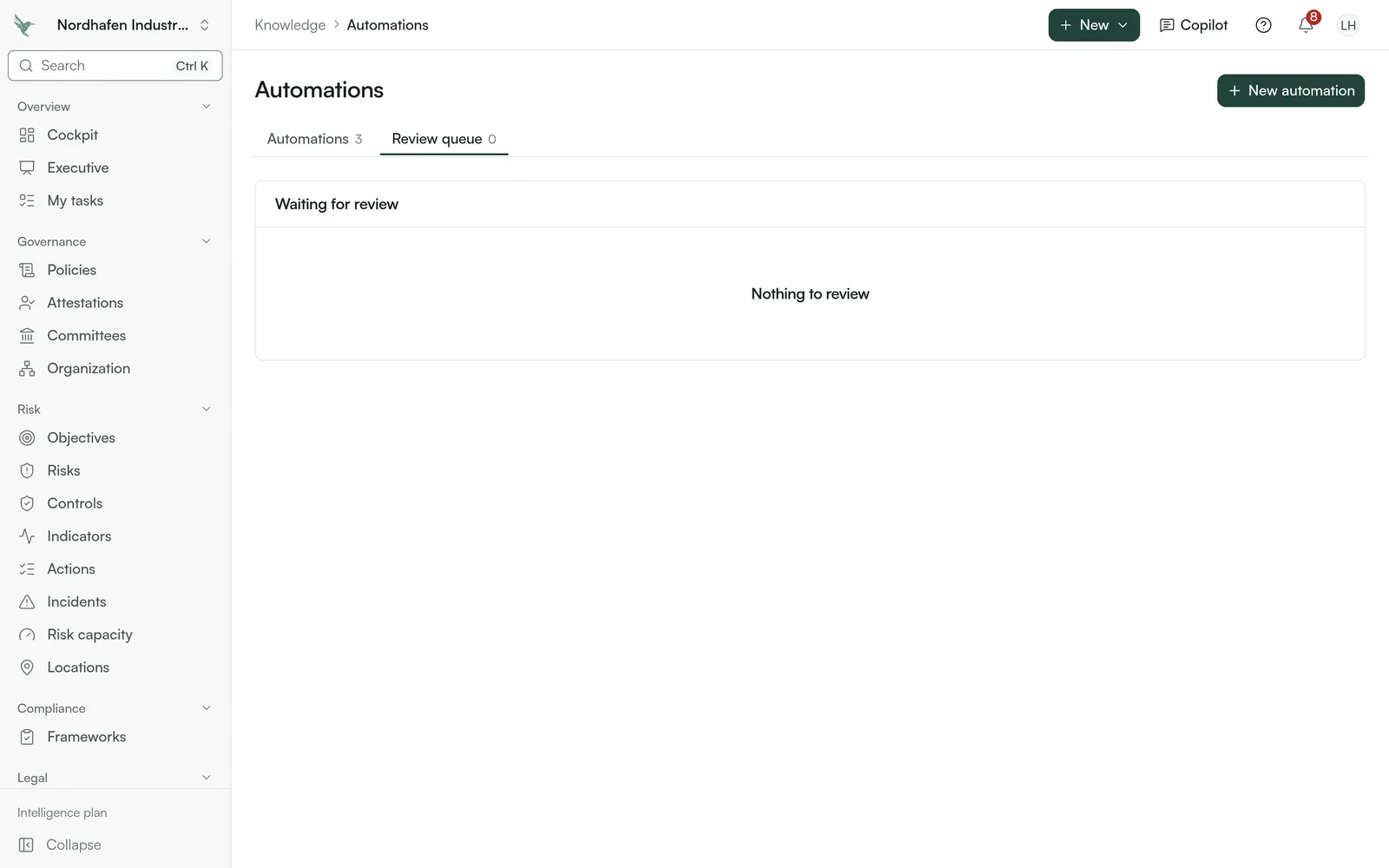
Open Automations and the tab Review queue. Waiting for review lists the proposals: a risk, action, incident, control, policy, obligation or board paper, with the automation and time it came from.
Read What the agent proposes: the fields carry the labels of the record form, and people, locations and linked records show by name. Select Open it to see the record in context if one exists.
Select Accept to create the record, or Discard. Under Recently decided you see past decisions. Accepting is logged as AI-assisted.
Use automations through the API
The REST API can list, create, change, switch on or off, run and delete automations: see API reference. A new automation is always saved switched off. Over MCP an AI app can only read automations and prepare a draft that you accept in the app, because an automation runs unattended with its creator's rights.
Limits
| Limit | Foundation | Intelligence | Tailored |
|---|---|---|---|
| Members | Unlimited | Unlimited | Unlimited |
| Risks | Unlimited | Unlimited | Unlimited |
| Contracts | Unlimited | Unlimited | Unlimited |
| Knowledge base documents | Unlimited | Unlimited | Unlimited |
| Active automations and agents | 10 | Unlimited | Unlimited |
| Simulation runs this month | 10 | Unlimited | Unlimited |
| Copilot chat requests this month | 10 | 30 per member, pooled | Unlimited |
| AI contract checks this month | 1 | 3 per member, pooled | Unlimited |
| AI table cells this month | 0 | 100 per member, pooled | Unlimited |
| MCP access tokens | 3 | Unlimited | Unlimited |
| Emails sent this month | 1,000 | Unlimited | Unlimited |
| AI drafts this month | 3 | 15 per member, pooled | Unlimited |
| Active AI agents | 0 | Unlimited | Unlimited |
| Document Intelligence pages this month | 20 | 50 per member, pooled | Unlimited |
| File storage | 2 GB | 100 GB | Unlimited |
| Automation runs this month | 1,000 | Unlimited | Unlimited |
| REST API calls this month | 1,000 | 50,000 | 1,000,000 |
| MCP tool calls this month | 1,000 | Unlimited | Unlimited |