Microsoft 365
Connect your Microsoft 365 tenant once so automations can read and write SharePoint lists on the sites you grant.
The connection to Microsoft 365 adds SharePoint lists to automations: write list items, or import a list as risks, incidents or contracts. Access is limited to the sites you grant.
Teams posts do not need this connection. They use an incoming webhook or workflow URL. See Notifications.
The Volatilis GRC agent for Microsoft 365 Copilot and Teams does not need it either. See Microsoft 365 agent.
What you need
Role needed
Plan needed
Before you connect, verify your Microsoft tenant under Settings, Access and ownership (see SSO and SCIM). Microsoft 365 connects only for the tenant your organization has verified. If your tenant was verified through a DNS-verified email domain, any admin who signs in from that tenant can connect it. Otherwise the person connecting must hold one of the two administrator roles in Microsoft Entra.
Connect
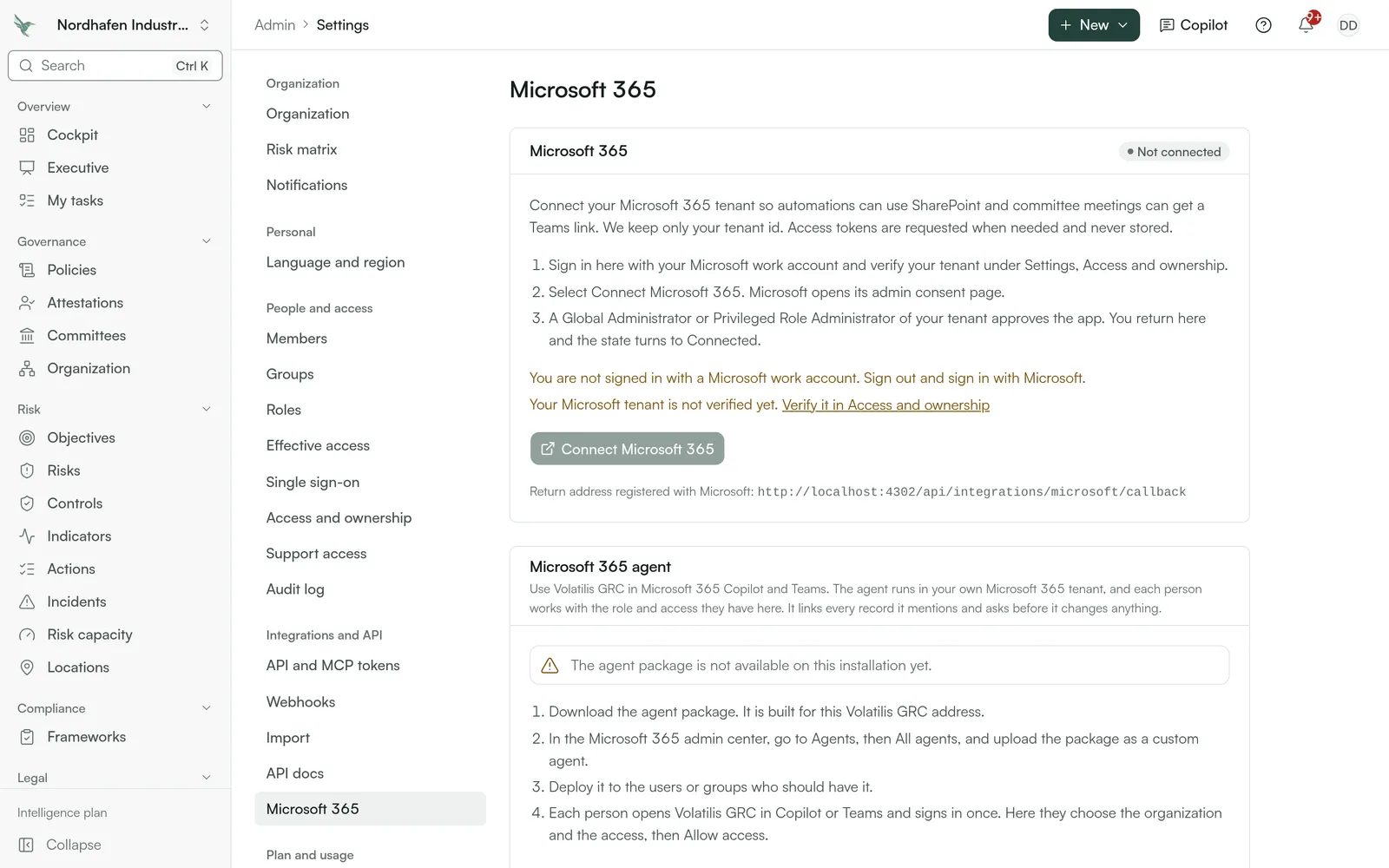
Open Settings and, under Integrations and API, Microsoft 365.
Check the two lines above the button: you are signed in with Microsoft, and the tenant is verified for your organization (otherwise follow the link to verify it). Connect Microsoft 365 stays disabled until both hold. There is no tenant address to type: the tenant is the one you are signed in with.
Select Connect Microsoft 365. Microsoft opens its admin consent page for your tenant. Approve it with your work account from the tenant you want to connect.
You return to the settings page. The state changes from Waiting for consent to Connected, with the tenant id, who connected and when.
Select Test connection. The app asks Microsoft for a token and lists the application permissions it received (Sites.Selected).
The consent link works once and expires after 15 minutes. The connection must be made by the admin who started it, signed in from the same tenant. If the page says the link was already used or expired, start again.
The app asks for the application permission Sites.Selected. It reads and writes nothing in SharePoint until you grant a site (below). For Microsoft Teams links on committee meetings it can also use the application permission Calendars.ReadWrite: it then creates one calendar event with a Teams meeting in the calendar of the committee chair (no attendees, so Microsoft sends no mail of its own), and moves or deletes that event with the meeting. It reads no mail. Without Calendars.ReadWrite, meetings simply have no Teams link. After the permission is added to the app, an admin selects Connect Microsoft 365 again to approve it; Test connection then lists it. To limit it to some mailboxes, use an Exchange application access policy. We keep only your tenant id and the consent state. Access tokens are requested when an automation runs and are never stored.
Grant access to your SharePoint site
The app holds no tenant-wide SharePoint permission. It has only Sites.Selected, which reaches no site until an administrator of your Microsoft tenant grants it one. Do this once per site, after connecting. The app id is 388502ae-d97d-4a78-b647-eac92541b163 (also shown under the copy-paste commands in Settings, Microsoft 365).
Enter the SharePoint site address in Settings, Microsoft 365, for example https://contoso.sharepoint.com/sites/risk, and select Save.
Your Microsoft administrator grants the app write access to that site. Pick one way.
Graph Explorer (signed in as an admin who consented to Sites.FullControl.All). First GET https://graph.microsoft.com/v1.0/sites/contoso.sharepoint.com:/sites/risk and copy the id. Then:
POST https://graph.microsoft.com/v1.0/sites/{site-id}/permissions
{ "roles": ["write"], "grantedToIdentities": [ { "application": { "id": "388502ae-d97d-4a78-b647-eac92541b163", "displayName": "Volatilis GRC" } } ] }
PnP PowerShell (SharePoint administrator):
Connect-PnPOnline -Url https://contoso-admin.sharepoint.com -Interactive
Grant-PnPAzureADAppSitePermission -AppId 388502ae-d97d-4a78-b647-eac92541b163 -DisplayName "Volatilis GRC" -Site https://contoso.sharepoint.com/sites/risk -Permissions Write
Select Test site access. The app reads the site and reports its name and how many lists it found.
Use the role read instead of write if you only import lists and never write list items. To withdraw access, delete the permission with DELETE /sites/{site-id}/permissions/{permission-id} or Revoke-PnPAzureADAppSitePermission.
If a sync or lookup gets "denied access to this SharePoint site" (HTTP 403), the grant is missing for that site. The run log and the step form show the same hint.
Email from automations
Automation and notification emails leave through our standard email service, not through your Microsoft 365 mailbox. They carry your organization's name as the sender name ("Your Company via Volatilis GRC"). Under Reply-To address for automation and notification emails in Settings, Microsoft 365, you can set an address such as grc@yourcompany.com: replies go there. These emails count against your plan's monthly email limit.
Automations that used the older option Send the email through Microsoft 365 keep working: they now use this path without any change. Sending from your own mailbox is not available. On Tailored it can be set up on request, using Exchange RBAC for Applications to limit the app to one mailbox.
SharePoint steps
Both steps need the connection and a granted site. In the step form, enter the SharePoint site address, for example https://contoso.sharepoint.com/sites/risk, and select Look up. Then choose the List.
Write a SharePoint list item creates or updates one item. For an update, give the Item id. Under Columns, give the internal column name and a value. Values can use {{field}} from the trigger.
Sync a SharePoint list imports items as Incidents, Risks (as drafts) or Contracts.
Choose Import as and select Load columns.
Under Column mapping, map a SharePoint column to each field. Required fields: incident needs a title and a date occurred. Risk needs a title. Contract needs a counterparty and a service. Optional fields include owner, categories, ratings, dates and amounts.
Run it as a scheduled automation. The template Sync incidents from SharePoint list runs every day at 05:15 UTC.
Items are matched by their SharePoint item id. Running the sync again updates changed items and never creates duplicates. Items that cannot be mapped or that the register rejects are skipped. The run log names the first five with the reason.
Disconnect
Select Disconnect and confirm. Automation steps that use SharePoint then fail until you connect again. To remove the app from your own tenant too, delete it under Enterprise applications in Microsoft Entra.
If your tenant verification is removed or taken over by another organization, the connection is switched off for you automatically and admins are told. See SSO and SCIM.
If something fails
| Message | What to do |
|---|---|
| Microsoft 365 is not configured on this server | The operator of the platform has not set up the app credentials. Contact support. |
| Verify your Microsoft tenant in the access settings first | Verify the tenant under Settings, Access and ownership. |
| The consent came from a different Microsoft tenant | Sign in with an account of the tenant you want to connect. |
| Microsoft 365 denied access to this SharePoint site | Your Microsoft administrator has not granted the app this site. See Grant access to your SharePoint site above. |