Knowledge base
Upload policies, reports and contracts so you and the Copilot can search inside them and see the exact page.
The knowledge base holds the unstructured side of your GRC data: policies, audit reports, supplier papers and contract texts. You search it yourself, and the Copilot searches it for you and cites the page.
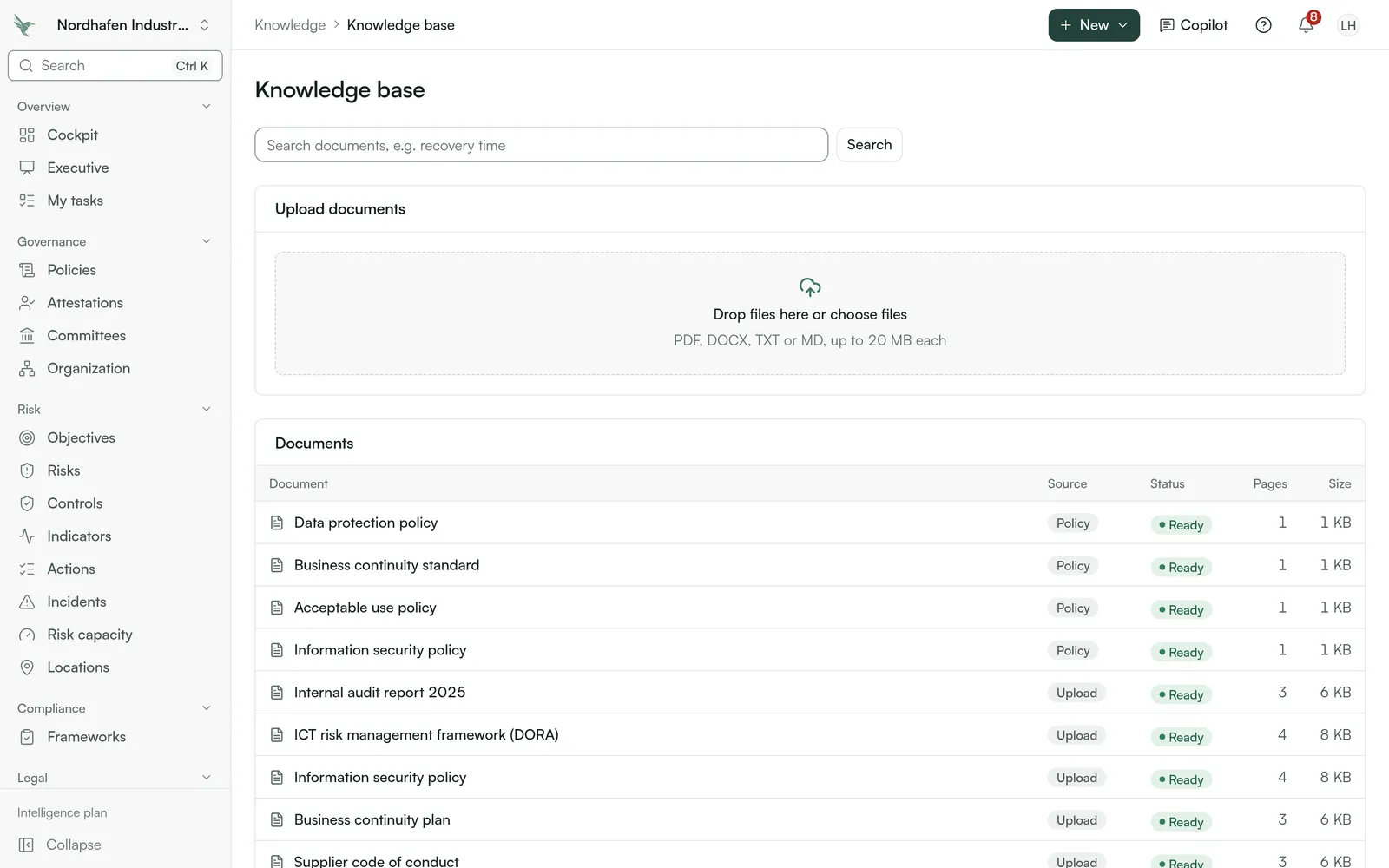
Add a document
Role needed
Open Knowledge base in the sidebar under Knowledge.
In Upload documents, drop files on the area or choose files. Accepted formats are PDF, DOCX, TXT and MD, up to 20 MB each. You can select several files.
Wait for the status. A new document is Queued, then Processing, then Ready. The page refreshes by itself. Until a document is Ready, search and the Copilot cannot find it, and the list says so under the status. When an attempt fails, the status shows Retrying with the reason as a tooltip, and the document is processed again after a short wait.
If the status is Failed, the reason is shown under it. Common reasons are a file with no readable text, a PDF the reader cannot open (try again, or upload it as DOCX), or a file that exceeds a limit of your plan. Errors that are not about your file show as "Processing failed". Fix the file and upload it again, or select Retry in the list (or Reprocess on the document) to run it again.
You can also add a file from a record. On the attachments of a risk, control, incident, contract and other records, tick Knowledge base next to a PDF, DOCX, TXT or MD file. The file shows Indexing, then Indexed. You need edit rights on the record. Other file types cannot be searched.
What the app does with a file
- It extracts the text and keeps the page numbers. With Azure Document Intelligence it reads layout and tables. If that is not set up, or your monthly page allowance for it is used up, it falls back to a built-in reader for PDF, DOCX and plain text. The built-in reader does not recognize text in images, but on the hosted service scanned PDFs are read with OCR through Azure Document Intelligence. Where Document Intelligence is not set up, or your page allowance is used up, a scan without a text layer shows no readable text (operators of their own installation set
AZURE_DOCINTEL_ENDPOINTandAZURE_DOCINTEL_KEY). - It splits the text into sections at headings, about 800 tokens each with a small overlap.
- It creates embeddings for each section, so a search finds related wording, not only the exact words.
- It marks the document Ready. A document.ready event fires, which an automation can use.
Search combines semantic and keyword search. When embeddings are not available it falls back to keyword search only. Searching still works.
Search
Type in Search the knowledge base, for example "ransomware recovery time". You get the best passages first. Each result shows the document title, the page, the heading and one line of the passage with your search words marked. Select it to open the document at that passage. If nothing matches, the page says No passages found.
The Copilot uses the same search. Ask it "What does our security policy say about incident reporting?" and it answers from the passages and links the page. Ask "Which documents do we have?" and it lists the knowledge base with the status of each document, including the ones that are not searchable yet.
Read, download, reprocess, delete
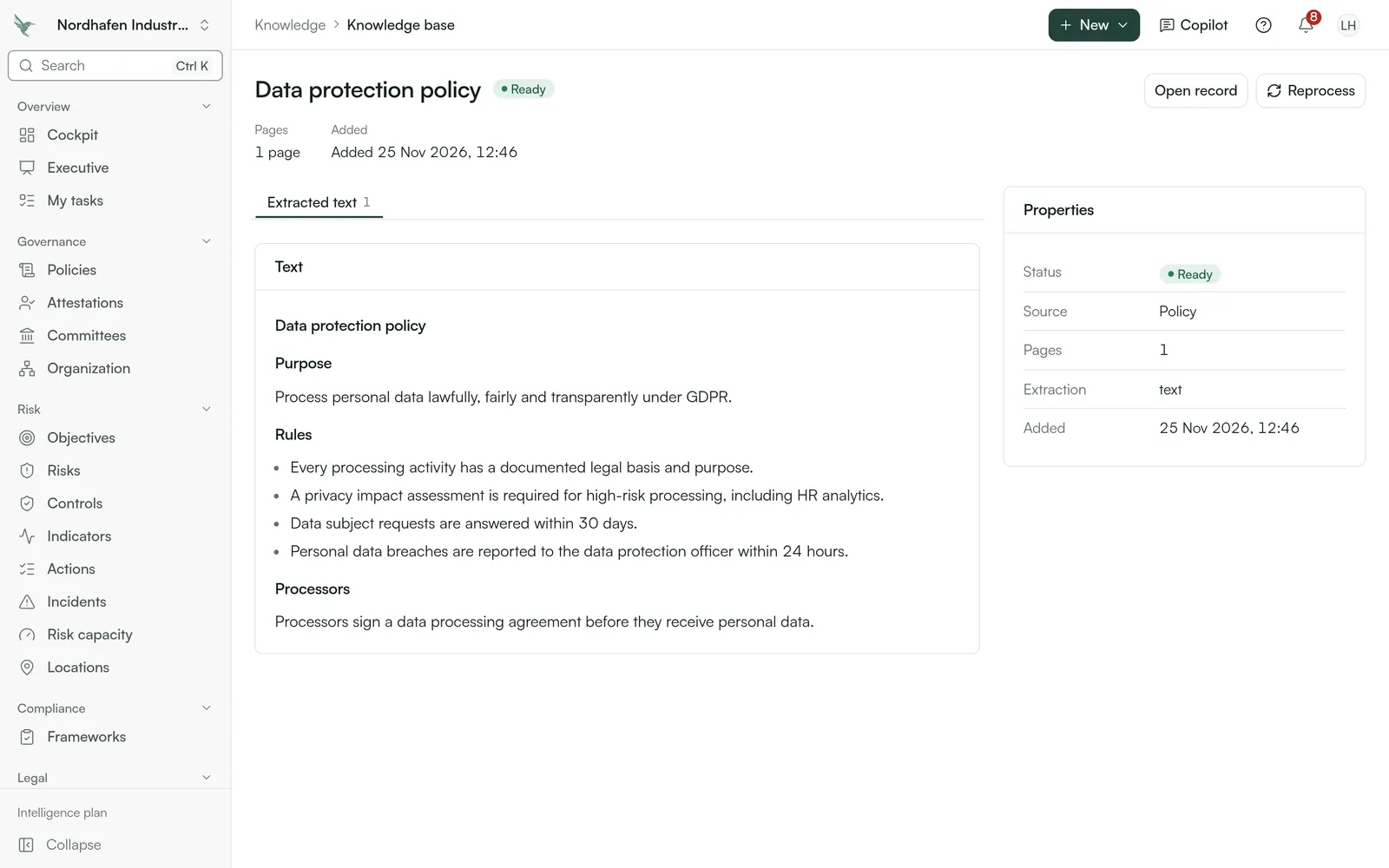
Select a document to open it. You see its properties (status, source, pages, which engine read it), the Document tab (a PDF shown page by page; when you come from a search result the matching passage is marked, with Previous match and Next match buttons or the keys n and p) and the Extracted text page by page. Download returns the original file.
How the passage is marked depends on the file. A PDF with a text layer gets a box on the page, whether Azure Document Intelligence or the built-in reader read it, so it works on every plan and without using Document Intelligence pages. A scanned PDF has no text layer: it gets a box only when Document Intelligence read it, otherwise it opens on the right page without a box. DOCX, TXT and MD files have no pages to draw on, so they open on the Extracted text with the passage marked. A PDF added before 25 November 2026 that the built-in reader read gets its boxes from a background job, or at once when you select Reprocess.
Role needed
Documents that come from records
| Source | Where it comes from |
|---|---|
| Upload | A file you uploaded here or ticked on a record. |
| Contract | The text of a contract document, indexed when the file is uploaded to the contract. |
| Policy | The text of a policy, indexed when the policy is approved. A retired or deleted policy leaves the knowledge base. |
Entries that come from a record follow it. You cannot delete them here. Change or delete the record instead. Select a contract result and the contract file opens in the viewer. Open record leads to the contract. Their visibility follows the record too. If you may not see a contract, its passages do not appear in your search or in the Copilot's answers. A plain upload follows the Knowledge base module permission.
Limits
Document Intelligence reads each file once. Reprocess of an unchanged file reuses the stored layout and does not use your monthly pages again.
Your plan limits how much file storage you use, how many pages per month Document Intelligence reads, and, on Foundation, how long one document may be. When a limit blocks an upload, the message names the limit. Admins get a notice at 80 percent.
| Limit | Foundation | Intelligence | Tailored |
|---|---|---|---|
| Members | Unlimited | Unlimited | Unlimited |
| Risks | Unlimited | Unlimited | Unlimited |
| Contracts | Unlimited | Unlimited | Unlimited |
| Knowledge base documents | Unlimited | Unlimited | Unlimited |
| Active automations and agents | 10 | Unlimited | Unlimited |
| Simulation runs this month | 10 | Unlimited | Unlimited |
| Copilot chat requests this month | 10 | 30 per member, pooled | Unlimited |
| AI contract checks this month | 1 | 3 per member, pooled | Unlimited |
| AI table cells this month | 0 | 100 per member, pooled | Unlimited |
| MCP access tokens | 3 | Unlimited | Unlimited |
| Emails sent this month | 1,000 | Unlimited | Unlimited |
| AI drafts this month | 3 | 15 per member, pooled | Unlimited |
| Active AI agents | 0 | Unlimited | Unlimited |
| Document Intelligence pages this month | 20 | 50 per member, pooled | Unlimited |
| File storage | 2 GB | 100 GB | Unlimited |
| Automation runs this month | 1,000 | Unlimited | Unlimited |
| REST API calls this month | 1,000 | 50,000 | 1,000,000 |
| MCP tool calls this month | 1,000 | Unlimited | Unlimited |
Copilot
Ask questions about your risks, controls, contracts and documents, get cited answers, and let the Copilot prepare any change you could make yourself. Nothing is saved until you accept or confirm it.
Automations and agents
Build rules, reminders, webhooks and scheduled AI agents that chase work for you, with a full run log and a review queue for anything an agent proposes.