Roles, groups and scope
How access is built from roles, groups and department scope, how to create custom roles on Intelligence, and how to check what a person can really do.
Access in Volatilis GRC answers three questions for every person: what they may do (roles), where they may do it (scope) and on which records (ownership). The same rules apply in the app, the REST API, MCP and the Copilot.
Role needed
Built-in roles
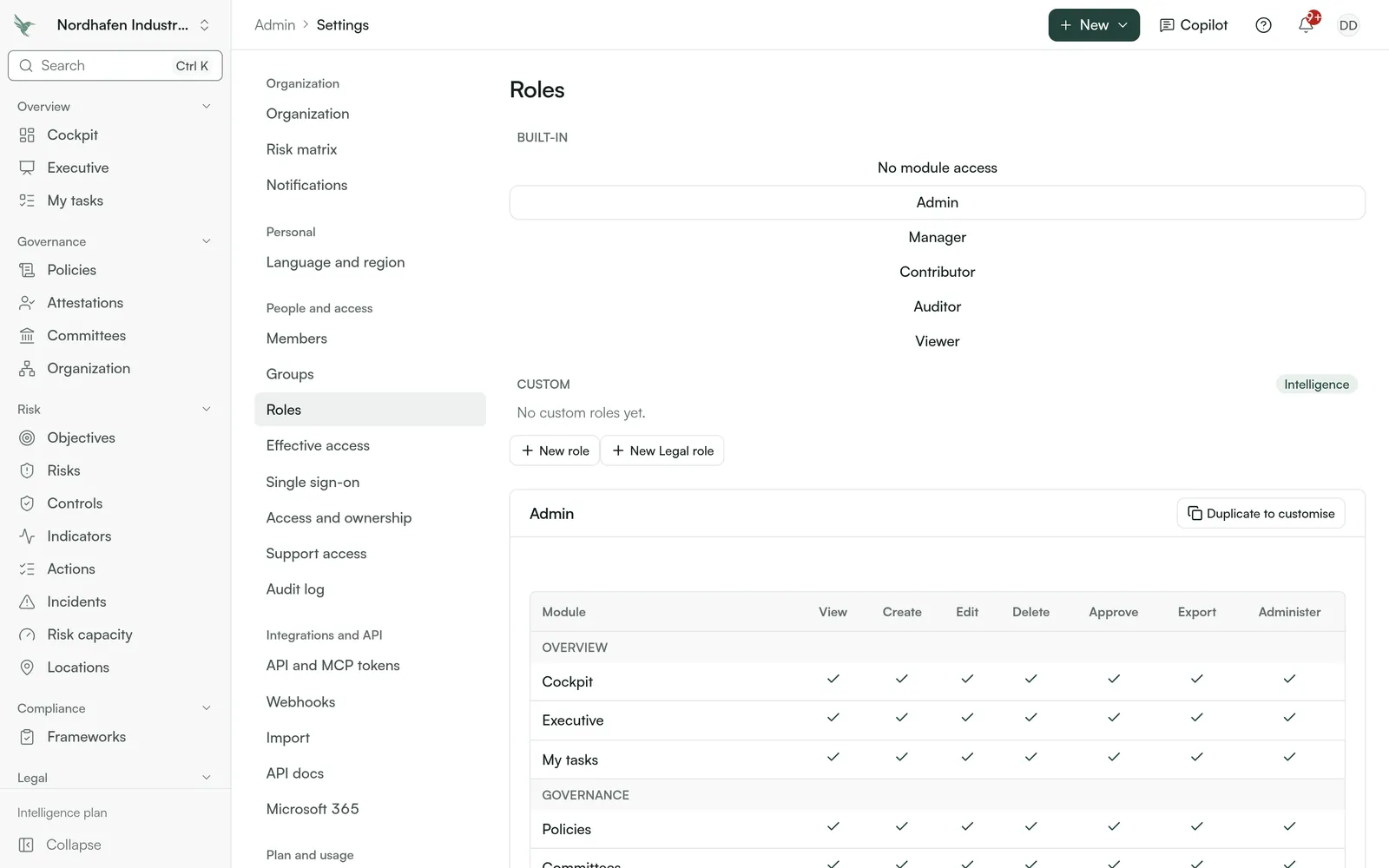
Every member has one primary role. Five roles come with the product, plus a basic one for people who get their access from other roles.
| Role | Intended for |
|---|---|
| Admin | Everything, including billing and members. |
| Manager | Runs the framework: all content except billing and members. Can view settings, members and billing, and the audit log. |
| Contributor | First line: edits their own items, answers attestation campaigns, reports incidents. Creates risks, controls, indicators, actions, incidents and contracts, uploads documents and uses the Copilot. Reads organization-wide unless the assignment is limited to a department; then only that department's records, including the counterparties named in its contracts. |
| Auditor | Reads everything except automations, including the audit log, and exports evidence and reports. |
| Viewer | Read only. Cannot see automations, the year-end pack or the second line view. |
| No module access | Sees only the modules of the roles you assign. Tasks and personal settings stay open. |
Built-in roles are read-only templates. You can see the exact matrix of each on the Roles page.
The permission matrix
A role is a table of modules and actions.
| Action | Allows |
|---|---|
| View | See the module and its records. |
| Create | Add new records. |
| Edit | Change records. |
| Delete | Delete records. |
| Approve | Approve requests and sign off. |
| Export | Export data and evidence. |
| Administer | Configure the module. |
For Edit and Delete a cell can be All (every record in the person's scope) or Own (only records the person owns or acts for as a delegate). A dash means the action is not allowed.
The modules follow the sidebar: Cockpit, Executive, My tasks, Policies, Committees, Organization, Risks, Controls, Indicators, Actions, Incidents, Risk capacity, Locations, Frameworks, Contract obligations, Attestations, Contracts, Counterparties, Matters, Clause library, Copilot, Knowledge base, Automations, Reports and board papers, Year-end pack, Second line view, plus the admin modules Settings, Audit log, Billing and Members and access.
If a person has no View right on a module, its pages are not in their sidebar and a direct link leads to a page that says access is not allowed.
Permissions add up
A person's effective access is the sum of
- the primary role,
- any additional roles you assign directly,
- the roles of every group they belong to.
Nothing subtracts. To take access away, remove the role or group that grants it.
Add a role to a person
Open Settings, Members and select Manage for the person.
Under Additional roles, choose a role under Add a role, choose the scope and select Add role.
To remove one, select Remove next to it.
Scope
Scope limits where a role applies. Choose Whole organization, or Selected departments. Departments below the ones you select are included. People always keep access to records they own, whatever the scope. An indicator belongs to the department of the risk it watches, and both its own owner and the risk owner see it. You can set scope on the primary role and on each additional role and group role.
Departments come from the organization tree under Organization in the Governance group. See Org units and taxonomy. A person's own Department field is used for attestations and department scope.
Groups
Give a role to a group once, and everyone in it gets it.
Open Settings and Groups, then select New group.
Enter a Name and Description, filter and select the People, and select Save.
Save first, then open Roles of this group and add roles with a scope.
Groups that your identity provider provisions through SCIM are marked Provisioned. Their members change in the identity provider. You can still give the group a role here. See SSO and SCIM.
Custom roles
Plan needed
Open Settings and Roles. Select a built-in role and Duplicate to customise, or New role. For legal staff, New Legal role starts from a ready-made set (Contracts, Counterparties, Contract obligations, Matters, Clause library, all actions; Copilot and My tasks to view) that you can change before saving.
Click a cell to change it. Use Quick set (None, View, Full) per module for speed. Limit Edit and Delete to Own where it fits.
Enter a Name and Description and select Save role.
Assign the role to people or groups as an additional role.
On other plans, existing custom roles stop counting and the screen offers an upgrade. Deleting a role removes it from every person and group.
Who may give access
An admin for the whole organization may give any role and scope. Anyone else who manages access (an admin limited to some departments, or a person whose custom role allows managing members) may only give what they hold themselves, where they hold it:
- not the Admin role, and no role that allows managing members;
- only modules and actions their own roles allow;
- only scopes inside their own departments;
- only for people whose department is one of their own and who do not manage access themselves.
A new member has no department yet, so an admin of the whole organization sets it first. Admins limited to some departments cannot send invitations, because an invitation gives its role for the whole organization.
The same applies to group memberships and group roles, to editing and deleting custom roles, and to invitations. Ownership transfer, single sign-on, domains, group mappings and SCIM tokens are for admins of the whole organization. Otherwise the app says "You can only give roles and departments within your own access. Ask an organization admin."
Check effective access
Use this before and after you change roles, and whenever someone says "I cannot see X".
Open Settings and Effective access.
Choose a Person and select Check access.
Read the table. For each module and action it says All, Departments, Own or No, and Granted by names every role that contributes, for example "Group Risk team: Manager".
Record owners and delegates
Every risk, control, contract and similar record has an owner who is a member. Owners can edit their own records when their role says Own. An owner can also name a delegate for one record, who then acts for the owner on that record only.
Every change to a role, group or assignment is written to the audit log.