Frameworks and requirements
Create frameworks, see how well your controls cover their requirements, understand the coverage statuses, and map controls to requirements.
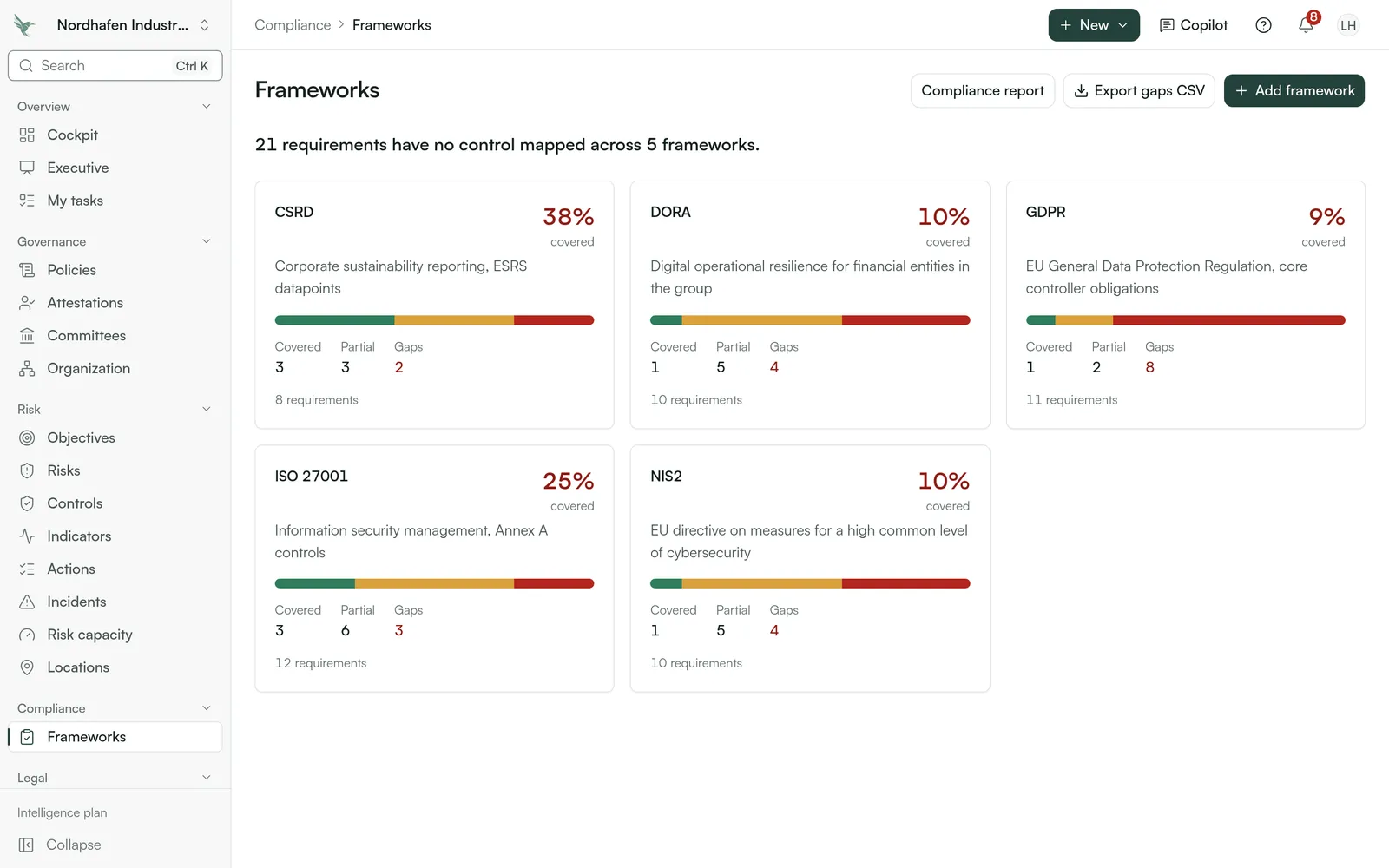
A framework is a catalogue of requirements, for example ISO 27001, DORA or NIS2. A requirement is one clause of a framework. Open Frameworks in the sidebar (group Compliance) to see how many requirements your controls cover.
What you use it for
- Show the board, an auditor or a regulator how far you meet a framework.
- Find requirements with no control behind them.
- Keep the mapping between requirements and the controls that meet them in one place.
Role needed
Create a framework
A new organization has no framework yet. The page asks you to add one from the catalogue or to start blank.
Open Frameworks and choose Add framework.
Under Start from, choose a framework from the catalogue (ISO 27001, DORA, NIS2, GDPR, EU AI Act) or Blank framework. The catalogue holds the references and titles of the requirements. For the four EU frameworks (DORA, GDPR, NIS2, EU AI Act) each requirement also carries the official legal text, see Official text. ISO 27001 stays titles only: the standard is copyrighted, so the catalogue has no standard text for it.
Enter the Name and, if you like, a Description. Choose Add framework. You change name and description later with Edit framework.
You can edit, add or remove the requirements from the catalogue afterwards.
Catalogue contents
| Framework | Legal act | References |
|---|---|---|
| DORA | Regulation (EU) 2022/2554 | 20 articles |
| GDPR | Regulation (EU) 2016/679 | 25 articles |
| NIS2 | Directive (EU) 2022/2555 | 23 articles, paragraphs and points |
| EU AI Act | Regulation (EU) 2024/1689 | 13 articles |
| ISO 27001 | ISO/IEC 27001 | 93 controls, titles only |
Official text
A requirement from an EU framework has a collapsible Official text panel under its title. It shows the wording of the article, paragraph or point the reference names, in your language (English or German), with the link Open on EUR-Lex to the article in the same language. The text is read-only. The Description of the requirement stays yours to edit.
- The text is the Official Journal text as published. It is not consolidated: later amendments are not included. Use the EUR-Lex link for the current version.
- Where a reference names a paragraph or point (for example NIS2 Art. 21(2)(a)), the panel shows that part only. A reference to an article shows the whole article.
- The panel carries the attribution "Source: EUR-Lex, © European Union" and the retrieval date. Only the Official Journal is authentic, and the text is not legal advice.
- Frameworks you added from the catalogue before the text was available receive it automatically. Requirements whose reference and title you changed keep none.
- The Copilot can quote these articles with the EUR-Lex link.
The overview
The page shows one card per framework. Each card has the name, the description, the coverage as a percentage, a bar, and the counts of Covered, Partial and Gaps. The line above the cards states how many requirements have no control mapped across all frameworks.
- Export gaps CSV downloads every requirement that is not covered, with its status, the mapped controls and its due date. You need the export permission for compliance. The export is written to the audit log.
- Compliance report opens the live compliance status report, if you may view reports.
How coverage is calculated
Coverage is the share of applicable requirements with at least one effective control mapped.
| Status | Meaning |
|---|---|
| Covered | At least one mapped control is Effective. |
| Partial | Controls are mapped, but none is Effective. A control that is Partially effective, Ineffective or Not tested does not count. |
| Gap | No control is mapped. |
| Not applicable | The requirement does not apply to your organization. It has a justification and counts neither as a gap nor for coverage. |
Coverage = covered requirements divided by all applicable requirements. Partial requirements do not count as covered.
Only controls count
Only mapped controls change coverage. A policy that is linked to a requirement shows on the policy page, but it does not make the requirement covered. Link the controls that put the policy into practice and test them.
The status follows the controls automatically. When you record a test, the effectiveness of the control changes and so does the status of every requirement it is mapped to. See Control tests.
The framework page
Click a card to open the framework. At the top you see Coverage with the number of requirements, then Covered, Partial and Gaps, each with a short explanation. Below is the requirement table.
- The order is gaps first, then partial, then covered. Inside a status the requirements are sorted by reference, with numbers sorted as numbers.
- Each row shows the reference, the title, the status and the mapped controls with their effectiveness. Click a control code to open the control.
- Use Search requirements and Coverage status to narrow the list.
- A requirement can have an owner and shows how many of its mapped controls are effective.
- Export gaps CSV on this page exports this framework only.
Map a control to a requirement
Open the framework from Frameworks.
Find the requirement. Use the search or filter to Gap if you work through the gaps.
Choose Map control in the row.
In Map a control, choose the control. The list shows each control with its effectiveness. Controls already mapped to this requirement are not offered.
Choose Map control to confirm. The requirement status updates at once. If the control is Effective, the requirement becomes Covered.
To remove a mapping, use the remove button next to the control code in the row. Mapping and unmapping are written to the audit log.
One control can be mapped to many requirements, and one requirement can have many controls. If a control that you map has never been tested, the requirement shows Partial until you test it.
Maintain requirements
- Add requirement creates a requirement with a Reference, a Title and a Description. A reference occurs only once per framework.
- Import CSV creates many requirements at once: one requirement per line with reference, title and optionally a description and a due date as
yyyy-mm-dd(a bad date refuses the file). A header row is allowed, with up to 500 rows. Existing references are skipped. - Select the requirement row (or the pencil icon Edit in the row, or press Enter on the focused row) to open the requirement; the address is a link, and Back closes it. There you set whether it Applies to us (Yes or No). For No, a Justification is required. It is shown in the row, for example as the statement of applicability under ISO 27001. You also enter an owner, a Due date (by when the owner should have it covered; overdue dates show in red until the requirement is covered; when the date has passed and the requirement is still not covered, its owner gets one reminder in the app and, per their notification settings, by email) and an Assessment note. You can also attach files and links to a requirement at the bottom of this dialog.
Delete or archive
Open the More options menu on a framework page.
- Delete removes the framework with all its requirements and their control and policy mappings. It is allowed only when nothing refers to the framework: no mapped control has test results. The confirmation says whether the framework can be deleted. If it cannot, the dialog explains why and offers Archive instead.
- Archive hides the framework from the list and from coverage figures and keeps it for history and reports. On the framework list, Show archived displays archived frameworks, and Restore in the menu of the framework brings it back.
- A single requirement follows the same rule: the delete button in its row removes it with its mappings when nothing refers to it. Otherwise the dialog offers Mark not applicable, which keeps it for history and removes it from coverage.
Deleting, archiving and restoring are written to the audit log.
How it connects to other modules
| Module | Link |
|---|---|
| Controls | Mapping uses the control library. Effectiveness comes from the control tests. |
| Policies | A policy lists the requirements it answers. The policy page can compare a policy text with a framework. See Policies. |
| Reports | The compliance status report shows coverage per framework, gaps first, together with control effectiveness, attestations and policy review. |
| Year-end pack | The year-end pack includes the frameworks with their coverage. |
To work through the gaps step by step, see Gap assessment.
Compliance
How Volatilis GRC shows whether your controls meet the requirements of a framework, how attestation campaigns collect confirmations, and where contract obligations fit.
Obligations
The difference between a requirement of a framework and an obligation under a contract, and where you find each in Volatilis GRC.