Policies
Write policies, standards, procedures and guidelines, keep their versions, send them for approval, review them on schedule and link them to requirements and controls.
Open Policies in the sidebar (group Governance). A policy here is a binding document with versions. The page keeps every version, the approval, the review date and the links to the requirements and controls the policy answers.
What you use it for
- Keep one current text for each policy, standard, procedure and guideline.
- Show who approved which version and when it takes effect.
- Be reminded to review a policy before its review date.
- Show an auditor which requirements a policy answers and which controls make it real.
Role needed
Types and statuses
| Type | Meaning |
|---|---|
| Policy | A binding rule of the organization. |
| Standard | A binding requirement that details a policy. |
| Procedure | How a task is done, step by step. |
| Guideline | Advice that is not binding. |
A policy is in one of four statuses.
| Status | Meaning |
|---|---|
| Draft | Being written. You can edit it. |
| In review | Sent for approval. You cannot edit it until the approver decides. |
| Approved | In force, with an approval date, an effective date and a next review date. |
| Retired | Out of force. It cannot be edited and has no review date. |
The policy list
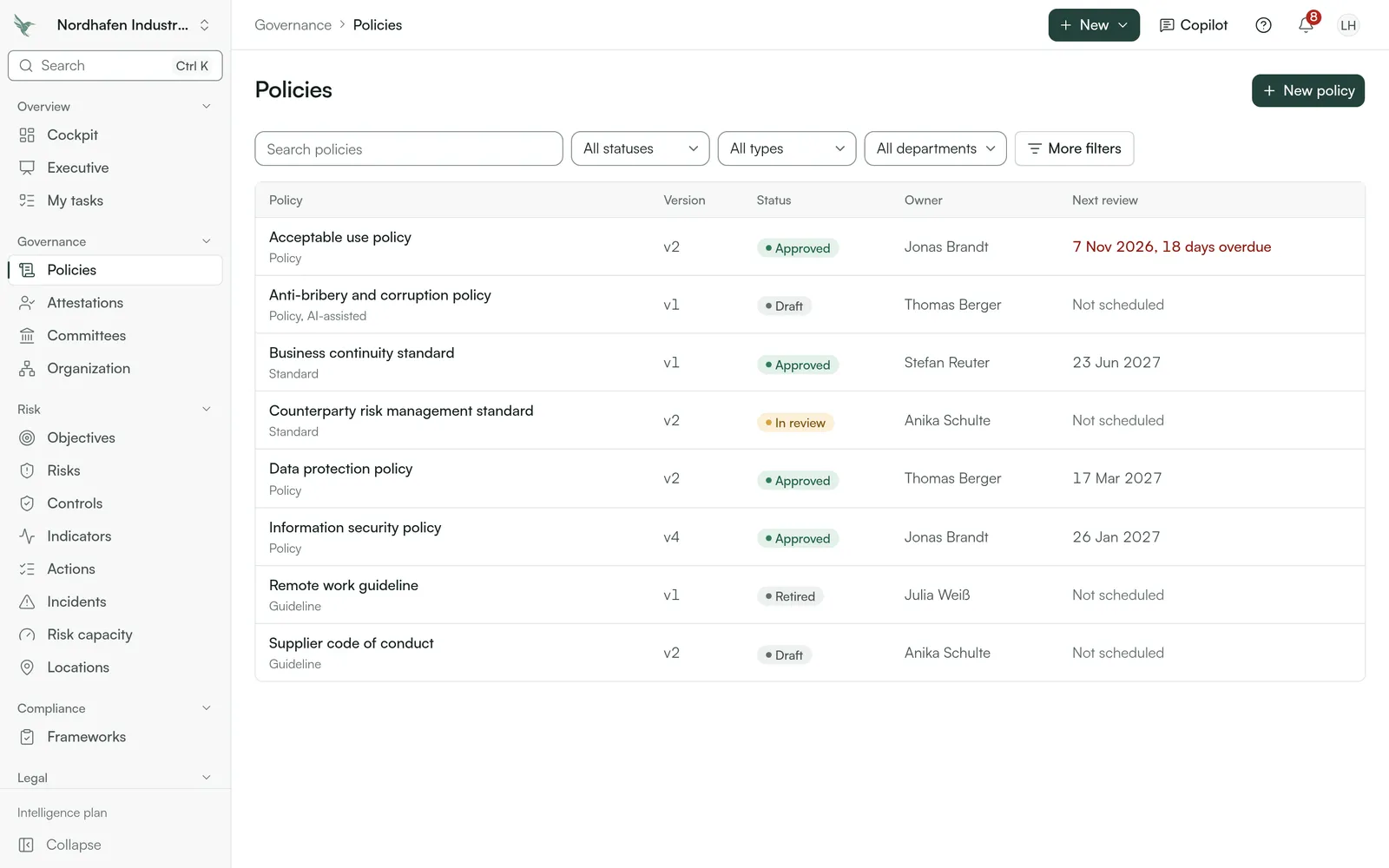
The list shows the Policy (title and type), Version, Status, Owner, Department and Next review. Search the title and the text, and filter by status, type and department. Mine shows the policies you own. Review due shows the policies that are past their review date or due within 30 days. The line under the title tells you how many are due.
The fields of a policy
| Field | Meaning |
|---|---|
| Title | At least 3 characters. |
| Type | Policy, Standard, Procedure or Guideline. |
| Owner | The accountable person. A member of your organization. |
| Department | The department the policy belongs to. Leave it empty for All departments. |
| Review cycle (months) | How often the policy is reviewed, 1 to 60 months. The default is 12. |
| Text | The policy text. You can use Markdown: # for headings, - for lists, **bold**. |
| What changed | A short note for the version history. |
Versions
The first save creates version 1. Each time you save a changed title or text, the app creates the next version and stores the change note, who saved it and when. Changes to the owner, the department or the review cycle alone do not create a version.
The tab Versions lists them. Choose one version under From and one under To to see the difference line by line, with added and removed lines.
Editing an approved policy
When you change the text of an Approved policy, the policy goes back to Draft and needs a new approval. Saving the text also replaces the text shown on the policy page. The earlier versions stay in the history.
While the draft waits, the page says which version is in force (the last approved one) and the Versions tab marks it In force. Restore approved version (Manager or Admin) throws the draft edits away: the text of the approved version comes back as a new version, the policy is Approved again and needs no new approval, because the text is the one that was approved. The draft versions stay in the history.
Approval
You send a draft for approval from the policy page. The tab Approval lists every request with its status, who asked, who decided, when and the comment. Details of how decisions work are on Approvals.
When the approver approves, the app sets the status to Approved, records who approved, sets the effective date to today and sets the next review to today plus the review cycle. A rejection sends the policy back to Draft with the comment of the approver. A decision only applies while the policy is still In review. Anyone with Admin access can also decide a request whose named approver has left. Nobody decides their own request, Admins included; if nobody else can approve, the app says "This needs a second approver" and the policy stays a Draft. Deleting a policy removes its open approval request.
Reviews
An approved policy has a Next review date.
- In My tasks, the owner sees a Policy review from 30 days before the date.
- Reminders in the app say "Policy review due" from 14 days before the date and "Policy review overdue" after it.
- The date turns red in the list when it is past.
To review a policy without changing it, open it and choose Confirm still current. The owner or a manager can do this. The next review moves to today plus the review cycle. No new version is created and the status stays Approved. If the review shows a change, edit the text instead. That creates a new version and a new approval.
Link a policy to requirements and controls
The tab Requirements and controls has two lists.
- Requirements covered: the framework requirements the policy answers.
- Controls that enforce it: the controls that put the policy into practice. A link to a control you may not see is refused.
Use Add requirement or Add control, choose the item and select Link. You can also pick requirements when you create the policy.
Links do not change coverage
A policy link is for traceability. The coverage of a framework is calculated from the controls mapped to its requirements. See Frameworks and requirements.
Work with AI
If AI is configured for your organization, two helpers save time. Each draft counts against your plan's AI limits. See AI and automation.
- Draft from requirements with AI: when you create a policy, pick the requirements it must cover and choose Draft policy. The AI writes a first text into the editor. You read and edit it before you save. The policy is then marked AI-assisted.
- Framework check: on the tab Framework check, choose a framework and Check against framework. The AI compares the text with every requirement and marks each one Covered, Partly covered or Missing, with a suggested clause for the gaps. Tick the clauses you want and choose Save selected clauses as new version. The result is a new version that needs approval.
Retire or delete
- Retire puts a policy out of force. Managers and Admins can retire a Draft or an Approved policy from the policy page, in the More options menu. A policy In review cannot be retired: wait for the decision first. Retire an approved policy, do not delete it.
- Delete is in the edit dialog and removes a policy for good. An approved policy cannot be deleted.
How policies connect to other modules
| Module | Link |
|---|---|
| Approvals | Approving or rejecting changes the status. See Approvals. |
| Attestations | An attestation campaign asks people to confirm an approved policy. See Attestations. |
| Compliance | The links to requirements and controls show what the policy covers. |
| My tasks and notifications | Reviews and approval requests appear in the inbox. |
| Reports | The compliance status report includes policy review. |
For the full path from draft to retirement, see Policy lifecycle.
Organization and taxonomy
Set up departments and the people in them, define the shared risk categories with appetite and tolerance, and describe the likelihood and impact scales.
Committees and meetings
Set up the board and your committees, plan meetings, prepare agendas, write minutes and record decisions that you can follow up as actions.