Committee meeting
Run a committee meeting from the schedule to the follow-up of its decisions, with agenda, minutes and tracked actions.
Use this workflow for a meeting of the board or of a committee. It takes you from scheduling to the point where every decision is either done or tracked as an action. For the fields, see Committees and meetings.
Role needed
Before the meeting
Open Committees and open the committee. If it does not exist yet, choose New committee, set the kind, then pick the chair and the members from the member list.
Choose Schedule meeting. Enter the title (for example "Q4 risk committee"), the date and time, the Time zone the meeting is held in (the date and time are read in that zone, and everyone sees the zone next to the time) and the location or video link. Keep the status Planned.
Open the meeting and add the agenda. Items marked Standing item come over to every new meeting by themselves, taken from the latest meeting that is not in the future. Tick Also copy the other items of the last meeting's agenda to start from the whole previous agenda. Choose Add item for each further topic. Enter the presenter. If a board paper supports the item, create the paper first in Reports, then choose it under Board paper. See Reporting.
The members are invited by themselves. When you save a planned meeting, and again when you change its date, time zone, title or location, the chair and the members who may open Committees get a notice and an email with a calendar invite (an .ics file, organizer is the chair, time in the meeting's zone). Members who turned email off for reminders in their notification settings get the notice in the app only. Accepting the invite puts the meeting in their calendar; a later move updates it there. If you cancel or delete a planned meeting, those already invited get a cancellation. Send again sends the invitation once more.
When your organization has connected Microsoft 365 with the calendar permission (see Microsoft 365), the meeting also gets a Microsoft Teams link, created in the chair's calendar. It is in the invite and on the meeting page under Microsoft Teams. Without the permission or without a chair, the meeting has no link. The app does not send the agenda papers; share those through your usual channel.
During the meeting
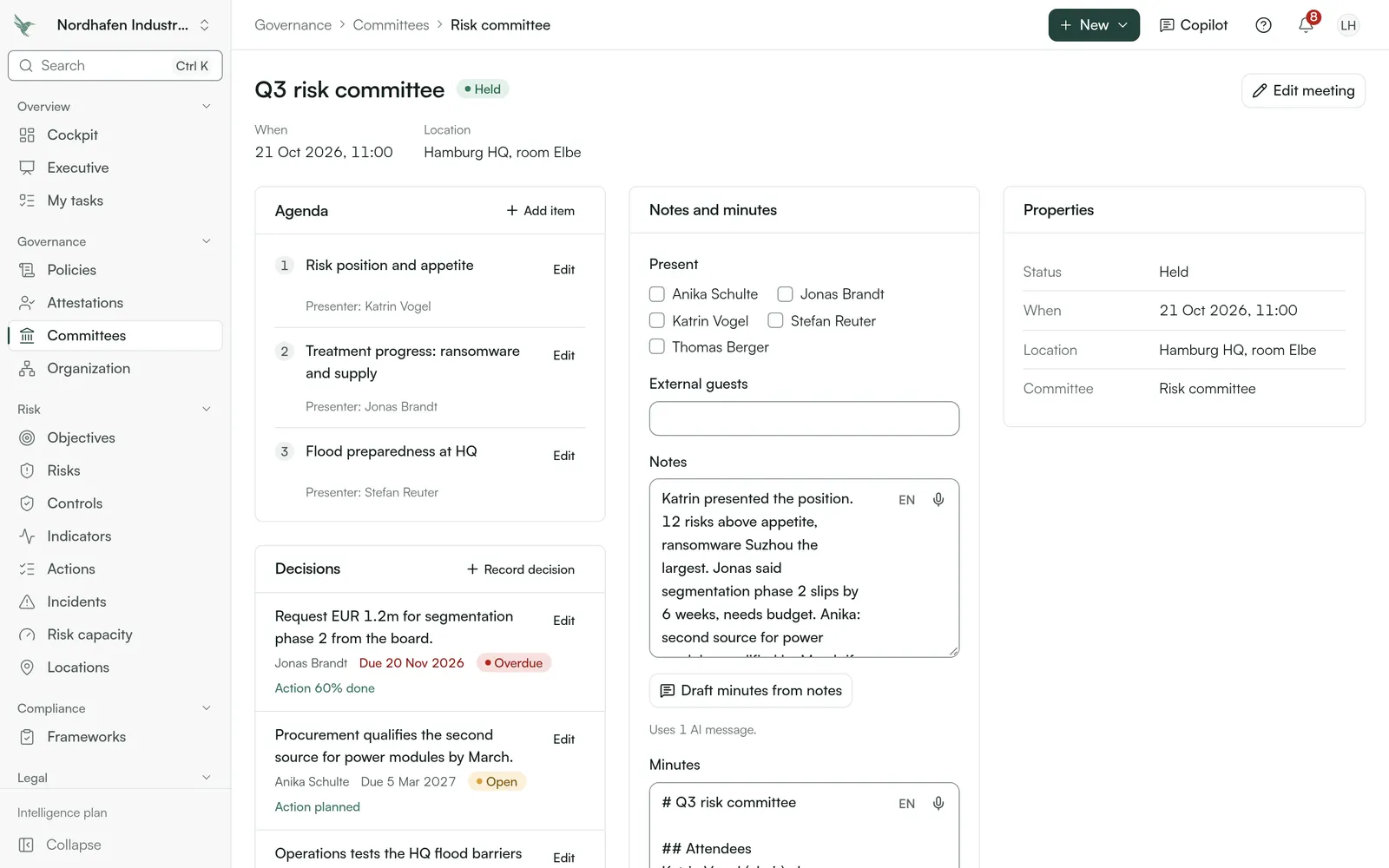
Open the meeting page. Type your notes or use voice input in Notes as the discussion goes. Names, numbers and what was agreed are enough.
When the committee decides something, choose Record decision. Write the decision in a full sentence. Choose the Owner, set the Due date and pick the Agenda item. Keep Track as an action with the owner and due date ticked, so the decision is followed up in Actions.
After the meeting
Choose Edit meeting and set the status to Held. If the meeting did not take place, set Cancelled.
Write the minutes in the Minutes field. If AI is configured, choose Draft minutes from notes to get a first version, then read and edit it.
If the AI lists decisions it found in your notes, add the right ones. Each becomes a decision with a tracked action. Open each and assign the owner, because the AI does not set it.
Record under Present which committee members took part, and list external guests by name under External guests. Guests get no access. Choose Save notes and minutes while the minutes are still a draft ("Minutes not yet approved (draft)"). Once they are agreed, choose Save and approve minutes. The meeting then shows "Minutes approved by … on …" and the minutes are locked. Minutes can only be approved for a meeting with the status Held. Approved minutes also lock the agenda and the decisions of the meeting, and a meeting with approved minutes cannot be deleted. Reopen minutes lets you edit them again. People who can only read the committee see the saved minutes as text. Print / save PDF prints the minutes.
Check the list of decisions. Every decision should have an owner and a due date. For a decision without an action, choose Create action.
Follow up
- On Committees, the card of the committee shows Open decisions. The number should fall between meetings.
- On the committee page, the table of meetings shows how many decisions each meeting has and how many are open.
- A decision shows Overdue when it is open, past its due date and its action is not done.
- When the work is finished, mark the action done. The decision then shows as Done on the meeting page. Choose Mark done on the decision as well, because Open decisions on the committee card counts every decision you have not marked done yourself.
- Before the next meeting, open the last one and go through the open decisions as the first agenda item.
What the app does for you
- It counts the decisions and the open decisions per meeting and per committee.
- It creates the action from the decision, with owner, due date and status Planned.
- It shows the progress of the action on the decision.
- It shows a decision as done when its action is done.
- It records the changes in the audit log. Minutes that started as an AI draft are marked as AI-assisted.
What stays manual
- Sending the agenda papers and a calendar entry.
- Taking the notes and agreeing the minutes with the chair before you approve them.
- Giving every decision an owner and a due date.