Committees and meetings
Set up the board and your committees, plan meetings, prepare agendas, write minutes and record decisions that you can follow up as actions.
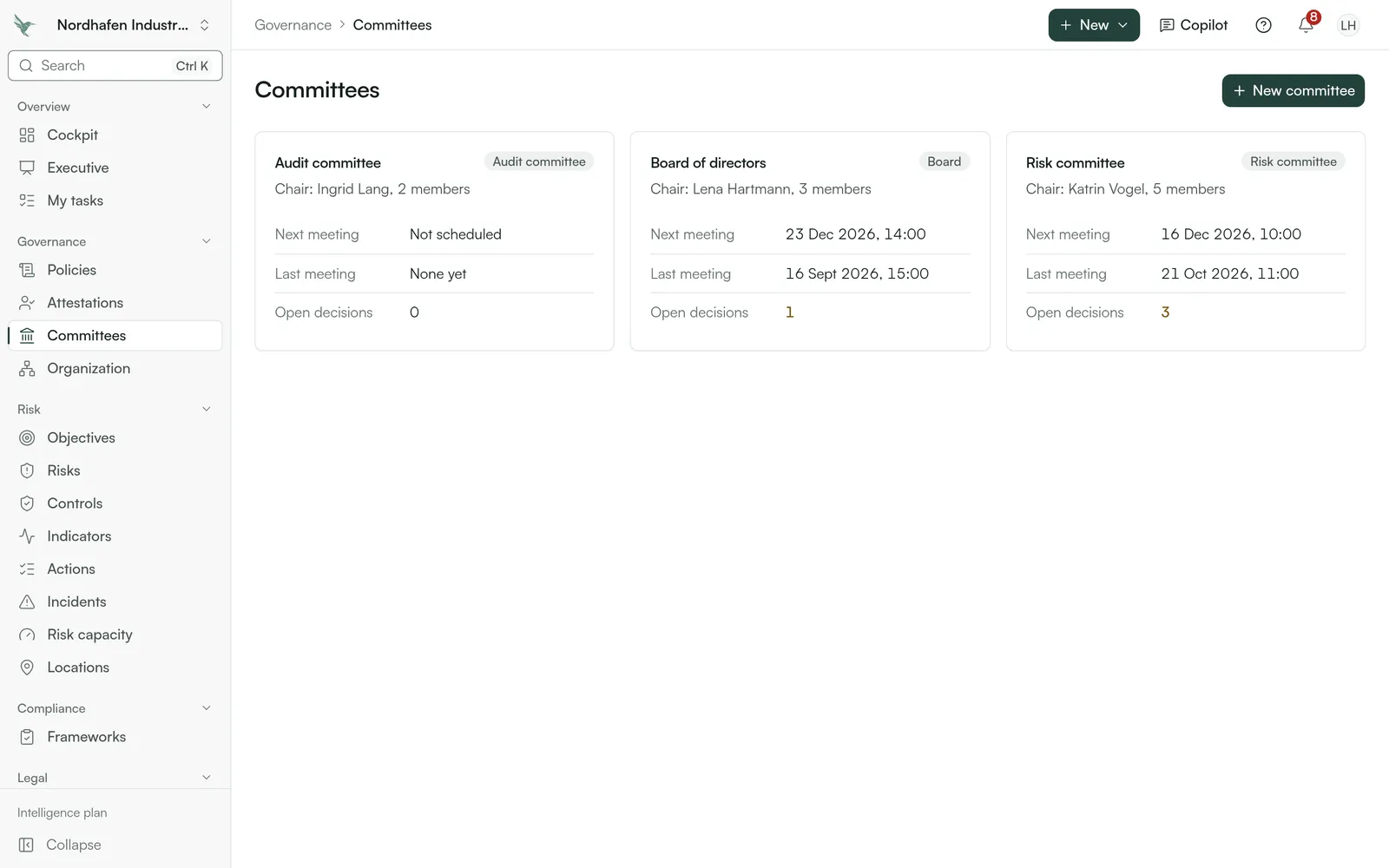
Open Committees in the sidebar (group Governance). A committee is a body with members, for example the board, the risk committee or the audit committee. Each committee has meetings. Each meeting has an agenda, notes and minutes and decisions.
What you use it for
- Keep a record of what each body decided and when.
- Turn a decision into a tracked action with an owner and a due date.
- Prepare meetings with an agenda and a link to the board paper for each item.
- Keep the minutes where the decisions are.
Role needed
Committees
A committee has these fields.
| Field | Meaning |
|---|---|
| Name | At least 2 characters. |
| Kind | Board, Risk committee, Audit committee or Other. |
| Chair | A member of your organization, picked from the searchable member list. |
| Members | Members of your organization, picked from the searchable member list, each with an optional role. Up to 40. |
| Purpose | What the committee is for. |
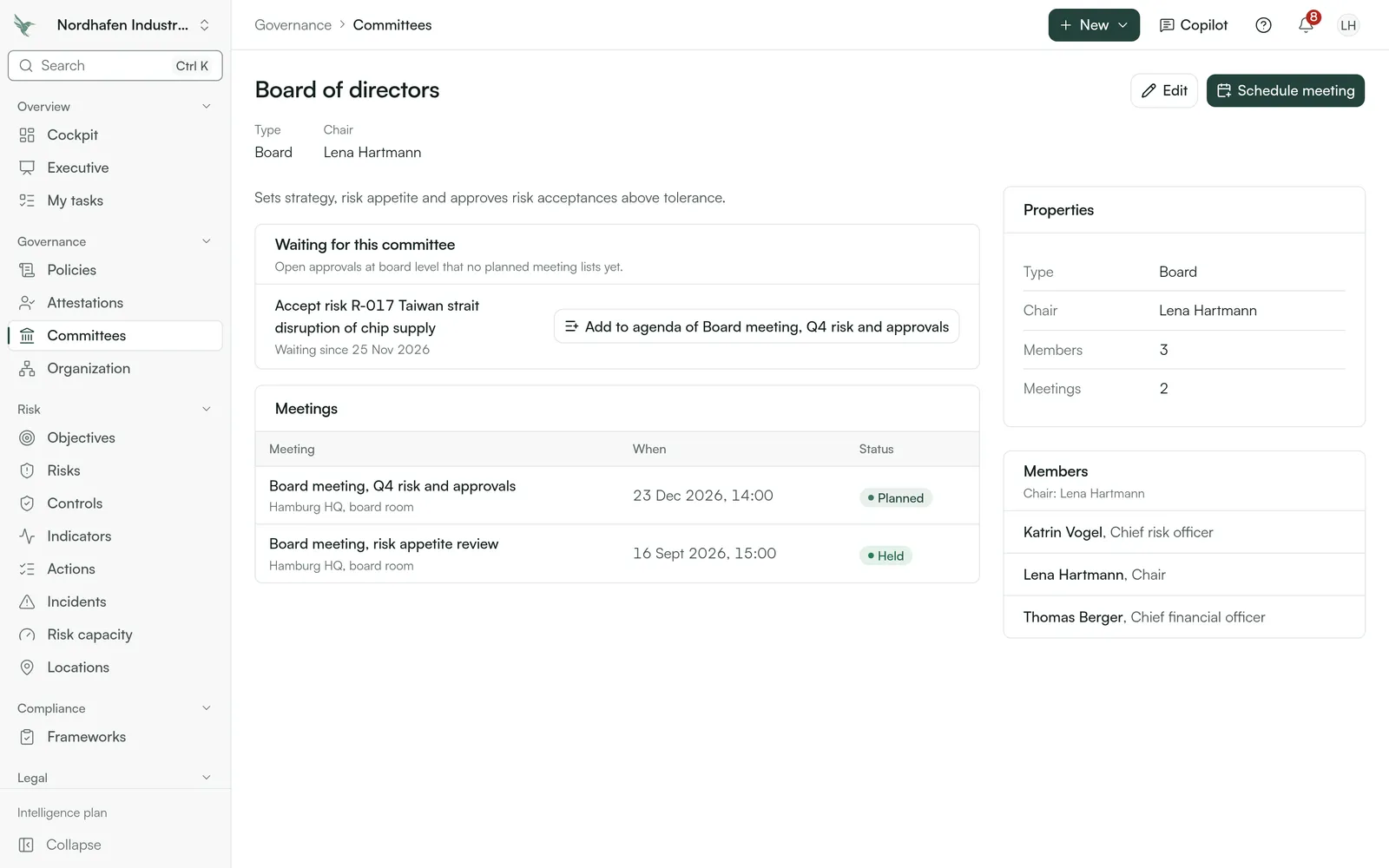
The list shows one card per committee with the kind, the chair, the number of members, the Next meeting, the Last meeting and the Open decisions. Open a committee to see its properties, its members and a table of its meetings with the number of decisions and how many are still open.
Chair and members are real members of your organization, and the committee shows their names from the member record. A member who chairs or belongs to a committee sees it even when their access is limited to departments. Committees created before this change keep entries that matched no member under Legacy entries (unmatched). They are marked "Not a member" and give no access. A manager or Admin maps each one to a member with Map, or removes it with Remove.
Waiting for this committee
On a committee of the kind Board, the panel Waiting for this committee lists the open approvals that only the board decides (risk acceptances and board papers at board level, not those with a named approver) and that you may see. Items that a planned meeting already has on its agenda, under the same title, drop out of the list. With the right to change committees you choose Add to agenda of … to put an item on the agenda of the next planned meeting. If no meeting is planned, the panel says so. Opening the item takes you to the risk or the board paper. Deciding the approval itself stays in the approval flow.
Meetings
On the committee page, choose Schedule meeting. Enter a Title, Date and time, a Time zone (pick it from the list, the search field finds it by city; the date and time are read in that zone; older meetings keep UTC), an optional Location and the Status: Planned, Held or Cancelled. Change the status when the meeting has taken place.
The meeting page has three parts.
Agenda
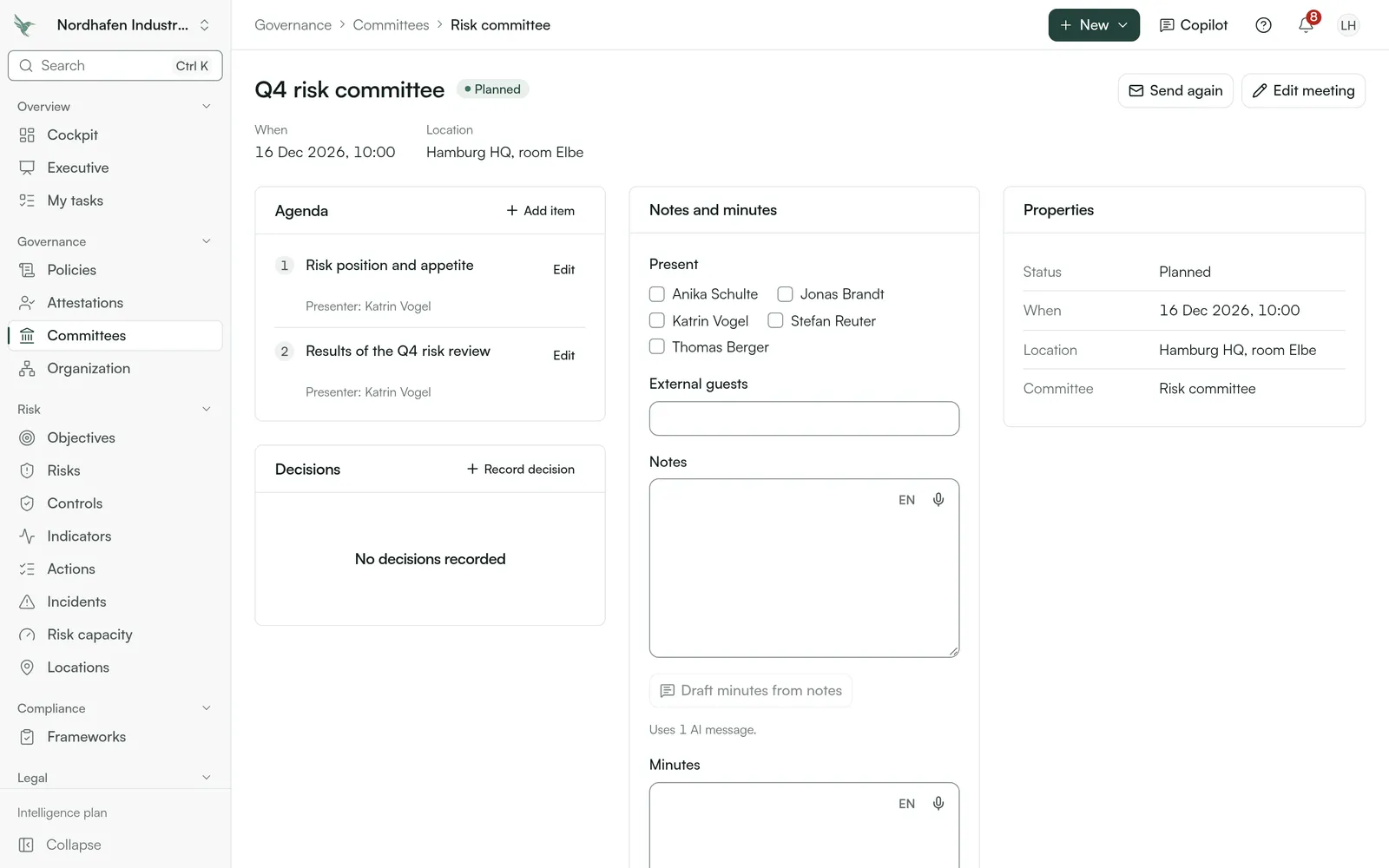
Choose Add item under Agenda. An item has a Title, a Description, a Presenter and, optionally, a Board paper from your reports. The items are numbered in the order you add them. A board paper turns into a link on the item. Set Standing item to yes and the item is added to every new meeting of the committee, copied from the latest meeting that is not in the future (the most recent one that has taken place or is today), whatever order you created the meetings in.
Decisions
Choose Record decision under Decisions. A decision has:
| Field | Meaning |
|---|---|
| Decision | What was decided. At least 5 characters. |
| Owner | The person who carries it out. |
| Due date | When it has to be done. |
| Agenda item | The item it belongs to. Optional. |
| Track as an action with the owner and due date | Ticked by default. It creates an action. |
Each decision shows its owner, its due date and its status: Open, Done or Overdue. A decision is overdue when it is open, its due date has passed and its action is not done.
For each open decision you can choose Create action if it has none yet, Mark done, or Reopen. A decision with an action shows the action progress ("Action 40% done", "Action planned", "Action done"). When the action is done, the decision shows as Done on the meeting page. The counts of open decisions on the committee cards include every decision you have not marked done yourself, so choose Mark done as well. The action is created with the owner and due date of the decision and the status Planned. It then lives in Actions. See Risk.
Notes and minutes
Under Notes and minutes, type rough notes or use voice input in any order: names, numbers and what was agreed. Write the Minutes in the second field, with Markdown (# for headings, - for lists). Choose Save notes and minutes.
With AI configured, Draft minutes from notes turns your notes (at least 20 characters) into a draft of the minutes and lists the decisions it found. You read and edit the draft. Nothing is saved until you choose Save notes and minutes. Each found decision has a button to add it. It becomes a decision with a tracked action. The AI does not set the owner, so assign it on the decision afterwards. The draft counts against your plan's AI limits. See AI and automation. Minutes saved this way are marked as AI-assisted in the audit log.
Under Present you record which members took part, and under External guests you can list guests by name. Guests appear in the minutes only and get no access. While the minutes are a draft, the meeting shows "Minutes not yet approved (draft)". Save and approve minutes locks them: the meeting then shows "Minutes approved by … on …" (the body approves, you record it). Reopen minutes lifts the lock. Print / save PDF prints the minutes. A planned meeting invites the chair and the members by itself; Send again repeats it. Invitations go out by email with a calendar file (.ics). If email is not set up on the server, or the latest invitation for that meeting could not be delivered, the meeting page says so and offers Download calendar file (.ics) and Copy meeting link, so you can hand the invitation over yourself.
Also copy the other items of the last meeting's agenda takes over the items of the previous meeting that are not standing.
People who may only read the committee see the saved minutes as text.
Who sees which committee
- Whole-organization viewers see every committee.
- People whose access is limited to departments see the committees they chair or belong to, matched by membership, not by name or email text.
What the app does automatically
- It counts meetings, decisions and open decisions per committee.
- It creates the action when you tick Track as an action with the owner and due date and links it to the decision.
- It shows the status of the action on the decision.
- It records changes to committees, meetings, agendas, minutes and decisions in the audit log.
How it connects to other modules
| Module | Link |
|---|---|
| Actions | A decision can become an action with an owner and a due date. |
| Reports | An agenda item can link a board paper. See Reporting. |
| Risk | Risk acceptances above tolerance go to the board level for approval. See Approvals. |
To run a meeting from start to finish, see Committee meeting.
Policies
Write policies, standards, procedures and guidelines, keep their versions, send them for approval, review them on schedule and link them to requirements and controls.
Approvals
How approval requests work for policies, risk acceptances, contract signing and board papers, who can decide, and what happens after the decision.