Policy lifecycle
The path of a policy from first draft to approval, review and retirement, with who does what at each step.
Use this workflow to write a new policy, standard, procedure or guideline, get it approved, keep it current and take it out of force when it is no longer needed. For the fields and tabs, see Policies.
Role needed
The statuses at a glance
| Status | You can edit | What moves it on |
|---|---|---|
| Draft | Yes | You request approval. |
| In review | No | The approver decides. |
| Approved | Yes, but a text change sends it back to Draft | The review date, a change of the text, or retiring it. |
| Retired | No | Nothing. It is the end. |
Write and approve
Open Policies and choose New policy.
Enter the Title, Type, Owner and Department. Set the Review cycle (months). The default is 12 months. You can enter 1 to 60.
Write the Text. If AI is configured, you can pick the requirements the policy must cover and choose Draft policy. Read and edit the draft. You are responsible for the text.
Choose Create policy. The app saves version 1 with the note "First draft", and the status is Draft.
Open the tab Requirements and controls and link the requirements the policy answers and the controls that enforce it.
Optional: on the tab Framework check, choose a framework and Check against framework. Add the clauses you want as a new version.
Choose the approver next to Request approval: Any manager, or a named Manager or Admin. Then choose Request approval. The text must have at least 20 characters. The status becomes In review and the policy is locked.
The approver opens My tasks and decides. They read the policy and choose Approve, or Reject with a comment. See Approvals.
On approval, the status is Approved, the approver is recorded, the effective date is today and the next review date is today plus the review cycle. On rejection, the policy is a Draft again. Read the comment on the tab Approval, change the text and request approval again.
Tell people about it
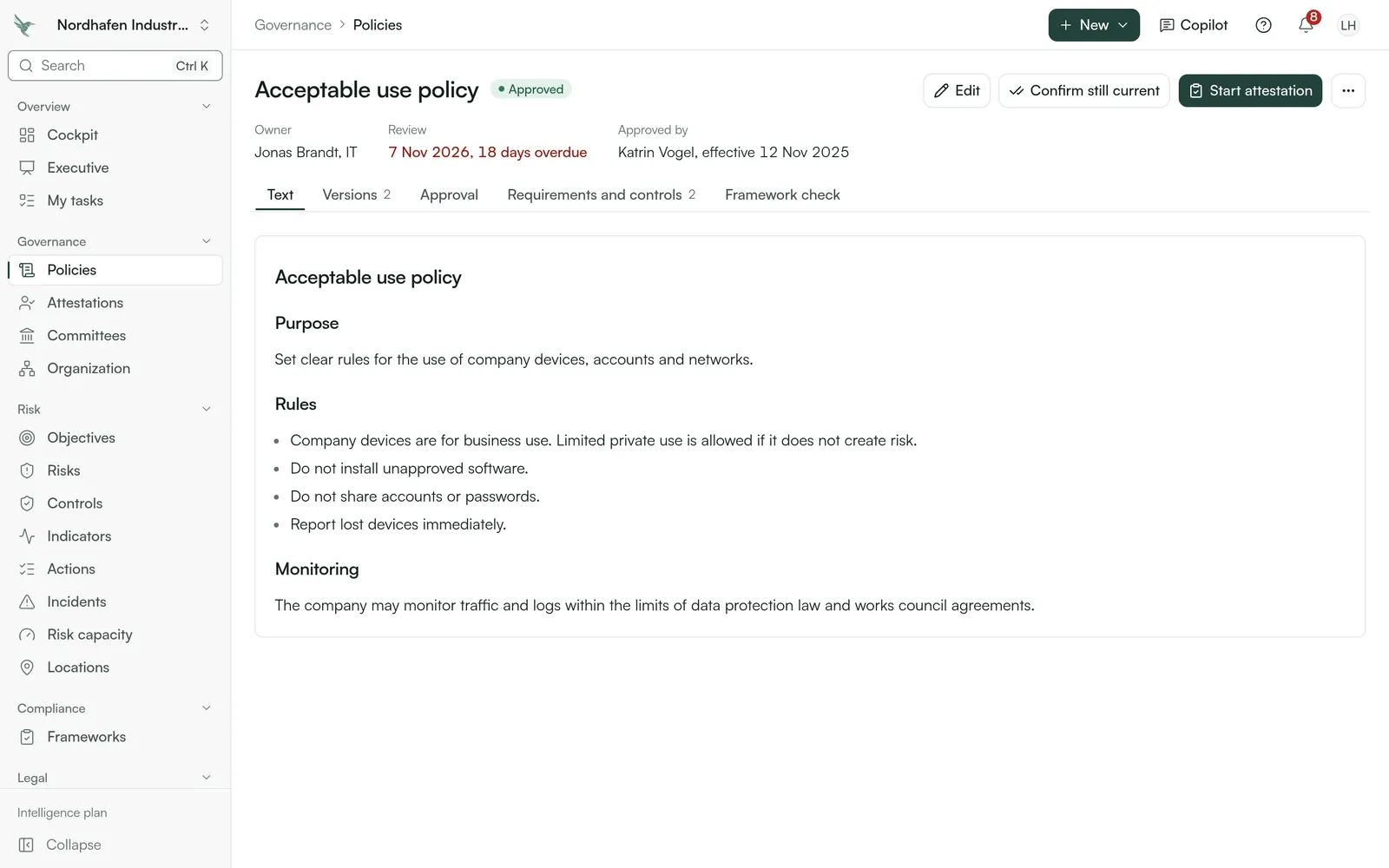
Approval does not notify the people the policy applies to. To get a confirmation from them, choose Start attestation on the page of the approved policy. The policy then shows under Confirmed how many people confirmed, for example "80% (12 of 15), campaign closes" and the date. See Attestation campaign.
Keep it current
Watch the list. Review due shows the policies that are past due or due within 30 days. The owner also sees a Policy review in My tasks 30 days ahead, and gets a reminder in the app 14 days ahead.
Open the policy and read the text. If it is still right, choose Confirm still current. The next review moves out by one review cycle. No new version is created.
If the text must change, choose Edit, change the text, add a note under What changed and save. The app creates a new version and the status goes back to Draft. Request approval again. Until it is approved, the last approved version stays in force. To drop the edits, choose Restore approved version.
Compare versions on the tab Versions: choose From and To to see what changed. Show this to the approver.
Retire
When a policy is no longer needed, open it and choose Retire. The status becomes Retired and the review date is cleared. A retired policy stays in the list with its versions and approvals. Do not delete an approved policy. The app does not allow it.
What the app does for you
- It numbers the versions and keeps every one with its note, author and time.
- It sets the effective date and the next review date when a policy is approved.
- It locks the policy while it is in review.
- It turns an approved policy back to Draft when the text changes.
- It reminds the owner before the review date and again when it is overdue. The check runs every 5 minutes in the background, so reminders do not depend on anybody opening the app.
- It records requests and decisions in the audit log.
What stays manual
- Deciding who should approve.
- Telling the people the policy applies to, for example with an attestation campaign.
- Updating controls and requirement links when the content changes.