Attestation campaign
Start an attestation campaign, chase the open answers, follow up on declines, close it and keep the evidence.
Use this routine when people must confirm a policy or answer a short questionnaire, for example once a year. For the concepts behind it (who receives a campaign and what happens to the answers), read Attestations first.
Role needed
Before you start
- People are in departments. If you want to reach certain departments, assign people to them under Organization. See Organization and taxonomy.
- The policy is approved. For a policy campaign, only approved policies are offered. See Policy lifecycle.
- You know the due date. Reminders count from it.
Run the campaign
Open Attestations and choose Start attestation. For a follow-up round, open the closed campaign and choose Start again. The form is then filled in. You can also start a single policy from the policy page with Start attestation.
Enter a Title that people recognize, for example "Annual code of conduct confirmation".
Under What people do, choose Confirm a policy or Answer a short questionnaire.
Set a Due date. Reminders go out 7, 3 and 1 days before it.
For a policy campaign, choose the Policy. For a questionnaire, write the Questions, one per line, up to 15.
Optional: write the Statement people see. If you leave it empty on a policy campaign, the app uses its standard sentence in English. Enter your own text for another language.
Under Who, tick the departments, or leave all empty to ask everyone who works in the app. Departments include their sub-departments.
Choose Open campaign. The app creates one response per person and opens the campaign page. Each person now has a task, a notification and, by default, an email.
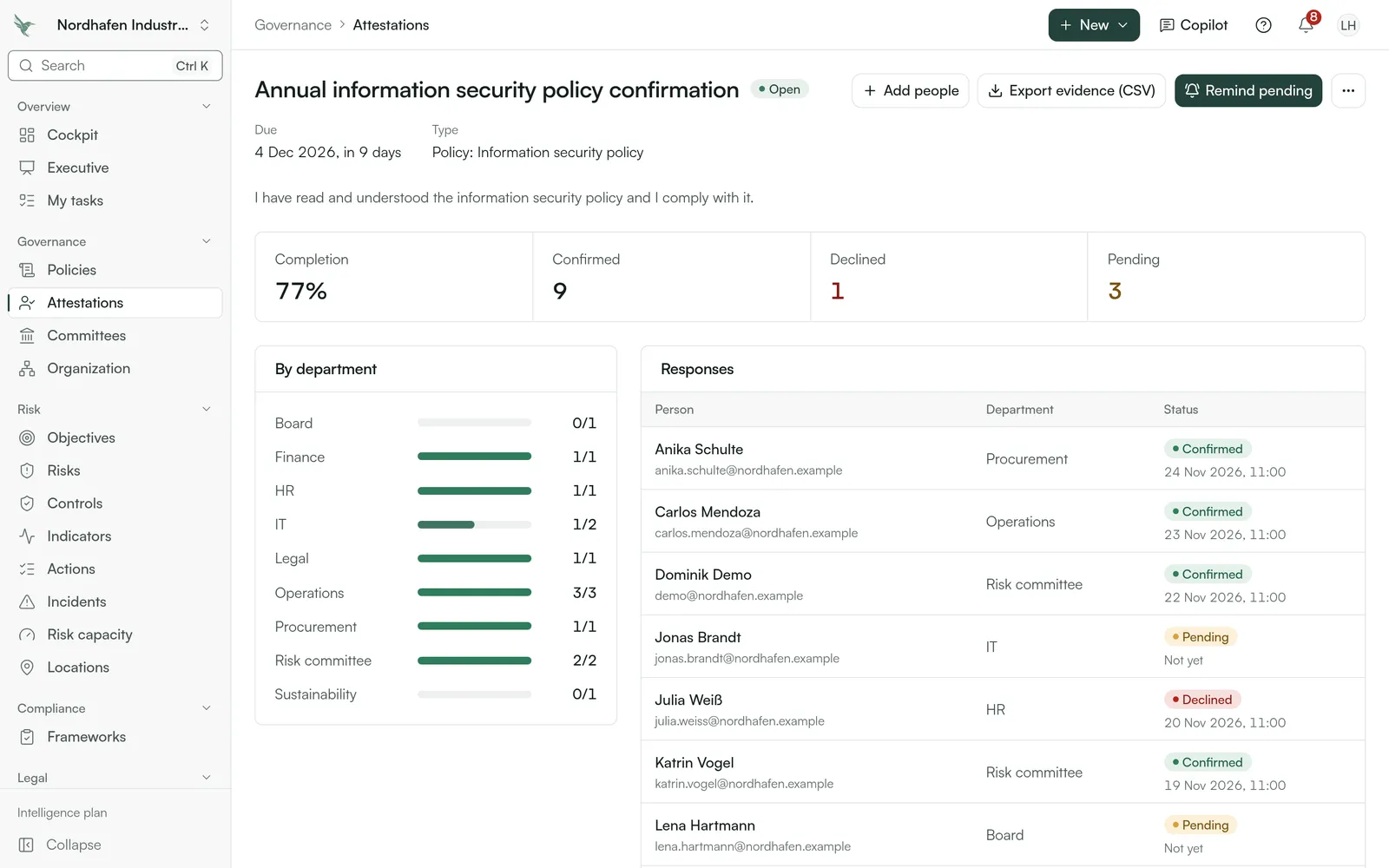
Open the campaign page during the campaign. The cards show the completion and the numbers Confirmed, Declined and Pending. By department shows where answers are missing. The Responses table shows each person.
If answers are missing, choose Remind pending. The message says how many people were reminded. Use it before the due date, especially before a hard deadline, because automatic reminders only run while people use the app.
Read the Declined answers. Each has a reason and creates a task for you in My tasks. Talk to the person and record the outcome as a Note. If the reason shows a real problem with the policy, change the policy through its normal lifecycle. If it shows a control problem, test the control and raise an action. The campaign does not do this for you.
When the due date has passed and you have chased everyone, open More options and choose Close and confirm the question. Open items then disappear from the task lists. A closed campaign accepts no more answers and sends no more reminders.
Choose Export evidence (CSV) and file the export with your audit evidence. You need the permission to export the audit log.
What the app does for you
- It builds the list of people from the departments, and refuses to open an empty campaign.
- It creates the task for each person and sends the first notification.
- It sends reminders 7, 3 and 1 days before the due date, on the due date and once when overdue, only to people who are pending.
- It records every answer with the name and the time of the person and writes it to the audit log.
- It adds the campaign to the compliance status report, the second line view and the year-end pack.
What stays manual
- Closing the campaign. It stays open after the due date, and shows as Overdue, until you close it.
- Following up on declines and on people who did not answer.
- Reaching people who joined after you opened the campaign. Add them with Add people while the campaign is open.
If something goes wrong
| Situation | What to do |
|---|---|
| The app says no people match the audience | Assign people to departments under Organization, or leave the departments empty. |
| Someone says they cannot find the confirmation | It is in My tasks and in Waiting for you at the top of Attestations. It appears only for people who were in the audience when the campaign opened. |
Check before you open
You cannot edit a campaign after you open it, and an answer cannot be changed after it is sent. Check the title, the text, the questions, the audience and the due date before you choose Open campaign.
Control testing round
A step by step routine for a testing round, from finding the controls that are due to following up on failed tests and checking the effect on compliance coverage.
Compliance
How Volatilis GRC shows whether your controls meet the requirements of a framework, how attestation campaigns collect confirmations, and where contract obligations fit.