Actions
Plans that reduce risk, with owner, due date, progress and cost, and how overdue actions are chased.
Actions are the work you plan to bring a risk down to its target. An action says what will be done, who does it, by when and what it costs. It is linked to the risk it reduces.
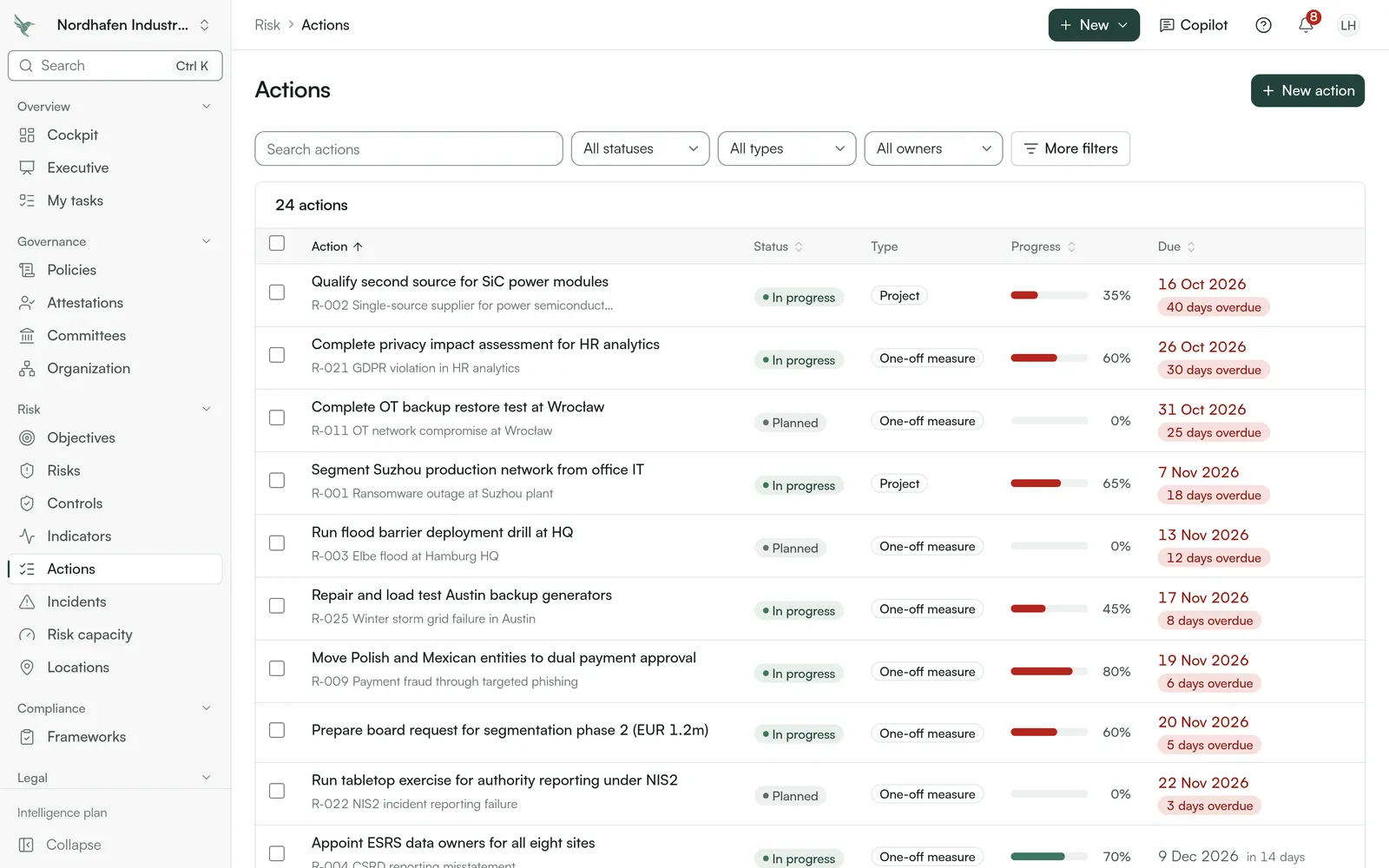
Read the list
The table shows each action with its linked risk, status, a progress bar, the owner, the due date and the estimated cost. Overdue actions are marked and listed first. The default order is: most overdue first, then soonest due, then open work without a date, then done work.
The line above the table counts overdue and open actions and adds up the estimated cost of the open ones. Amounts in another currency are named and not added.
| Status | Meaning |
|---|---|
| Planned | Not started, progress 0% |
| In progress | Started |
| Done | Finished, progress 100% |
An action is Overdue when its due date has passed and it is not done. An action is "due soon" when it falls due within 30 days.
Filter by search, status (including Overdue), type (one-off measure or project) and owner. Use the switches My actions and Due in 30 days. Sort by any column. Select an action to edit it. The list shows the first 100 actions; Load more adds 100 at a time, up to 1,000. To see beyond that, narrow the filters or export the list.
Add an action
Role needed
Open Actions and select New action. On a risk, open the Actions tab to see what is planned for it.
Enter the Title. Say what will be done, for example "Qualify a second supplier for power semiconductors".
Choose the Linked risk, the risk this action reduces. Choose the Owner and the Due date.
Set the Status, the Progress (%) and the Cost estimate. The cost is in the currency of your organization.
Choose the Type: a one-off measure (a task, the default) or a project. A project is a larger piece of work and uses the same status, progress and cost.
Select Create action.
Status and progress always agree. Done sets progress to 100%. Progress of 100% sets the status to done. Any progress on a planned action starts it. The same holds when you use the Done button on a row of the list.
Update and complete actions
Role needed
Open an action to change it, or select Done on its row to finish it. To finish several at once, tick the open actions you want, then select Complete selected. The app marks them done at 100%. Actions you may not change are skipped and counted in the message. The checkbox in the table header selects the loaded rows only; while more actions exist, the bar above the table says so.
Managers can delete an action in the edit dialog. Delegates named on the action edit it like the owner.
What the app does automatically
- Overdue status. The app works out overdue and due soon from the due date each time you open the page.
- Notifications. When an open action is past its due date, the rule engine notifies its owner. If the action has no owner, the managers get it.
- Escalation. Every organization starts with the automation "Escalate overdue actions". When an action is 7 days overdue, the head of the owner's department is notified. You can change this under Automations.
- My tasks. Open actions that are overdue or due within 14 days appear in the inbox of their owner.
- History. Every change is written to the history of the action. Changes to status also appear in the history of the linked risk.
Actions do not change risk scores on their own. When the work is done, update the residual rating on the risk, or let the next risk review do it.
How it links to other modules
- The linked risk lists its actions with its other measures on the Management tab when the strategy is Reduce. See Managing a risk and Risks.
- Overdue actions show in the cockpit and in the reports for the board and management. See Reporting.
- Automations can update the status, due date or progress of an action. See Automations and agents.