Risks
The risk register and the risk record, with scoring, bands, status, the appetite flag, review dates and the tabs for analysis, management, indicators, occurrences and the loss model.
Risks is the register of everything that could go wrong. Each risk describes an event with its cause and consequence, scores it, names an owner and, if you want, puts a loss model behind it.
How a risk is scored
You rate every risk on a scale of 1 to 5 for Likelihood and Impact, at three points:
| Rating | Meaning |
|---|---|
| Inherent | The risk without any controls |
| Residual | The risk with the controls you have today |
| Target | The level you are willing to accept |
The score is likelihood times impact, from 1 to 25. The band follows from the score.
| Score | Band |
|---|---|
| 1 to 3 | Low |
| 4 to 6 | Moderate |
| 7 to 12 | Elevated |
| 13 to 16 | High |
| 17 to 25 | Critical |
| Level | Likelihood | Impact |
|---|---|---|
| 1 | Rare | Negligible |
| 2 | Unlikely | Minor |
| 3 | Possible | Moderate |
| 4 | Likely | Major |
| 5 | Almost certain | Severe |
Your organization can define what each level means in money and in yearly probability. An administrator sets this in the risk matrix (see Organization). The ranges appear as helper text where people rate a risk.
Analysis method and effect
Every risk is analysed by exactly one method. Admins choose which methods are allowed and the default under Settings.
| Method | What you enter | Matrix position |
|---|---|---|
| Scoring (matrix) | Likelihood and impact | Entered by hand |
| Estimate (worst, most likely, best case) | A loss estimate | Derived from the estimate |
| Risk model | A model you build after saving the risk | Derived from the last model result |
The Effect says which side of the objective the risk moves: Downside, Upside or Both. An estimate has to fit it: a downside estimate has no gain, an upside estimate has no loss, and an estimate for both reaches below and above zero. A scoring risk with the effect upside or both also gets one likelihood and impact pair for the opportunity.
A risk whose effect is upside is an opportunity. It is never above appetite and does not appear in the threat matrix, the top risks or the expected downside; the opportunity matrix lists it.
Status
| Status | Meaning |
|---|---|
| Draft | Not yet confirmed. Risks raised by the first line and AI drafts start here. Drafts are left out of campaigns and of the capacity simulation. |
| Open | A live risk. |
| Monitoring | A live risk you keep watching. The app sets a risk from Open to Monitoring when an acceptance is approved. |
| Closed | The risk no longer applies. Closed risks are left out of campaigns and of the capacity simulation. |
There is no delete for risks. You close them, and the history stays.
Read the register
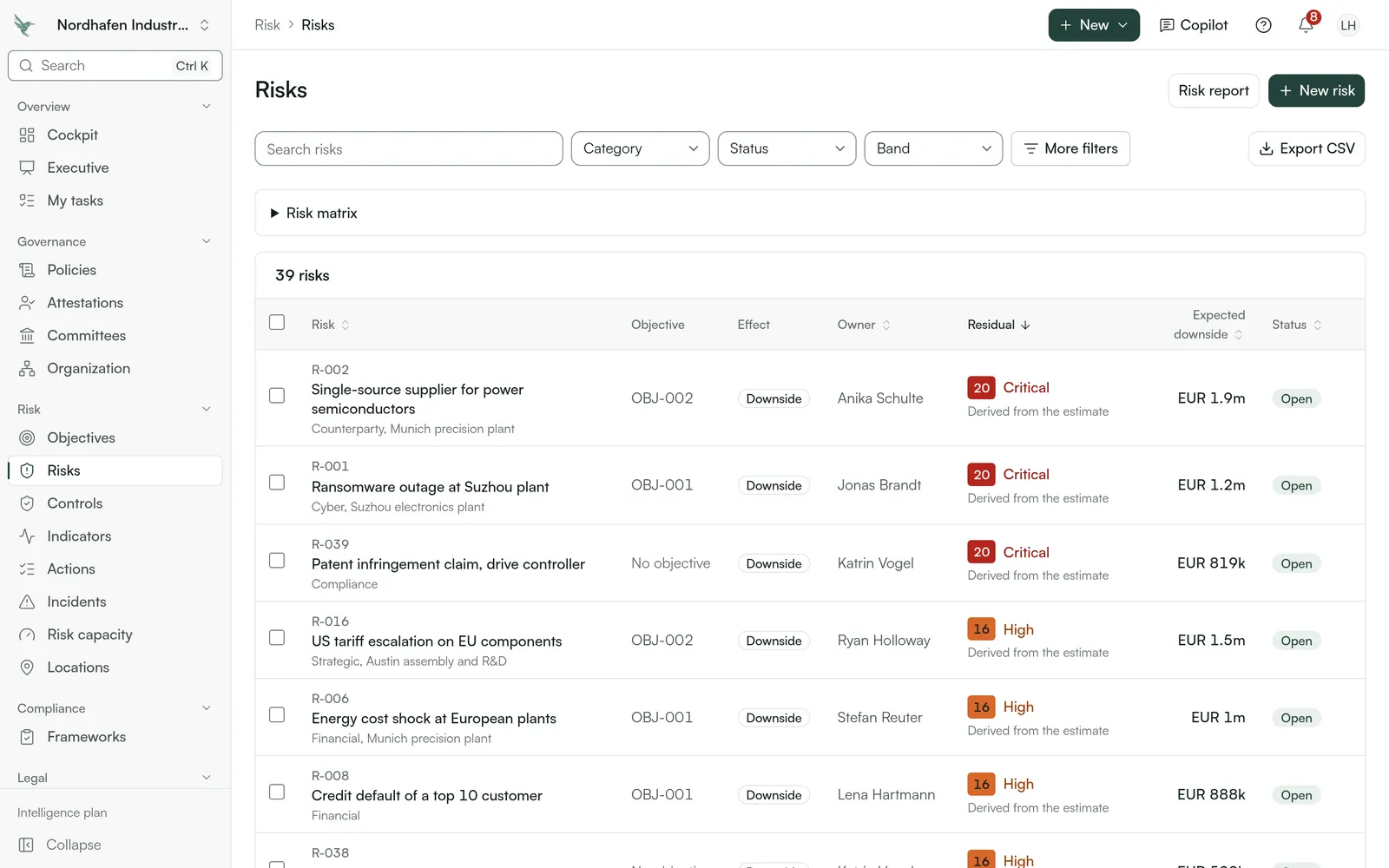
The table shows one row per risk: the code and title, the category and location, the Objective (its code), the Effect, the Method, the owner, the target and residual score, the trend, Expected downside, Expected upside, the next Review date and the status.
- Expected downside is the expected loss per year, Expected upside the expected gain per year. A risk without an estimate or model shows "Not quantified".
- For a risk analysed by an estimate or a model, the residual score carries the note "Derived from the estimate" or "Derived from the model": nobody entered it, so change the numbers, not the score. The position is derived when you save a change to the estimate, the effect or the method. A change to the risk matrix does not move it: an administrator re-runs the backfill script as a dry run after changing the matrix and decides whether to apply it. Avoid checks the appetite against the stored position. The target score is only set for scoring risks.
- A risk whose effect is upside shows "Opportunity" in the residual column, because it has no threat score.
- A review date in the past is shown in red until the risk is closed.
- The line above the table counts the risks above appetite and adds up the expected downside. Amounts in another currency are named and not added.
Narrow the list with the search box and the filters Category, Status, Band, Owner, Location, Objective, Effect, Analysis method and Management (a strategy, or No strategy for risks that have none). Turn on Above appetite to see only open risks that need an acceptance. With Approve on Risks, Waiting for triage lists the raised risks nobody has decided yet, each with Unassigned, Taken by a name or Waiting for the requester. A click on a cell of the heat map on the cockpit opens the register filtered to that cell, shown as a chip you can clear. Above the table, Risk matrix opens the threat matrix (Residual or Inherent) and, once a risk has an upside, the Opportunity matrix next to it, with the same filters. The cockpit heat map shows the same pair. A risk whose effect is upside or both is listed in the opportunity matrix by its opportunity position, and never in the threat matrix if the effect is upside. Sort by any column. The address in your browser holds the filters, so you can share a view as a link. The list shows the first 100 risks; Load more adds 100 at a time, up to 1,000. To see beyond that, narrow the filters or export the list.
Export CSV exports the filtered list, with the columns Objective, Effect, Analysis method, Expected upside, Opportunity likelihood and Opportunity impact at the end. It needs the Export permission on Risks.
Change the status of several risks
Role needed
Tick the risks you may edit, choose a status next to Set status and select it. Risks you may not edit are skipped. So are risks that break a rule, for example closing a risk above appetite without an approved acceptance. The result message says how many were skipped and why. The checkbox in the table header selects the loaded rows only; while more risks exist, the bar above the table says so.
Add a risk
Role needed
Plan needed
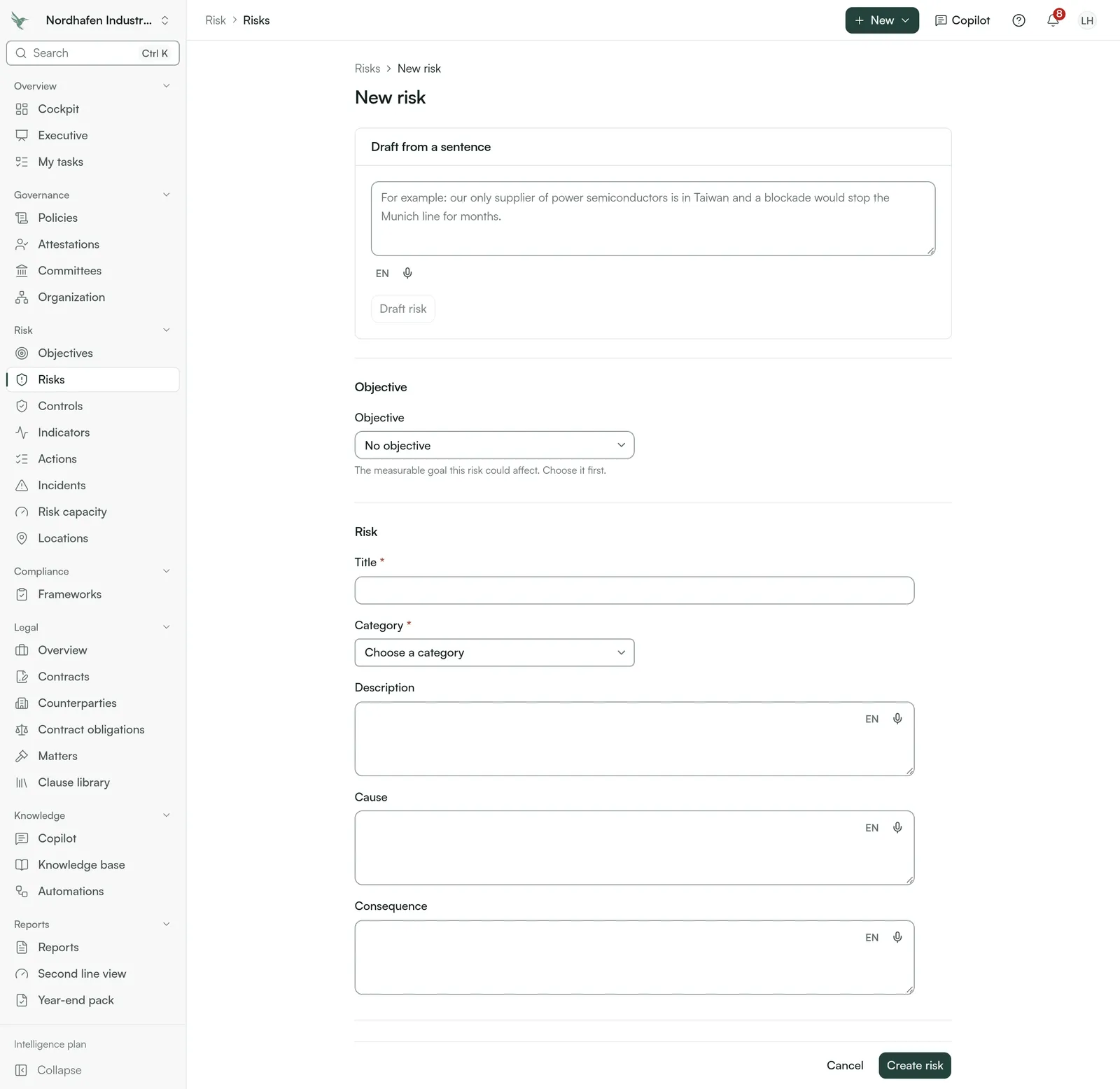
Open Risks and select New risk.
Under Objective, choose the objective the risk could affect. The field comes first on purpose: a risk is an uncertainty about a measurable goal. Without objectives the form says so and links to Objectives. If an admin turned on New risks need an objective, a risk needs an objective to leave draft; a draft may stay without one.
Under Risk, enter the title. Name the event, for example "Ransomware outage at the Suzhou plant". Choose the category from your risk taxonomy. You can pick a category or one of its subcategories. Fill in the description, the cause and the consequence. Cause is what makes the event possible. Consequence is what it costs if the event happens.
Under Analysis, choose the Effect on the objective: Downside (it can only make the objective worse), Upside (only better) or Both.
Choose the Analysis method. Only the methods your admin allows are offered, and only the inputs of the chosen method appear.
- Scoring (matrix): rate likelihood and impact in the grids for inherent, residual and target. If the effect is upside or both, a fourth grid, Opportunity, rates the upside.
- Estimate (worst, most likely, best case): answer the questions of the quantification panel. The amounts are the effect on the objective: a negative amount is worse than the objective, a positive amount is better. Under effect Downside every amount is zero or worse, under Upside zero or better, and under Both the range has to reach below and above zero. Only the shapes that can reach above zero (three case estimate, triangular, lowest and highest) are offered unless the effect is downside. The form checks this as you type. The matrix position is derived when you save. See Quantification.
- Risk model: build it after saving the risk, with Open model. A risk that has a model keeps this method until you remove the model.
Under Details, set the owner, the department, the location, the date of the next review, the status and the trend.
Select Create risk.
Editing a risk keeps what is stored. A scoring risk keeps a loss estimate that is still on it, and switching the method back to estimate shows it again. Choosing Estimate without numbers is refused: an estimate needs numbers.
The category you pick is a node of your taxonomy. The app derives the stored category from it. Change the taxonomy under Organization and taxonomy.
Raise a risk from the first line
Anyone with the New menu in the top bar can use Raise a risk. The form asks only for a description in your own words, an optional title and an optional attachment; the title comes from the first line when you leave it empty. The app saves a draft risk owned by the person who raised it, with their department, and notifies the risk team responsible for that department. The team takes it in My tasks, rates it and accepts it into the register, or declines it with a reason; a declined risk stays a draft. People who may only edit their own risks cannot create an open risk on any path: their risk is a draft and goes to the team the same way. The person who raised it follows it under Raised by me. See Workflow: raise a risk.
The risk record
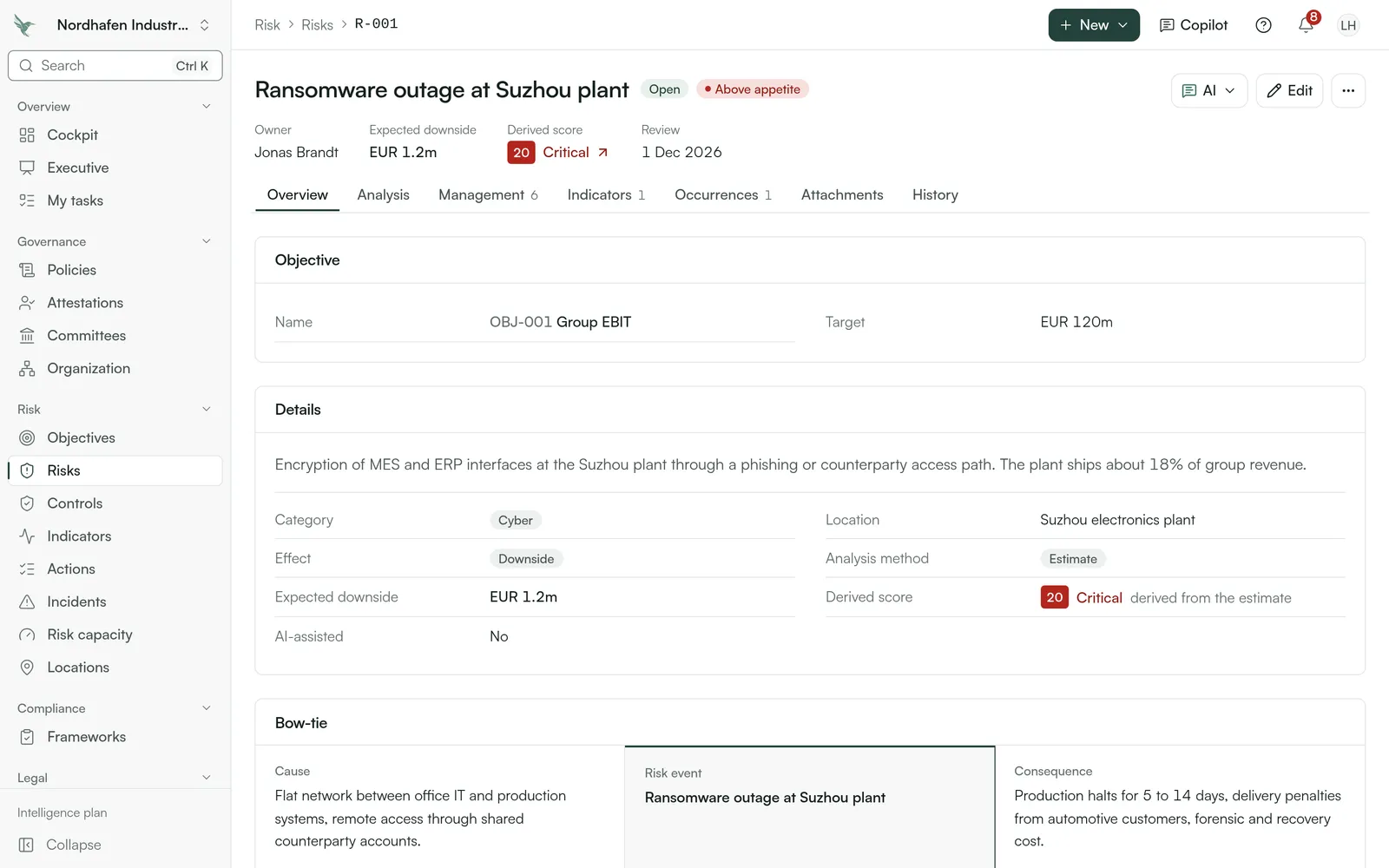
Select a risk to open it. The header shows the code, the title, the status, the Above appetite badge when it applies, and the facts Owner, Review and the position. A scoring risk shows its Residual score with the trend arrow. An estimate or model risk shows Expected downside, Expected upside (when the effect includes upside or the result has gains) and the Derived score, which the app computes from the estimate or the model.
| Tab | What it holds |
|---|---|
| Overview | The Objective card with the linked objective and its target, then Details with the description, category, location, the Effect and Analysis method badges and the figures of the method: inherent, residual and target score for a scoring risk, Expected downside, Expected upside and the derived score for an estimate or model risk, and AI assistance. Then the bow-tie. |
| Analysis | Only what the chosen method holds. Scoring: the positions on the matrix, read only, with the opportunity position when the effect includes upside. Estimate: the figures as effect on the objective (negative is worse than the objective), the 1 in 20 and 1 in 200 year loss, the shape of one event with a zero line and the calibration helpers. Risk model: the model results, with a hint when they contradict the chosen effect. |
| Management | How the risk is managed: the strategy selector (Accept, Reduce, Transfer, Avoid) and one section per chosen strategy with its rationale, measures, projects and ongoing controls. The old Controls and Actions tabs lead here. See Managing a risk. |
| Indicators | The indicators that watch this risk with their latest value, status and a 12 value trend. |
| Occurrences | The incidents linked to this risk with the net loss across them. The tab is called Occurrences on a risk, the module stays Incidents. |
| Attachments | Files attached to the risk. |
| History | Every change to the risk, newest first, with who made it and when. Changes made with AI help carry an "AI-assisted" badge. |
The bow-tie has three columns: the cause with the controls that prevent it (Prevented by), the risk event, and the consequence with the detective and corrective controls that limit it (Limited by). On a narrow page the columns stack in that order.
In the header, AI actions offers Suggest controls and Challenge assessment. Both give advice or drafts. Nothing changes until you accept it. Suggest controls is not offered for closed risks.
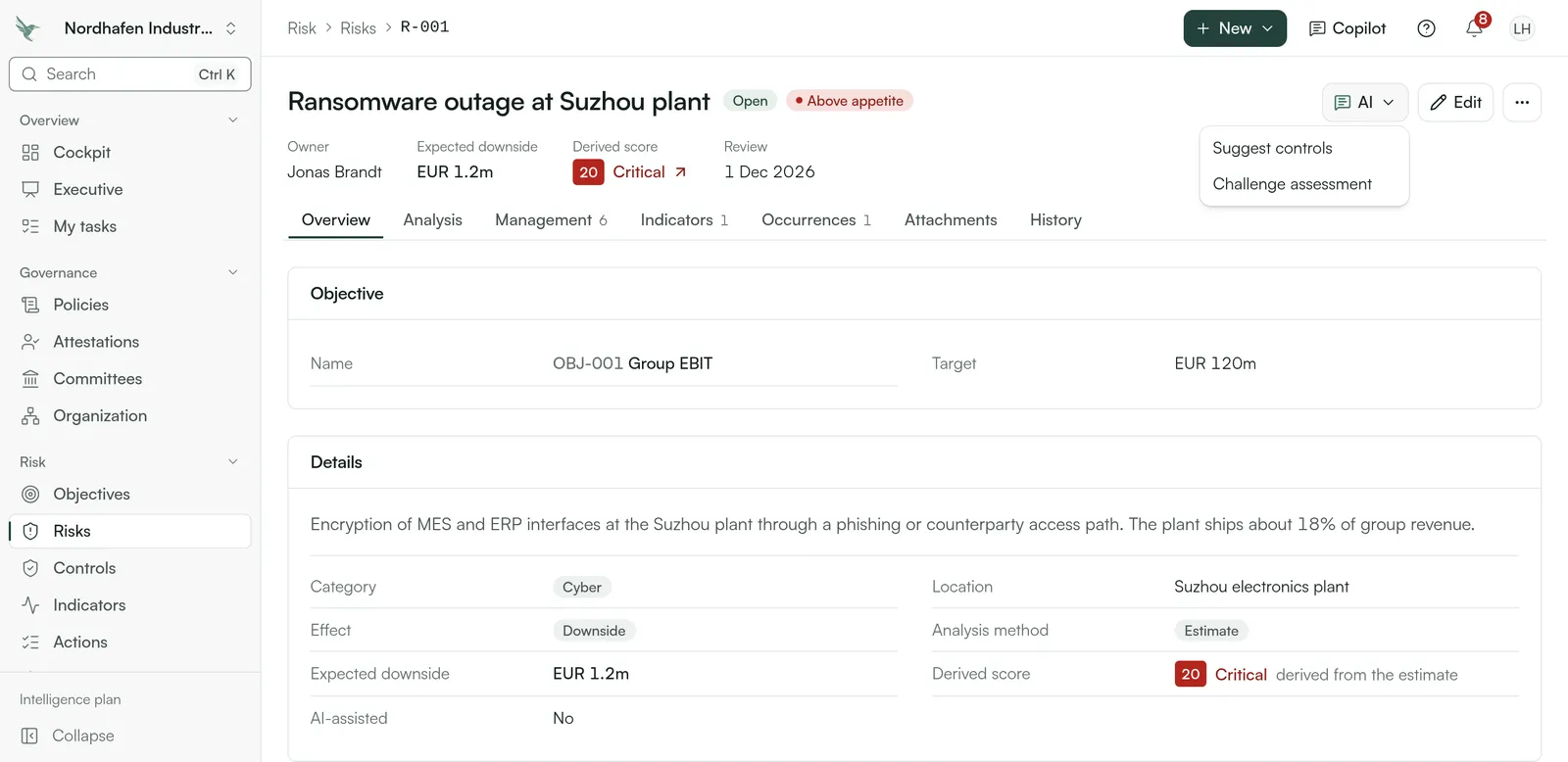
- Suggest controls opens "Suggested controls for" the risk code. It lists From your control library (existing controls with the reason they fit and their effectiveness) and New control drafts (title, reason, type, nature and frequency). Every entry is ticked. Untick what you do not want and select Accept (with a selection: "Accept 3 selected"). The app links the chosen library controls to the risk and saves each new draft to the control library as not tested. The change is logged as AI-assisted. Close leaves without saving. If the library already covers the main causes, the dialog says "No further controls to suggest". It uses one AI draft of your plan.
- Challenge assessment opens "Challenge assessment for" the risk code: a headline and findings on likelihood, impact, quantification and controls, each with an observation and a question. It is advice only. Run again repeats it. It uses one Copilot chat request.
If the AI does not answer in time, the dialog shows "The AI did not answer in time. Try again." Select Try again to repeat the request. The same message appears on the other AI buttons. See Copilot.
Edit opens the form again. The owner and people who edit all risks can name Delegates from the menu in the header. A delegate edits the risk like the owner.
What the app does automatically
- Codes. A new risk gets the next code, R-001, R-002 and so on.
- Category. The stored category follows the taxonomy node you pick.
- Above appetite. The app compares the residual score and the expected downside with the appetite and tolerance of the category. See Risk acceptance.
- Closing is guarded. A risk above appetite can only be closed while an approved, unexpired acceptance exists.
- Review reminders. When the review date has passed and the risk is not closed, the owner gets a notification. The app checks this while people use it, and sends each reminder once per review date. When the review date is reached, My tasks also shows a Risk review ("The review date of this risk is due") with the current residual rating. Check that the rating, controls and actions still fit, and set the next review date on the risk.
- Loss figures. Saving a loss model recalculates the expected downside per year.
- Audit trail. Every create and update is written to the history with the actor and, for AI help, the AI-assisted mark.
- Events. Creating or changing a risk fires the events
risk.createdandrisk.updated. Automations and webhooks can react to them. See Automations and agents.
How it links to other modules
- Indicators, Actions and Incidents attach to the risk.
- Capacity and appetite simulates all quantified open risks together.
- Reports use the register for the board risk report. See Reporting.