Indicators
Key risk indicators (KRIs) with target, warning and breach levels, recorded values, trends and the risk each one watches.
Indicators are your early warning signals. Each key risk indicator (KRI) is a number you measure on a regular basis, for example "Critical vulnerabilities unpatched over 30 days". You set the levels at which it warns you. You record the value. The app shows the status and the trend.
How the status works
Every indicator has a direction and three levels.
| Setting | Meaning |
|---|---|
| Worse when | Value rises or Value falls. It says which direction is bad. |
| Target level | The value you aim for |
| Warning level | The value at which the indicator turns to Warning |
| Breach level | The value at which the indicator turns to Breach |
The levels must run in the direction of "worse": rising from target to warning to breach when a rising value is bad, falling when a falling value is bad. The form refuses anything else.
| Latest value | Status |
|---|---|
| Better than the warning level | Within limits |
| At or beyond the warning level | Warning |
| At or beyond the breach level | Breach |
| Nothing recorded yet | No data |
Read the list
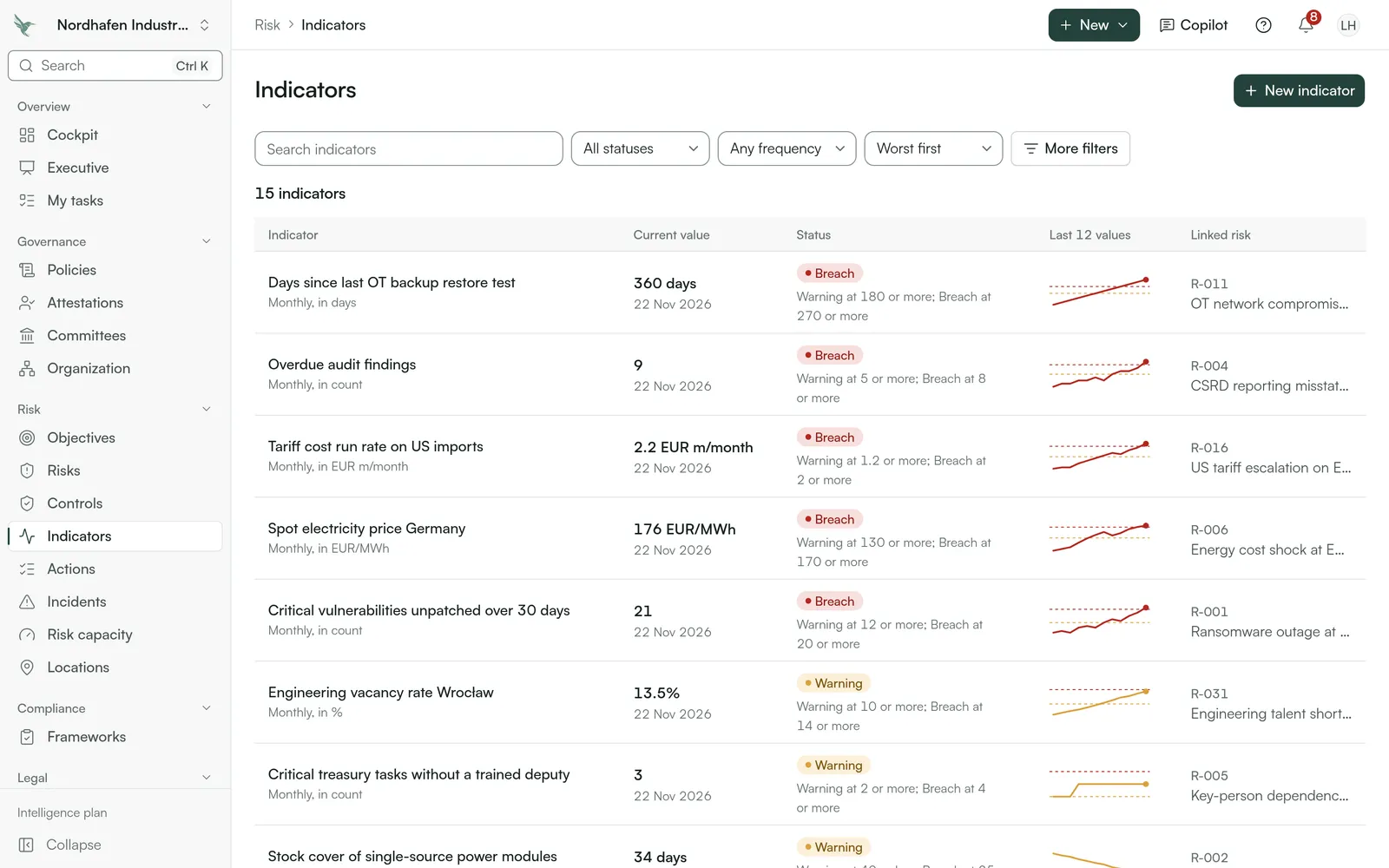
The table shows each indicator with its name and how often it is measured, the current value and its date, the status, a sparkline of the last 12 values with the two levels, the thresholds ("Warning at 12 or more", "Breach at 20 or more") and the linked risk. The line above the table counts indicators in breach, in warning and within limits.
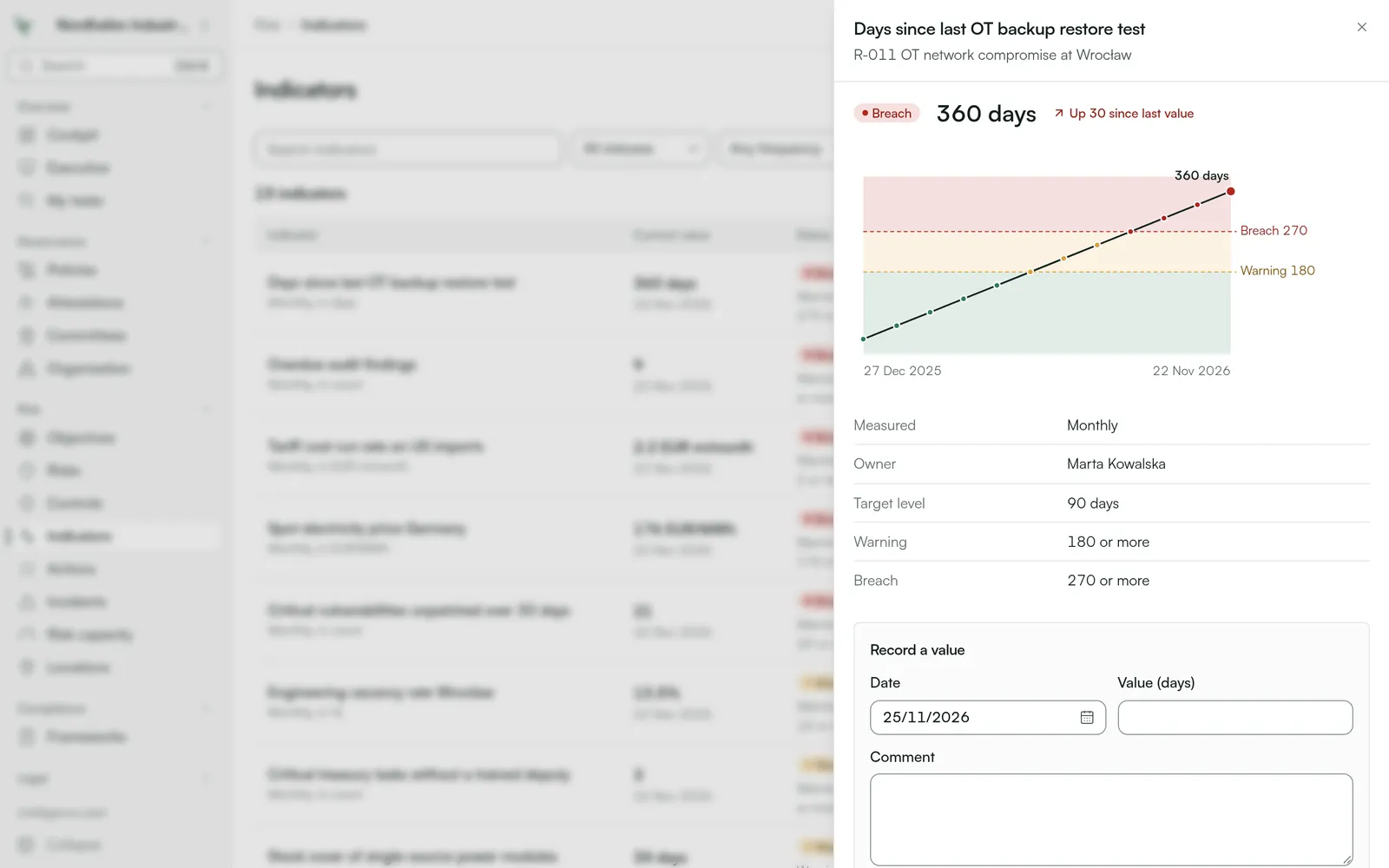
Filter by search, status, risk and frequency. Sort Worst first, by Name or by Linked risk. Select an indicator to open its panel with the chart, the change since the previous value, the settings and the recent values.
Add an indicator
Role needed
Open Indicators and select New indicator.
Enter the Name: what you measure. Enter the Unit, for example %, days or count.
Choose Worse when and how often it is Measured: continuous, daily, weekly, monthly, quarterly or annual.
Enter the Target level, the Warning level and the Breach level.
Choose the Linked risk, the risk this indicator warns about. Managers can leave it empty. Contributors must pick one of their own risks. Under Owner you set who answers for this indicator. The default is the owner of the linked risk. The owner sees the indicator even when their role is limited to other departments. Recording values stays with managers and the owner of the linked risk.
Select Create indicator.
Record a value
Role needed
Open the indicator, or open the task "Record ..." in My tasks.
Under Record a value, pick the date and enter the value in the unit of the indicator. The date cannot be in the future. If the value is in warning or breach, a Comment is required: the cause and what is being done. Add action records the countermeasure straight away.
Select Record value. The value must make sense for the unit: a percentage is between 0 and 100, and counts, days and hours cannot be negative. If a value already exists for that date, the form shows the box Replace the value already recorded for this day. Tick it and select Record value again to replace it. Managers and admins can remove a mistaken value with Delete value in the list of recent values; the deletion is written to the audit log. Values and levels are shown with the same precision, so 13.5 never reads as 14 next to "Breach at 14 or more".
What the app does automatically
- Status and trend. The status follows from the latest value and the levels. The panel shows the change since the previous value.
- Warning and breach events. Recording a value in warning (amber) or breach (red) fires the event
kri.breachedwith the value, the unit and the linked risk, as long as it is the latest value of the indicator (a back-filled older value does not). You can build automations on it, for example the template "Alert the risk owner on a KRI breach". - Breach notification. When the latest value is in breach, the rule engine creates a notification for the indicator, once per recorded date.
- Weekly digest. Every organization starts with the automation "Weekly KRI digest". On Monday at 07:00 UTC it tells managers and admins how many indicators are in breach or warning and lists them. You can switch it off or change it under Automations.
- My tasks. When the next value is due, the owner of the linked risk gets the task "Record ...". Due means the latest value is older than the measuring frequency. An indicator without any value is due at once.
- History. Recording a value is written to the history of the indicator and of its risk.
How it links to other modules
- The linked risk shows the indicator on its Indicators tab. See Risks.
- Automations and the Copilot can read indicator values. See Automations and agents.
- The cockpit and reports use the status of your indicators.
See also: Reading the charts explains each chart with a worked example.