Approvals
How approval requests work for policies, risk acceptances, contract signing and board papers, who can decide, and what happens after the decision.
An approval is a decision request on one record. It is Pending, Approved or Rejected. Volatilis GRC uses the same mechanism wherever a person must say yes before something moves on. You decide approvals in My tasks, and also on the record when it shows the approval.
Role needed
What can be approved
| Record | Who asks and when | Who decides | If approved | If rejected |
|---|---|---|---|---|
| Policy | The editor sends a draft for approval. | Any manager, or a named Manager or Admin. | The policy is Approved. The effective date is today and the next review is set. | The policy goes back to Draft. |
| Risk acceptance | The risk owner requests it for a risk above appetite. | A Manager, or an Admin when the risk is above tolerance. | The acceptance is accepted. A risk that was Open moves to Monitoring. | The acceptance is rejected. |
| Contract signing | A contract moves to the stage Approval. | A Manager. | The contract can move to Signature. It cannot move there without this approval. | The contract goes back to Negotiation. |
| Board paper | The author submits a draft paper for approval. | An Admin. | The paper is approved and gets its document number. | The paper goes back to Draft and its frozen snapshot is dropped. |
For the risk acceptance rules, see Organization and taxonomy. For contracts, see Legal. For board papers, see Reporting.
Who can decide
A person can decide an approval when both of these are true:
- They are the named approver, or their role covers the approver role. An Admin covers every role. A Manager covers Manager.
- They did not ask for it themselves. Nobody decides their own request, for every kind of approval, Admins included. This is the four-eyes rule. The buttons are hidden and the app says that someone else has to decide.
The rule applies everywhere: in the app, in My tasks, in the API, in MCP and in automations.
When nobody else can approve
The app refuses a request that nobody but you could decide, and says "This needs a second approver". Nothing changes on the record. If your organization has only one person who may approve, an Admin invites a second approver under Members and sets the role, then you ask again.
The person must also be allowed to approve that record. A manager whose access is limited to other departments cannot approve a record of a department outside their scope. An approval is only as visible as its record: a named approver who cannot see the record does not get the approval in My tasks and cannot decide it, in the app or over the API and MCP.
Decide an approval
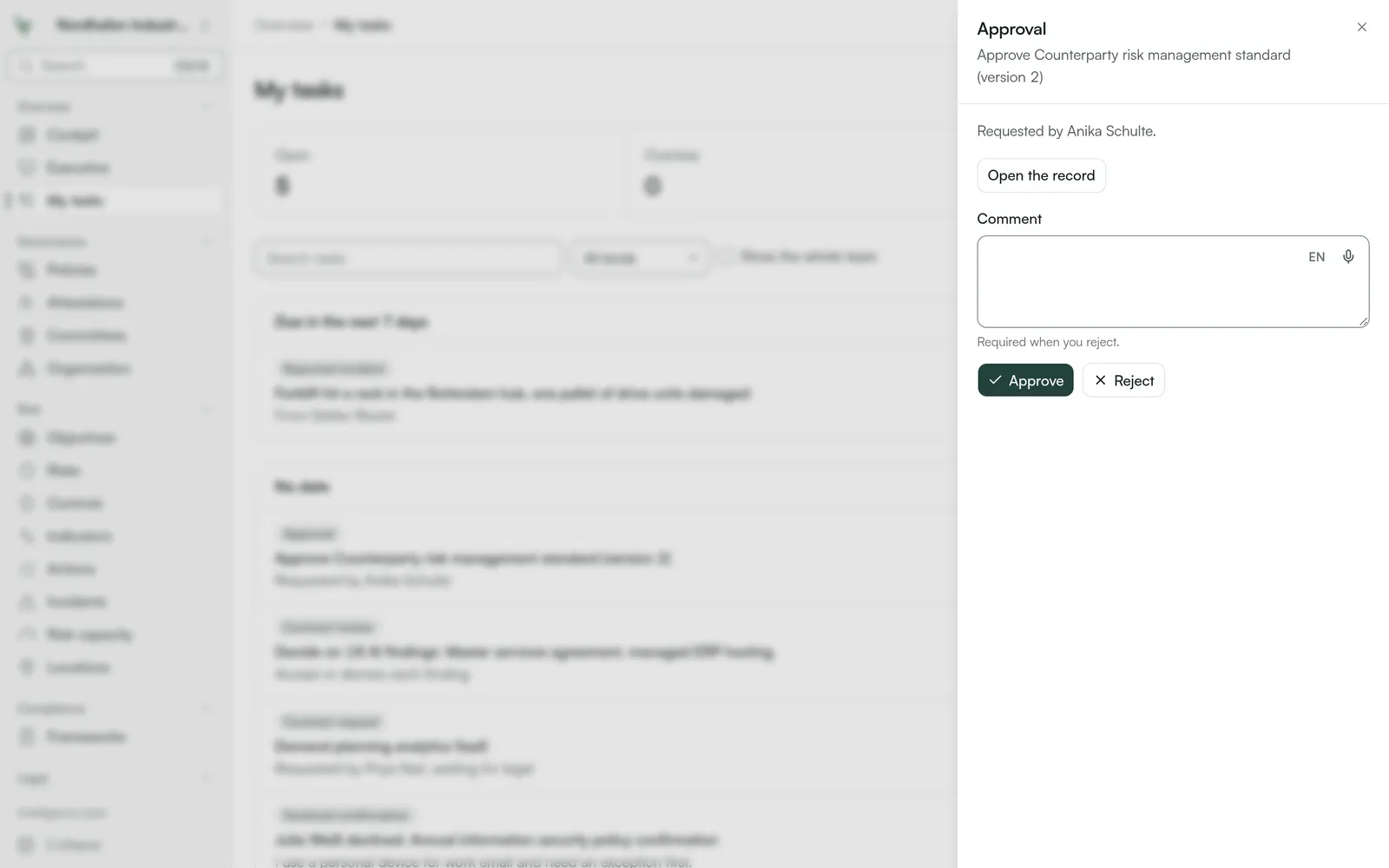
Open My tasks. An approval shows with the kind Approval, its title and who requested it. You see only the approvals you can decide.
Open the item. The panel shows what is asked and offers Open the record. Read the record first.
Write a Comment. It is required when you reject. It is optional when you approve.
Choose Approve or Reject.
On a policy, the tab Approval shows the same request with the same buttons for people who may decide.
A decision cannot be taken back. If someone else decided first, the app tells you that the approval was already decided.
What the app does automatically
- It records the request and the decision in the audit log, with the comment.
- It applies the effect to the record when you decide. If the effect cannot be applied, for example because you may not approve that record, the decision is undone and you see the reason.
- It tells the requester about the decision, with your comment, in the app and by email by default.
- It notifies the approver of the request. If it goes to a named person, only that person is notified. If it goes to a role, for example managers, everyone with that role is notified (Admins cover the Manager role). The requester is not notified. The request also appears in My tasks of every person who may decide it.
What you can see
- Approvers see pending requests in My tasks. A manager can switch the task list to the whole team to see more.
- The person who asked sees the status on the record, for example on the policy tab Approval.
- Approvals are also available in the API: list, read and decide. See Developers.