Gap assessment
Find the requirements of a framework that have no effective control, decide how to close each gap, and check the result.
A gap assessment answers one question: which requirements of a framework are not backed by an effective control, and what do we do about them? Use it before an audit, when you adopt a new framework, or once a quarter.
Role needed
Before you start
- The framework and its requirements are set up, from the catalogue, by hand or by CSV import. They show under Frameworks. Requirements that do not apply to you are marked Applies to us: No with a justification, show as Not applicable and do not count as gaps.
- Your controls are in the control library and have been tested. A control that was never tested is Not tested and does not count as effective.
The routine
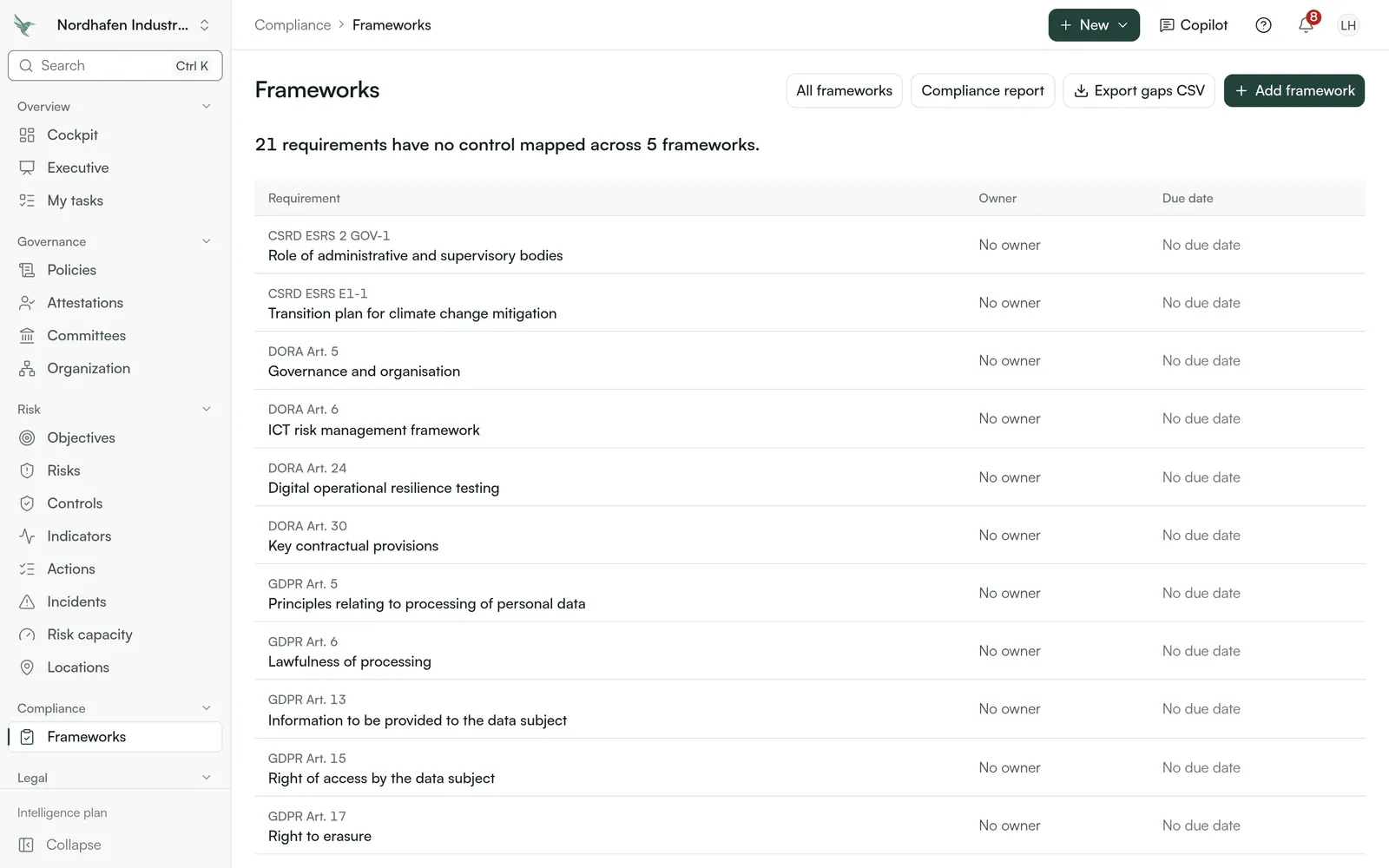
Open Frameworks and note the coverage of each framework and the line that says how many requirements have no control mapped.
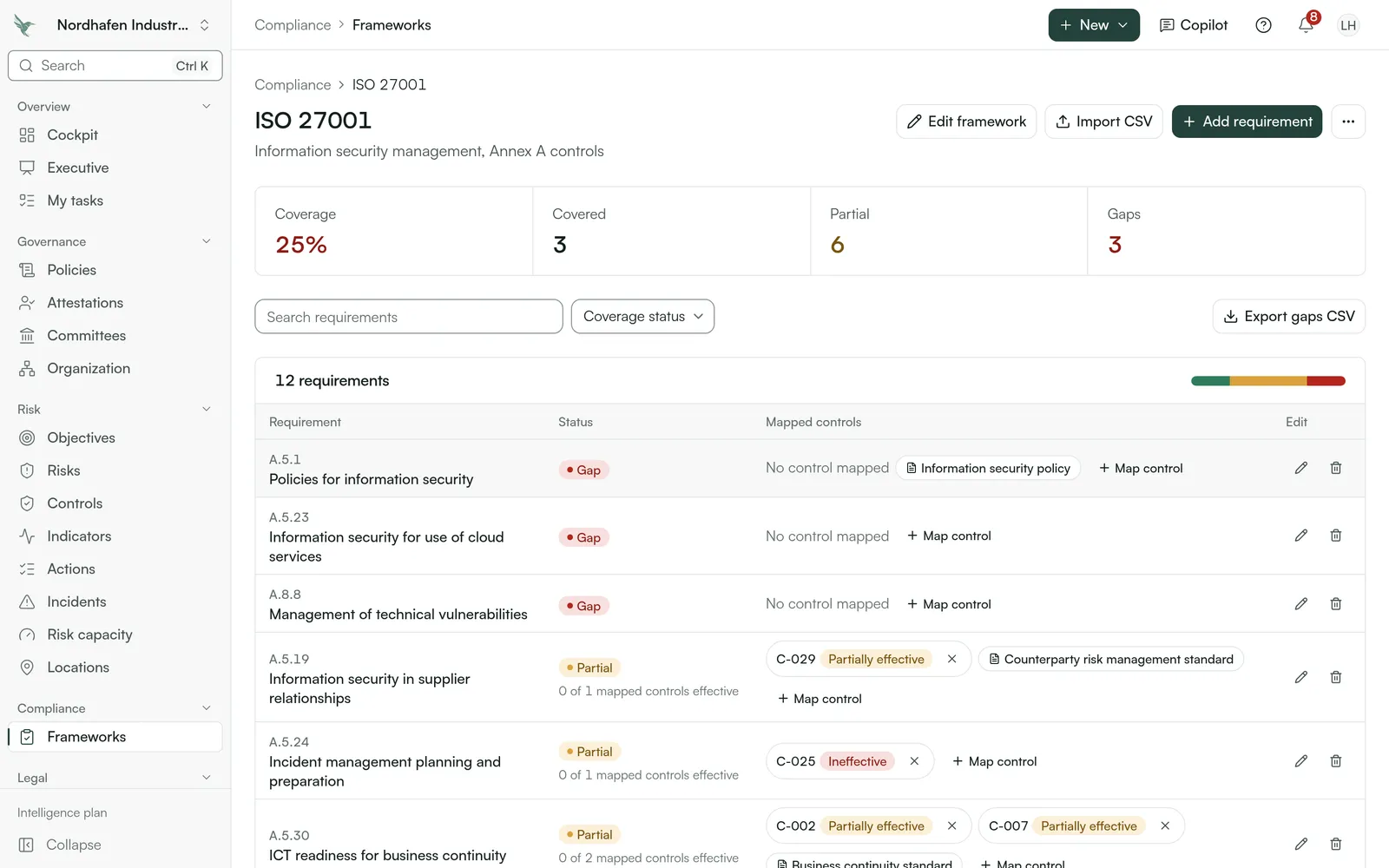
Open the framework you assess. Read the cards Covered, Partial and Gaps. To see the gaps of all frameworks at once, choose the sentence at the top of Compliance ("… have no control mapped across …"): the list shows every gap with its framework, owner, and Due date, soonest due date first.
Set Coverage status to Gap. The list shows requirements with no control mapped.
For each gap, decide which of these applies:
- An existing control already does it. Choose Map control in the row and pick the control. If the control is effective, the requirement becomes Covered at once.
- No control does it. Create the control in Controls with an owner and a test frequency, link the risks it reduces, then come back and map it. See Controls.
- A policy must state it. Open the policy, go to the tab Requirements and controls and link the requirement. Link also the controls that enforce the policy. See Policies.
Set Coverage status to Partial. These requirements have controls, but none is Effective. For each one, open the mapped control and look at its test history.
- If it was never tested, run the test. See Control tests.
- If it failed, fix the control and raise an action if work is needed. The requirement stays partial until a later test passes.
Record who closes what. Open the requirement, enter an owner and a due date (Due date) and save. The row of the gap then shows both. Where the work needs tracking, raise an action.
Return to the framework page. The cards and the percentage have updated. Choose Export gaps CSV to hand the remaining gaps to the owners or to attach to an audit file. The export lists every requirement that is not covered, with its status, mapped controls and due date.
Report the result. The compliance status report shows coverage per framework, gaps first, together with control effectiveness, attestations and policy review. Open it from Frameworks with Compliance report.
What the app does for you
- It calculates the status of every requirement from the mapped controls and their latest test.
- It sorts the table gaps first, then partial, then covered.
- It updates the status at once when you map a control or record a test.
- It writes each mapping and each export to the audit log.
What stays manual
- Deciding whether a control really meets a requirement. The app counts any mapped effective control, so choose the mapping with care.
- Testing the controls.
- Deciding what to do about a gap and who does it.
- Judging whether a requirement applies to you, and justifying it.
Good to know
- A requirement counts as covered if one effective control is mapped. If you need two independent controls for a requirement, check that yourself.
- A policy link does not count towards coverage. Only controls do.