Report builder
Create a report, write the sections, add data blocks, draft the narrative with AI, and manage the library of reports.
The builder is where a report is written. It has two screens: the library with the form for a new report, and the editor for one report.
Role needed
The library
Open Reports and select All reports. The page lists every report with its template, language, number, status, linked meeting and last change. Use the filter above the table to show one audience: Board, Risk, Compliance, Legal or Department. Papers without a report template, such as blank papers and older papers, are listed under Board.
Reports have four statuses: Draft, In review, Approved and Presented. See Approval and snapshot.
Create a report
On the library page, choose New report. Choose a Template. The templates are grouped by reader, Blank paper is under Other.
Choose the Language of the whole document.
Optional: enter a Title. If you leave it empty, the app uses the default title of the template in the chosen language, for example "Risikobericht".
Enter the Reporting period, for example "Q4 2026". It is printed on the cover.
Choose the Purpose: For decision, For information or For discussion. The template suggests one. The purpose sets the verb of the proposed resolution, see Quarterly board risk report.
Optional: choose a Committee meeting. The report is then addressed to that committee and appears on the agenda page of the meeting.
For a department report, choose the Department.
Select Create report. The editor opens with an empty draft.
If you reach the form from a template on the report centre (Create report), or from a live preview (Create report from this), the template, language and department are already filled in.
The editor
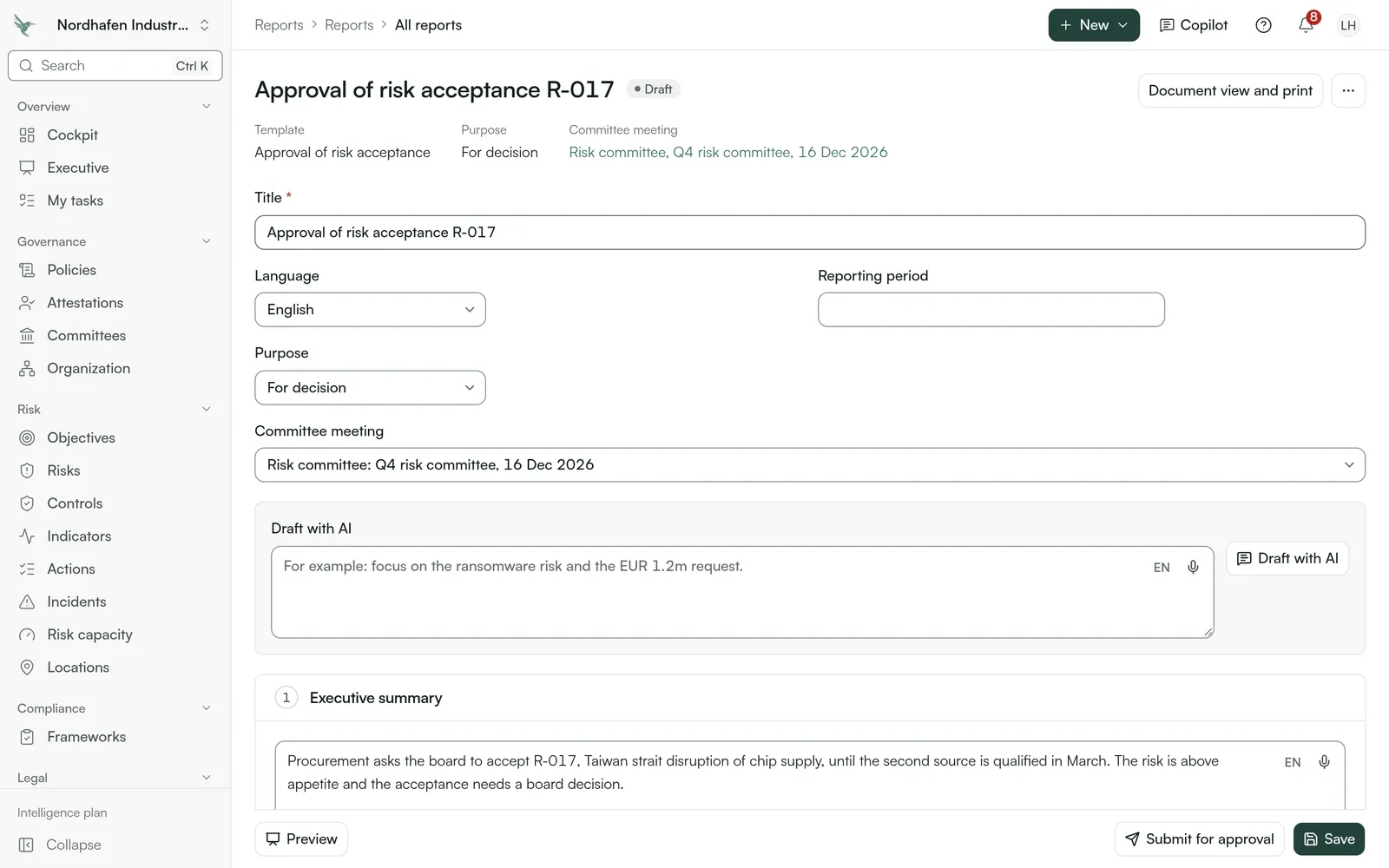
The top of the editor holds the header fields: Title, Language, Reporting period, Purpose and Committee meeting. Below are the sections, in order. Each section has:
- a title and, for most sections, a text field with a hint under the placeholder,
- the list of Data blocks in that section.
Sections
- You cannot remove the standard sections of a template, but you can leave them empty. A section without text and without blocks is left out of the document.
- Select Add section, after entering a title in Title of a new section, to add your own section at the end. You can rename and remove your own sections with Remove section. At most 30 sections are allowed.
- Sections whose content is chart only, such as Method and data date, show no text field.
- Text accepts plain paragraphs, bullet lists starting with
-and numbered lists starting with1..
Data blocks
Under each section, Data blocks lists the charts and tables the section shows. Remove one with the cross next to its name. Use Add data block to add one from the list of data blocks. A section holds at most eight blocks. Any section of any template, including a board paper, can hold blocks.
The editor shows the names of the blocks, not their content. To see the figures, open the Document view.
Insert live figures
Board papers and blank papers have Insert live figures on the Analysis section. It replaces the text of that section with a list of current figures from the register: open risks, risks above appetite, expected downside, bad year loss, capacity, top risks, indicators, losses, overdue actions, controls, compliance coverage and open legal matters, plus the records of the paper template. It uses no AI and no quota.
Draft with AI
Plan needed
Under the header fields, Draft with AI writes the text sections from the data of the report.
Optional: tell the AI what the reader needs to hear, for example "focus on the ransomware risk and the EUR 1.2m request".
Select Draft with AI. If sections already have text, you confirm that it will be replaced.
The AI writes every text section in the report language, with the terms of that language. It uses only the figures of the live data and of the data blocks. The data blocks of your sections stay as they are. This takes up to a minute, and the editor says so while it works. The draft is saved into the report as soon as it is ready, so leaving or reloading the page afterwards keeps it, and the report stays a draft.
Read every section, correct it and select Save before you submit. The editor shows AI draft, not reviewed until you save.
A report saved after an AI draft is marked AI-assisted, and the change is recorded in the audit log as an AI-assisted entry. If a report cannot be drafted, for example because the monthly limit is reached, you see the reason, and an upgrade dialog opens for plan limits.
The text of the AI draft is a proposal. A person remains responsible for every statement in the report.
Save, preview and submit
| Button | What it does |
|---|---|
| Save | Saves the header fields, sections and blocks. The text Unsaved changes shows beside the buttons while there is something to save. The browser warns you before you leave. |
| Preview | Opens the Document view and print of the last saved version. |
| Submit for approval | Saves, checks that the report is ready, freezes the figures and asks the approver to approve. See Approval and snapshot. |
| Delete draft | In the menu More options at the top of the page. Deletes the draft. Only drafts can be deleted. |
| Mark as presented | For an approved report: records that it was presented to the body. |
Before the app discards work, it asks in its own dialog (Please confirm), not in a browser pop-up: when you choose Preview with unsaved changes, when you replace the text of all sections with an AI draft, and when you delete a draft (the button is then Delete). Choose Cancel to keep working.
A report is ready for submission when the text of its first section is written. For a board paper that means the Executive summary, the Recommendation and the Proposed resolution. If something is missing, the message names the sections.
Only a draft can be edited. A report in review, approved or presented is read only. To change an approved report, create a new version.
Versions and language copies
On the page of a report, New version creates a draft copy of an approved or presented report with the same document number and the next version number. Copy in the other language creates a new draft in the other language, see Templates. Both open the new draft.
Live preview without saving
On the report centre, Open shows a template filled with today's data, in a document layout, without creating a report. For the board risk report Open uses your language and the menu More options offers the other one (Open in English or Open in German). For a department report you first pick the department. A preview has no number and is not frozen. Use Create report from this to turn it into a draft.
Templates
The report templates for board, risk, compliance, legal and department readers, the board paper templates, and how the German board risk report is structured.
Data blocks
The charts and tables you can add to any report section, what each one shows, who can see it, and how the changes since the last report are worked out.