Approval and snapshot
How a report is submitted, approved and numbered, why its figures are frozen on submission, and how you issue a new version.
A report goes through four statuses: Draft, In review, Approved and Presented. The step that matters is the first one: when you submit a report, the app freezes its figures, so the approver signs exactly what the author saw.
Role needed
The process
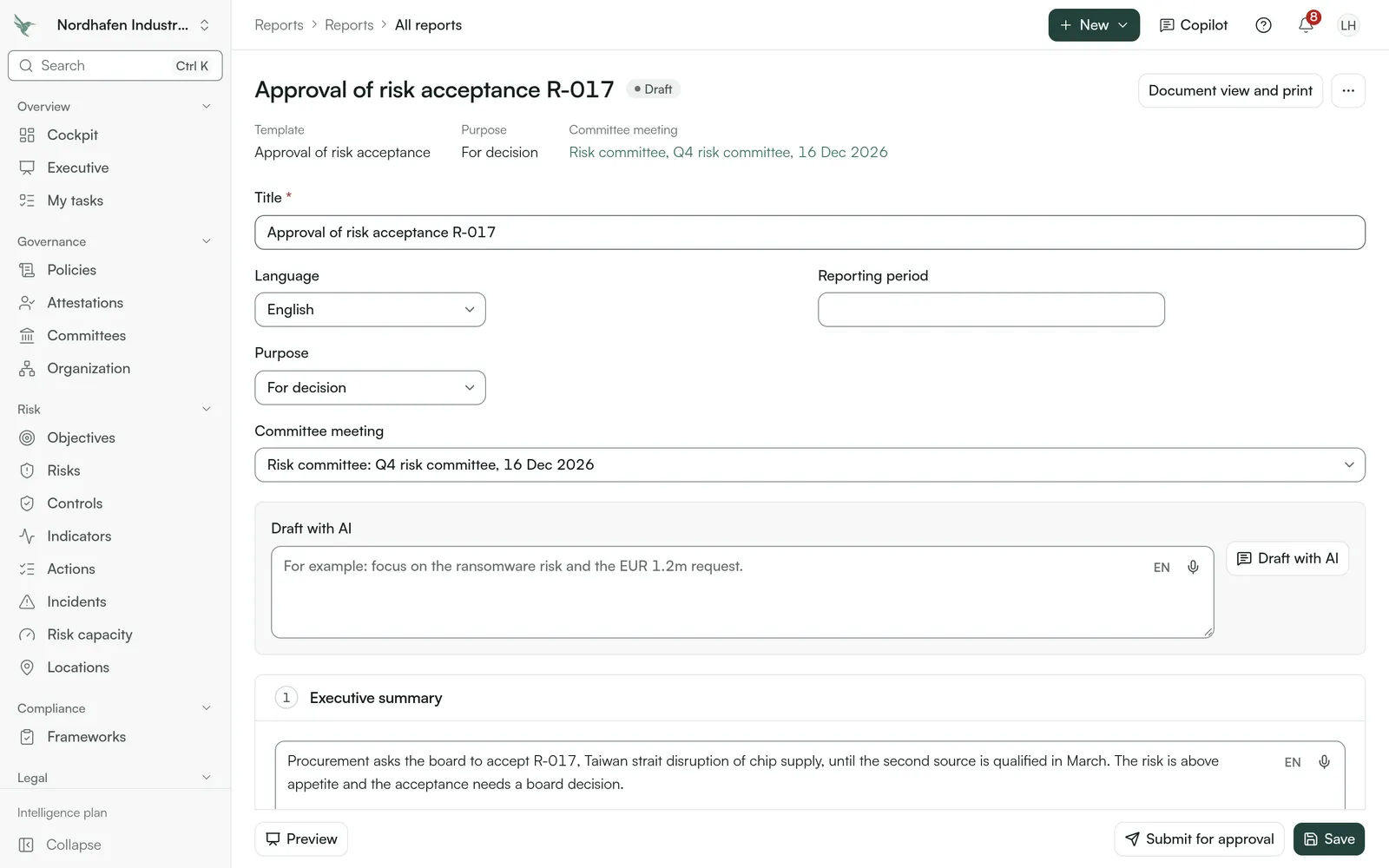
Write the report as a draft. A draft shows live data and changes whenever the registers change.
Select Submit for approval. The app checks that the first section has text. For a board paper it needs the Executive summary, the Recommendation and the Proposed resolution. If one is missing, the message lists it.
The report moves to In review. The app freezes the data blocks: it stores the block data as it was loaded at that moment, with the date. The report is locked. The page says "Figures frozen on" and the date. The frozen figures are the submitter's view: a reader sees a block only if their access to its module covers the report's department, and other blocks are left out for them.
An approval request goes to the approver with the title "Approve board paper: " and the report title. The title appears in the language of each person who sees it. The request also arrives as a notification. It appears in My tasks and in the Decisions required block of the executive cockpit. On the page of the report, the approver selects Approve or Reject. A comment is optional for approval and required for a rejection.
On approval the report becomes Approved and gets its document number. The approver and the date are printed in the signature block.
After the body has met, select Mark as presented. The report becomes Presented.
Who approves
An Admin sets the approver in the settings, on the Organization page, in the panel Who approves reports. Choose a Role, either Administration or Management or Administration, and optionally a Named approver (optional). The default is Anyone with the role, with the role Administration. A named person wins over the role. Submitted reports go to this approver, and the author never approves their own report. If the named person is the author, or is no longer a Manager or Admin, the request goes to the role instead. While a report is in review, the report page says that the approver set in the report settings decides, and an author sees that someone else has to approve.
Rejection
If the approver rejects the report, it returns to Draft, and the frozen figures are dropped. The blocks show live data again. The page shows the panel Returned by the approver with the name and the comment. Rework the report and submit it again. A new snapshot is taken on each submission.
What the snapshot holds
| Status | What the document shows |
|---|---|
| Draft | Live data, "Data as of" today, marked live |
| In review, Approved, Presented | The frozen data of the submission date, marked frozen |
The snapshot holds the data of the blocks only. Your text is part of the report and cannot be changed once the report leaves the draft status. The snapshot is taken with the access of the person who submitted. Because the text and figures are the submitter's view, a report can only be opened by people whose reports access covers its department. A report of one department opens for readers of that department, and an organization-wide report only for readers with reports access to the whole organization. Others do not see it in the list and get "not found". This keeps the frozen figures the approver signed truthful and shows nothing beyond a reader's department scope.
A report without data blocks has nothing to freeze.
The snapshot also keeps the list of open risks that the next report of the same template compares against, see Data blocks.
Document numbers
A report gets its number when it is approved. The number is built from a prefix per template, the year and a running count of that year: RB-2026-001.
| Prefix | Template |
|---|---|
| RB | Board risk report |
| MR | Management risk report |
| CS | Compliance status report |
| LC | Legal and contracts report |
| DR | Department report |
| BP | Board papers and blank papers |
The count is per prefix and per organization, and it starts again each year. A draft has no number: the document shows "Not numbered yet (draft)".
Two approvals at the same moment
The number is the next free count when the approval is saved. If two reports with the same prefix are approved in the same second, they can receive the same number. Check the numbers if your approvers work in parallel.
New version
Select New version on an approved or presented report. It creates a draft copy with the same document number and the next version number, for example RB-2026-001, version 2. The copy has the same sections and text, and no snapshot. Edit it, submit it and have it approved like any report. The earlier version stays as it was approved. Once a newer version exists, the earlier one is marked Replaced by the number and version, for example "Replaced by RB-2026-001 v2", in the report list and on the document. Only an approved or presented report can get a new version, and only the latest version of a document: if a newer version already exists, open that one instead.
Copy in the other language
Copy in the other language makes a new draft with its own number, not a version. See Templates.
What is recorded
The audit log records creation, each save (marked when it came from an AI draft), submission, new versions, language copies, presenting and deletion of drafts. The approval is recorded with the name of the approver, the date and the comment. See Admin.