Executive cockpit
The one-screen view for the board and C-level: the risk position, decisions waiting, losses against budget, compliance, legal exposure and contract renewals, always live.
The executive cockpit answers one question on a single page: where do we stand today? It is not a document. It always shows current data and has no approval. For a dated, signed document, create a report.
Role needed
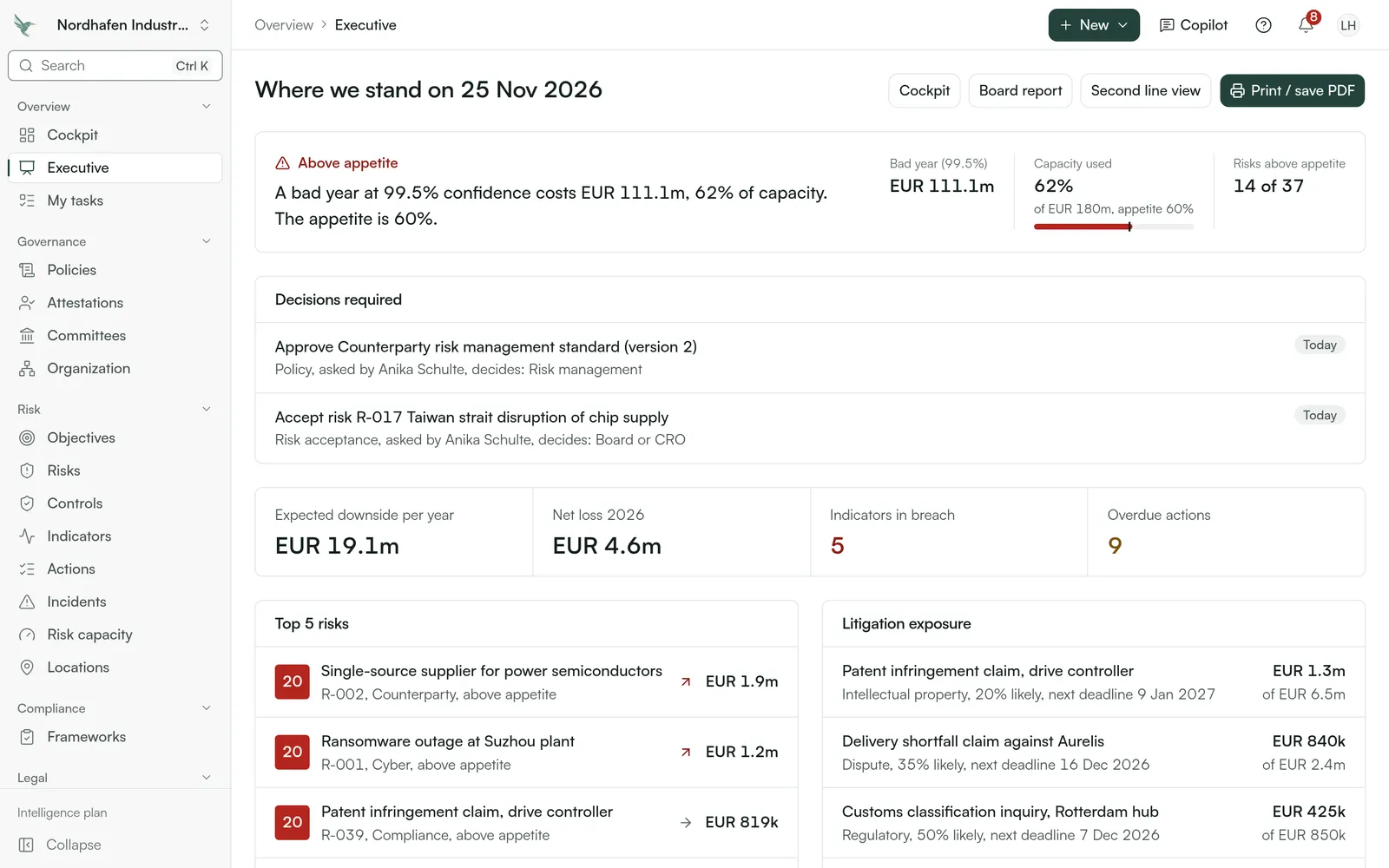
Open it from the menu under Executive, or from Live views on the report centre. The page is headed "Where we stand on" and today's date. Texts, numbers and dates follow the language of your interface.
What the page shows
From top to bottom:
- Risk position. One line with the status, the bad year at the confidence level, the capacity used with a meter and the appetite tick, and the number of risks above appetite.
- Four key figures. Expected downside per year with the number of open risks, Net loss of the year against the budget, Indicators in breach with the number in warning, and Overdue actions.
- Decisions required. Pending approvals in the organization: risk acceptances, board papers, policies, contracts and others. Each row shows the kind, who asked, who decides and how many days it has waited. Six are shown, the rest are in My tasks. A department-scoped person sees only approvals of records they may see.
- Top 5 risks. Residual score first, then expected downside per year.
- Incidents and losses of the current year: gross loss, net of recoveries, the budget for the year, a meter against the budget with a tick for the pro rata level of today, and the largest incident.
- Compliance. Coverage per framework with a status word: On track from 80% coverage, Attention from 50%, Gaps below 50%.
- Litigation exposure. Open legal matters with expected downside and claimed exposure, in the organization currency. Matters in another currency are counted but not added.
- Material contract renewals. Contracts that end in the next nine months and have an annual value of EUR 250k or more, or are critical. With the notice date, and badges for critical contracts, missing exit plan and automatic renewal.
- Correlated and independent view of the bad year, when at least one risk is quantified.
- Key risk indicators in breach. The indicators in breach or warning with a trend line.
The block titles link to the module behind them. If your role cannot open that module, the title is plain text.
The page buttons are Cockpit, Board report (opens the board risk report with live data), Second line view and the print button (Print / save PDF). It prints on A4 landscape.
Set the loss budget
The loss budget is the yearly limit that net incident losses are measured against. It is one amount per organization in the organization currency.
In the block Incidents and losses, select Set loss budget. If a budget exists, the button is Change budget.
Enter the amount in the field Annual budget and select Save. An empty field removes the budget.
The amount must be above zero. The cockpit then shows the share of the budget used and whether losses are ahead of the pro rata level for today. The budget is also used by the block Incidents and losses in reports and by the year-end pack.
Start on the executive cockpit after sign in
Admins can choose the executive cockpit as their start page, in two ways:
- At the bottom of the page, tick Open here after sign in.
- In the settings under Language, choose Cockpit or Executive cockpit under Open after sign in in the section Start page.
After you sign in, you land on the executive cockpit instead of the cockpit. A click inside the app still opens the cockpit. The choice is per person.
Cockpit and reports
| Executive cockpit | Report | |
|---|---|---|
| Data | Always live | Live in draft, frozen after submission |
| Number and approval | No | Yes |
| Language | Follows your interface | English or German per report |
| Use | Work from it, look at it in a meeting | Hand it to the board, keep it as evidence |
See also: Reading the charts explains each chart with a worked example.