Developer
What a developer does in Volatilis GRC: create access tokens, call the REST API, import data, subscribe to webhooks and connect AI assistants over MCP.
Role needed
You connect Volatilis GRC to other systems: a data feed into the registers, an event stream out to your tools, or an AI assistant that reads, drafts and, where you allow it, changes records.
What you do
- Create an access token for a script, a service or an MCP client.
- Read and write records through the REST API.
- Load records in bulk.
- Receive signed events as webhooks.
- Connect an AI assistant over MCP.
- Subscribe a calendar to contract key dates.
Tokens carry your access
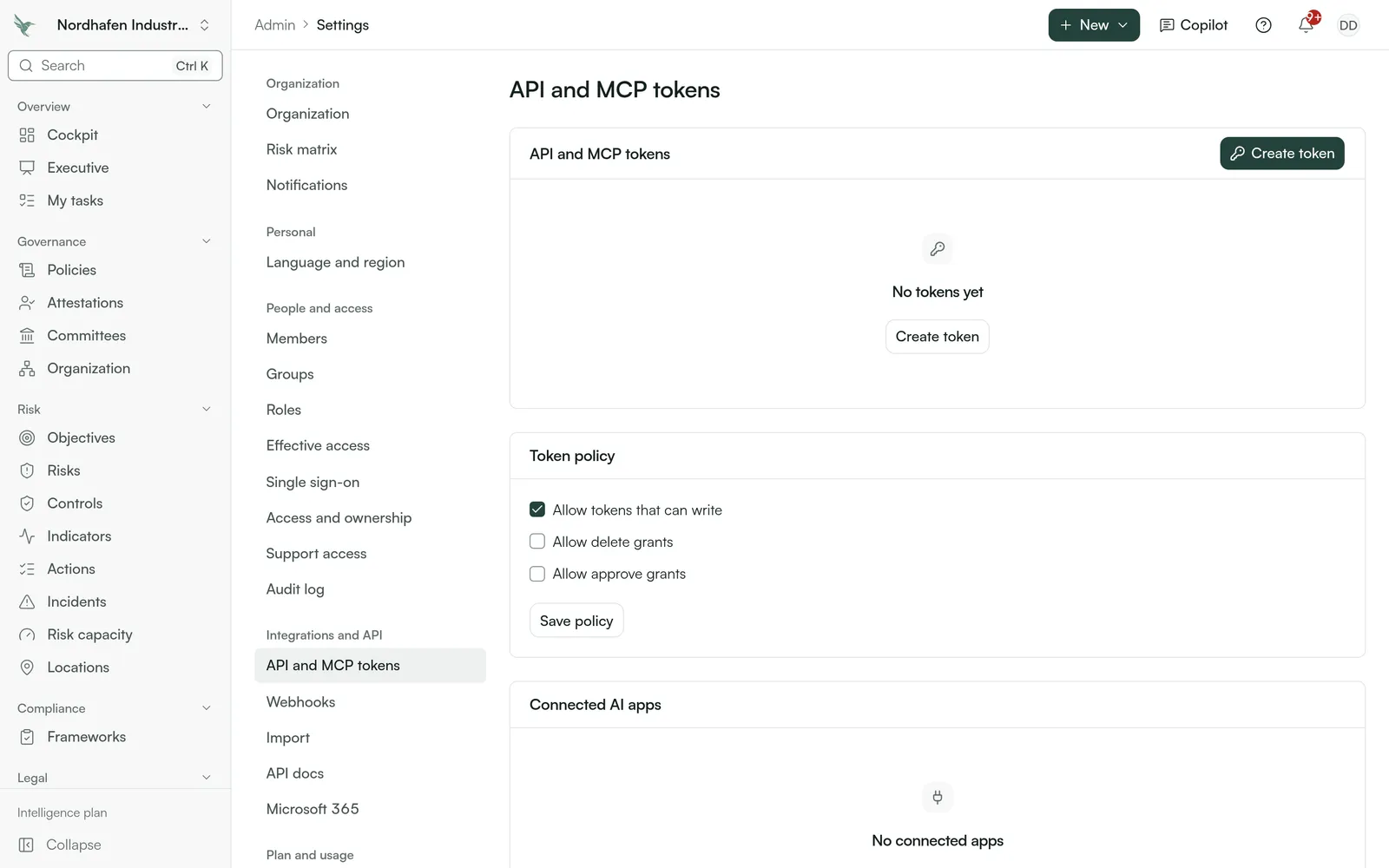
A token inherits your effective access and never more. If your role has no create rights, your tokens are read only. When you create one you choose the access:
- Read, which never drafts or saves.
- Read and write, which lets a client create and change the records your role allows, in the modules you tick.
- Read, write and bulk import, which also allows importing files through the REST API.
Delete and Approve are separate boxes in the module grid and off by default. See Authentication and Writing safely.
The token is shown once. Copy it into your password manager or the client configuration. Revoke it under Access tokens if it leaks. Revoking is recorded in the audit log.
You can set an expiry. Allow accepting drafts lets an assistant save records without you opening the app, so leave it off unless you need it.
Any member can create their own tokens, under My access tokens. Admins see Access tokens for the organization.
Your pages
| Page | Use it to |
|---|---|
| Settings, API and MCP tokens | Create and revoke tokens. See Authentication |
| Settings, API docs | The REST API reference, open to every member |
| Settings, Webhooks | Admins subscribe endpoints to events. See Webhooks |
| Settings, Import | Bring records in from a spreadsheet. See Bulk import |
| Copilot | The in-app assistant, for comparison with MCP |
Your workflows
Related: OAuth, SCIM and Calendar feed.
Limits that matter to you
Your plan caps access tokens, API calls and more. A bulk import request counts as one API call, and the row limits follow the plan's record limits.
| Limit | Foundation | Intelligence | Tailored |
|---|---|---|---|
| Members | Unlimited | Unlimited | Unlimited |
| Risks | Unlimited | Unlimited | Unlimited |
| Contracts | Unlimited | Unlimited | Unlimited |
| Knowledge base documents | Unlimited | Unlimited | Unlimited |
| Active automations and agents | 10 | Unlimited | Unlimited |
| Simulation runs this month | 10 | Unlimited | Unlimited |
| Copilot chat requests this month | 10 | 30 per member, pooled | Unlimited |
| AI contract checks this month | 1 | 3 per member, pooled | Unlimited |
| AI table cells this month | 0 | 100 per member, pooled | Unlimited |
| MCP access tokens | 3 | Unlimited | Unlimited |
| Emails sent this month | 1,000 | Unlimited | Unlimited |
| AI drafts this month | 3 | 15 per member, pooled | Unlimited |
| Active AI agents | 0 | Unlimited | Unlimited |
| Document Intelligence pages this month | 20 | 50 per member, pooled | Unlimited |
| File storage | 2 GB | 100 GB | Unlimited |
| Automation runs this month | 1,000 | Unlimited | Unlimited |
| REST API calls this month | 1,000 | 50,000 | 1,000,000 |
| MCP tool calls this month | 1,000 | Unlimited | Unlimited |
Your reports
Admins can export the usage meters with Export CSV on the Usage page. See Usage and quotas.