Admin
What an organization admin does in Volatilis GRC: members, roles, plan and usage, integrations and the audit log.
Role needed
You set the organization up and keep it safe. You decide who joins, what they see, which plan you are on and which systems connect. Everything you do is in Settings.
What you do
- Create the organization, set the currency and the risk matrix.
- Invite members, assign roles and deactivate people who leave.
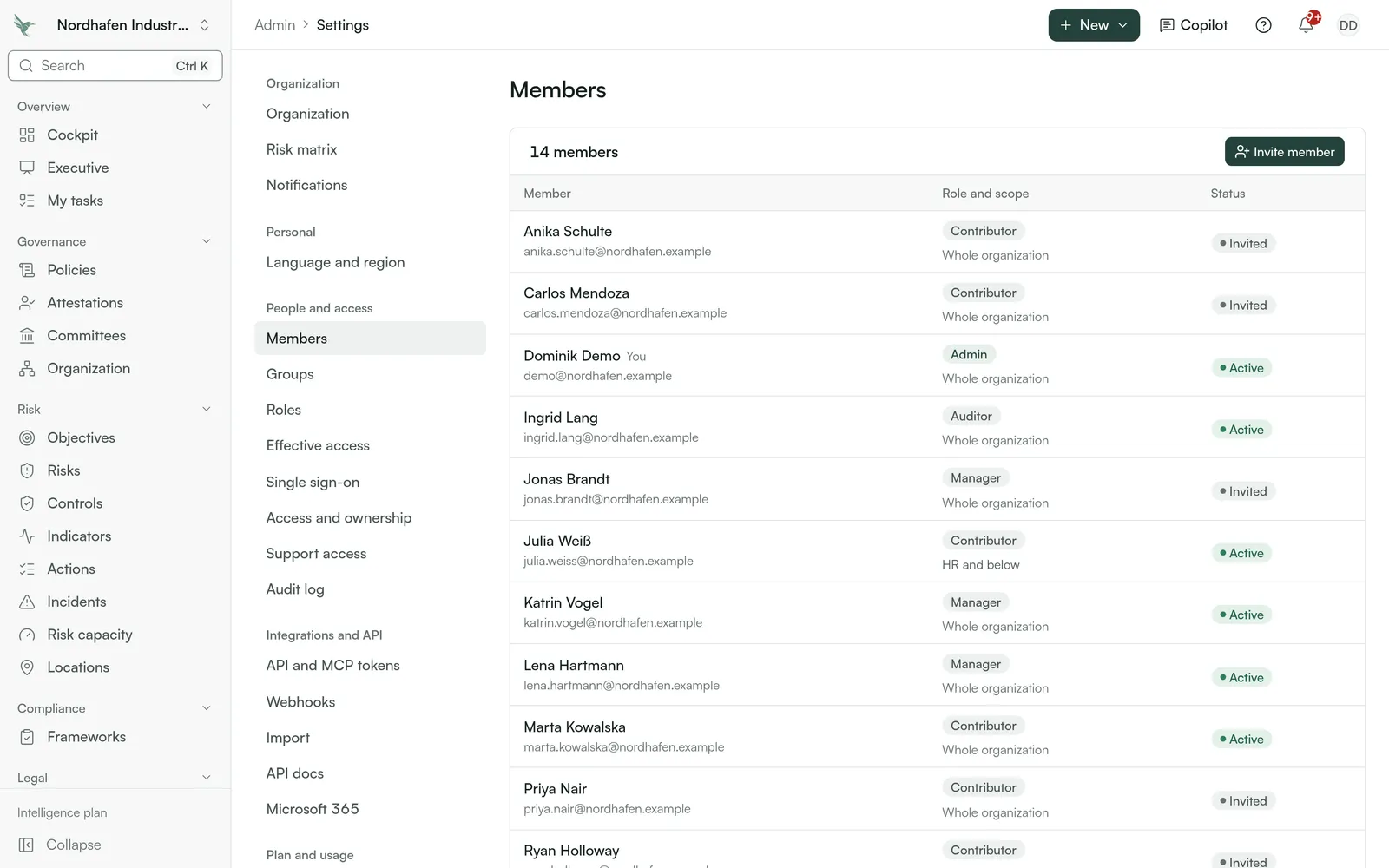
- Build groups and custom roles, and limit access to departments.
- Watch usage against the plan and upgrade when you need to.
- Connect integrations, tokens and webhooks.
- Review the audit log.
Your pages
Settings is grouped. You see all of it.
| Group | Tabs |
|---|---|
| Organization | Organization, Risk matrix, Notifications |
| Personal | Language |
| People and access | Users, Groups, Roles, Effective access, Single sign-on, Access and ownership, Audit log |
| Integrations and API | Access tokens, Webhooks, Import, API docs, Microsoft 365 |
| Plan and usage | Billing, Usage |
For each, see Organization, Members and invitations, Roles, groups and scope, SSO and SCIM, Billing and plans, Usage and quotas, Imports, Webhook settings, Notifications and Audit log.
Your week
Invite and onboard
Open Members, then Invite member. Paste up to 50 email addresses, separated by commas, spaces or new lines, and choose the role. Each person gets an email with a link. If email is not available, you get links to send yourself. Each works once and expires in 14 days.
Check who sees nothing
A member with No module access sees only what custom roles and groups give them. The Users page warns "This person cannot see anything yet" until you assign a role. Use Effective access to check what a person can do.
Deactivate leavers
Deactivating a member removes access, and their records stay as they were.
Watch usage
Usage shows the meters for the month. When a limit is near, upgrade under Billing. See Plans and limits.
Read the audit log
Skim recent changes, filter by person or entity type, and look at AI-assisted entries.
Powers that only you have
- Billing and Members. Managers can see them but not change them.
- Transfer ownership: another member becomes the owner and an admin, and you become a manager.
- Leave organization. The last admin cannot leave.
- Delete organization. It locks the organization now and removes all data after 7 days. An admin can restore it until then. You confirm by typing the organization name, and a recent sign-in is needed or an email code.
- Approvals addressed to the admin role, such as board papers. Under Who approves reports in the settings (Organization) you set who approves reports: a role or a named person.
Plan limits
Custom roles, single sign-on and audit export belong to Intelligence. Built-in roles and Microsoft and Google sign-in are free. The limits of each plan are on Plans and limits.
Your workflows
Setting up access is the main admin workflow. Start with Roles, groups and scope.
Your reports
Usage has an Export CSV for the meters. The Audit log is your record of changes.